October 10, 2022 . 1 MIN READ
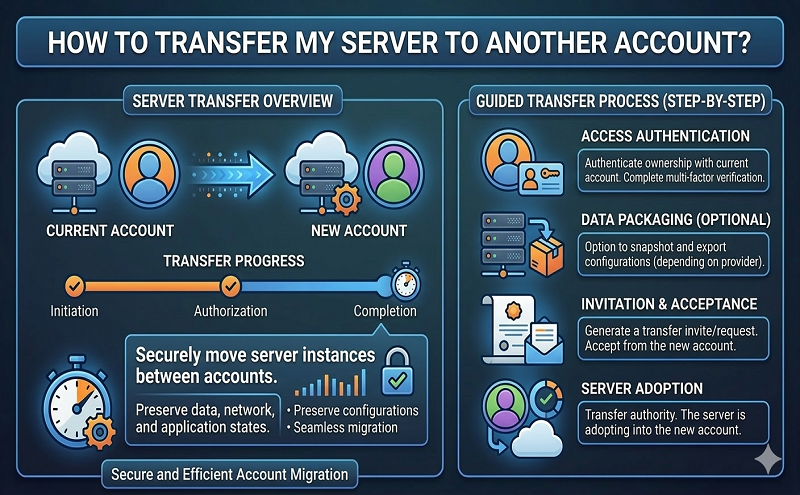
If you need to move a server from one RunCloud account to another, you can use the Transfer Server feature. Please note that this feature is available only for Pro accounts and higher.
Open the Settings section from the menu.
Scroll down until you find the Transfer Server option.
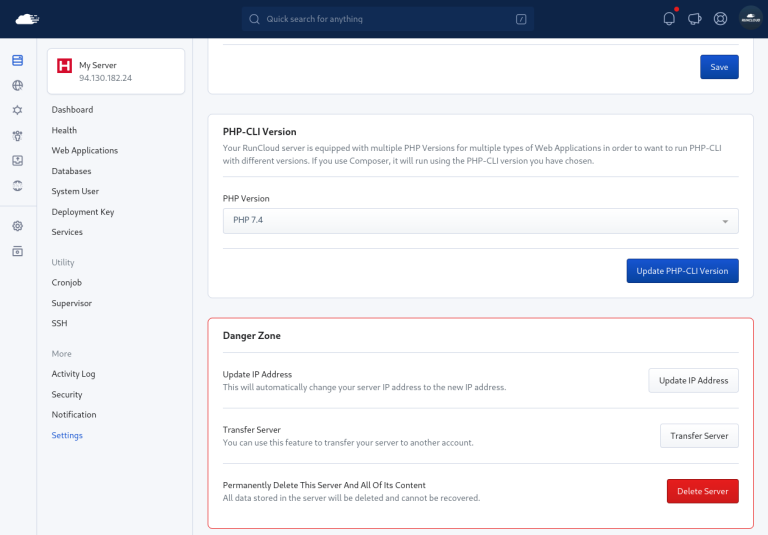
Enter the email address of the RunCloud account that will receive the server.
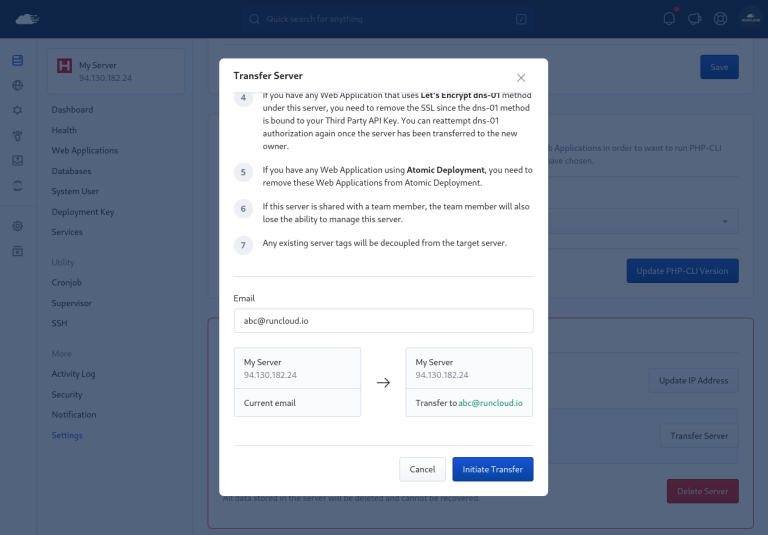
Before initiating the transfer, keep the following points in mind:
Slack Webhook URL, Telegram notifications, and Health Notification settings will be removed during the transfer. These will need to be configured again in the new account.
Any backup instances will be deleted and moved to the Backup Archive after the transfer is completed.
It is recommended to remove SSL certificates before the transfer and reinstall them once the transfer is finished.
If any web applications are using Atomic Deployment, you must disable Atomic Deployment before transferring the server.
The transfer process only changes the RunCloud account ownership; it does not affect the actual VPS provider or server hosting.
Reference:
https://runcloud.io/knowledgebase/articles/server-management/how-to-transfer-my-server-to-another-account