September 27, 2021 . 3 MIN READ
Open your current WordPress site and check that everything is working.
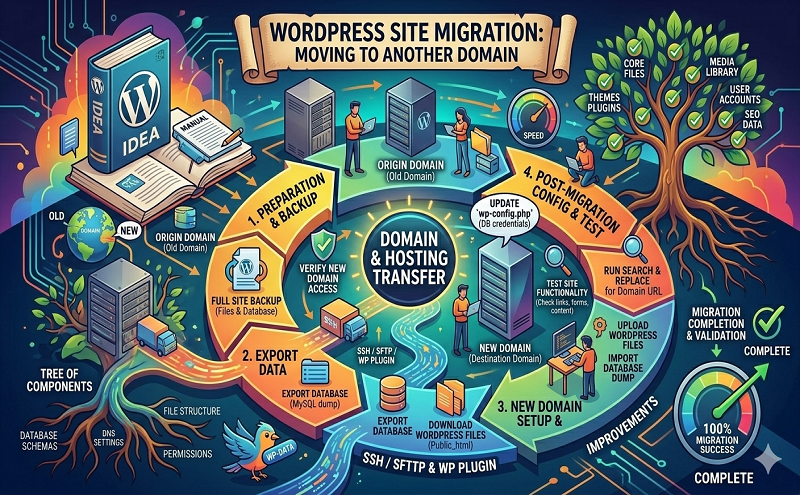
First, you need to create a backup of your website, both your web space files and your database.
Download the files of your website to your computer and save a copy of the files in a separate folder on your computer to keep as a backup.
Check out one of our guides if you would like some help with this:
Export your database with phpMyAdmin and save a copy of the exported sql-file in a separate folder on your computer as a backup.
If you need some help, check out our guide on how to backup your database.
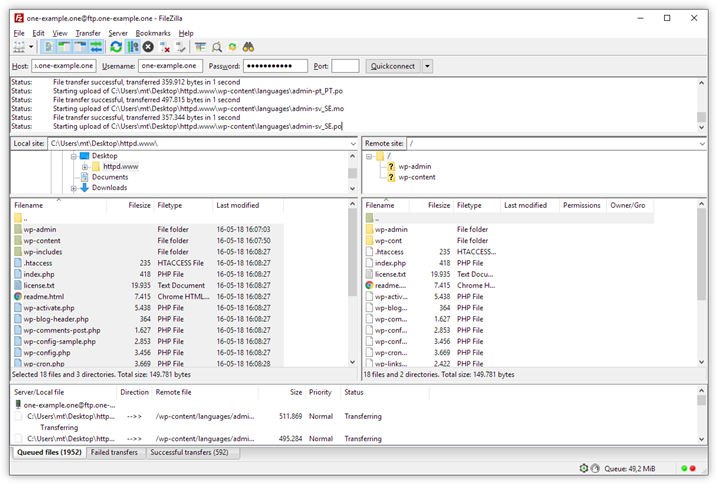
Log in via FTP and upload your backup to the web space of your new domain. If you made your backup with File Manager, don’t forget to unzip it before uploading.
Import the backup of your database to phpMyAdmin. Check out our guide on how to import a database, if you would like some help.
Once your database has been imported, locate the table called wp_options in the menu to the left.
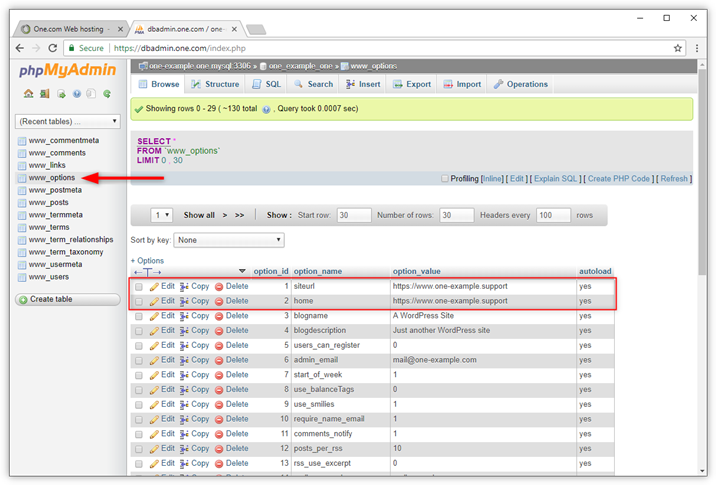
Next, you need to change the location of your site in the database.
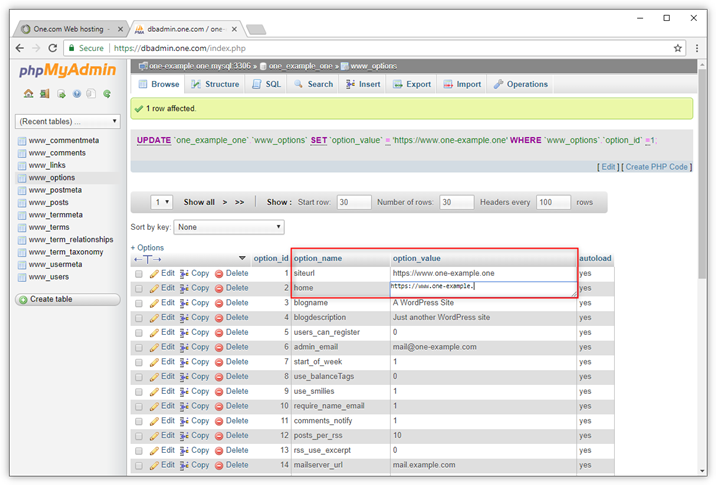
You now need to replace the login details from your old domain, with those of your new domain in WordPress.
We have created a guide on how to update the connection details in case you need some help.

Take your old site offline, to make sure it doesn’t interfere with your new site. You can do this by moving the files to a different folder.
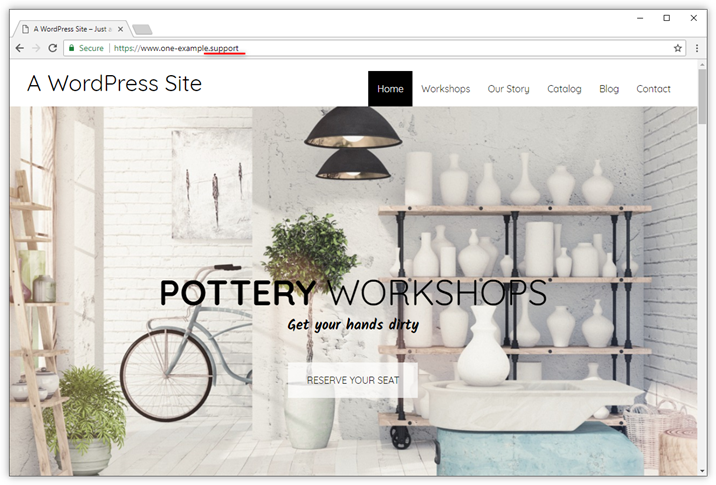
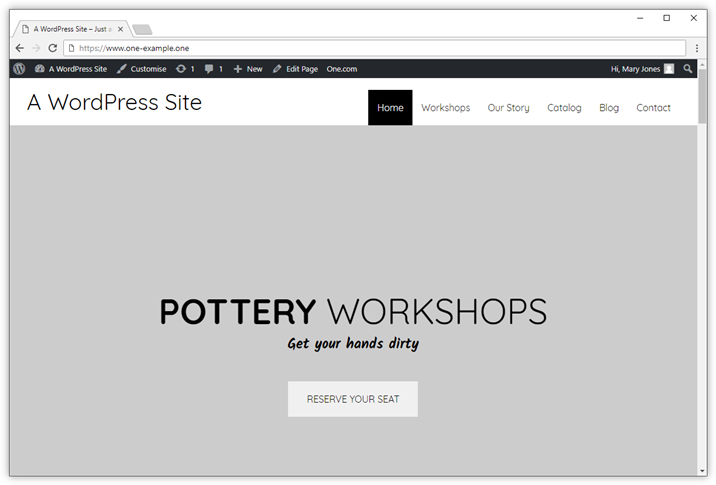
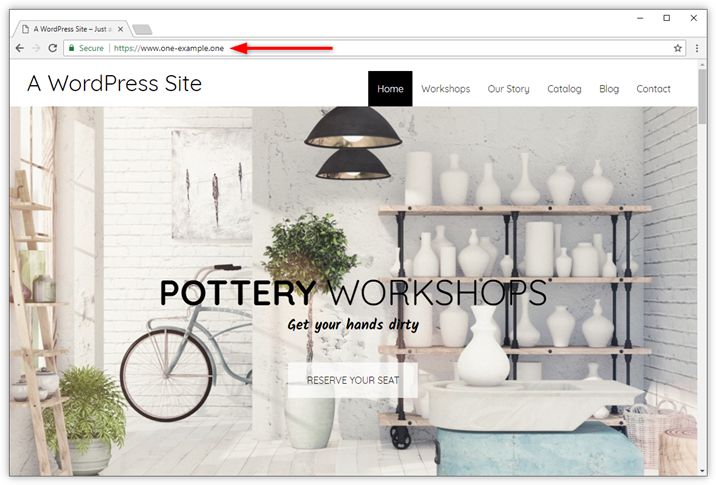
Open your new domain in your browser and check how it looks. If everything is working as intended you are now done. However often you still need to do some manual fixes.
If you experience that you get a 404 error when you try to open links on your site, the Permalinks are broken. Luckily it is very easy to fix this.
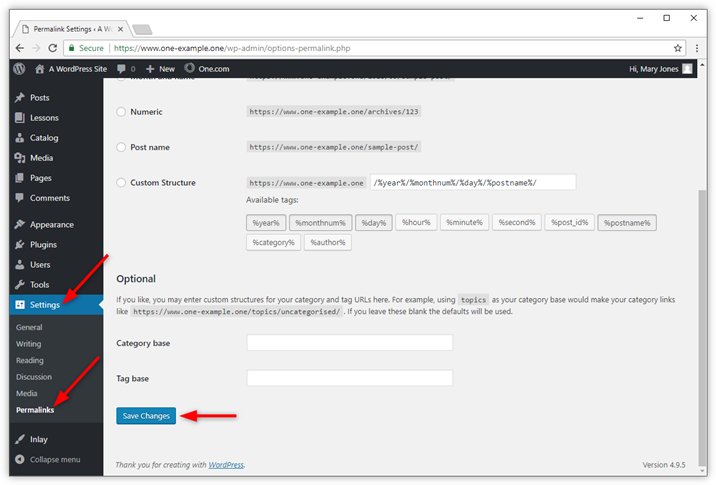
If you experience that images don’t show correctly, this means that the links are still referring to the old domain. You can fix this by reinserting images manually.
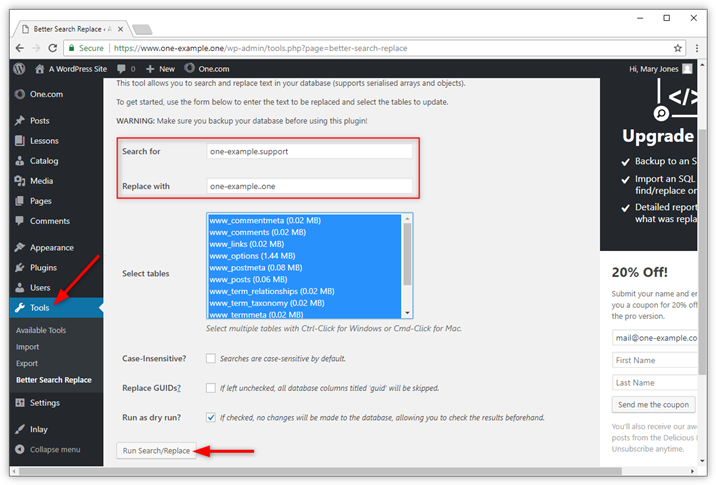
When you have a website with a lot of images you can try a plugin called Better Search Replace. It automatically replaces your old domain with your new domain in your database.
Note: Plugins are third party products and not something we can help you with. Please contact the maker of the plugin if you have any problems. We recommend you to make a backup of the files on your website and your database before making any changes.
In most cases, your website is now successfully moved, including images and links. If you still encounter problems, we recommend you to check the WordPress codex for more help.
Resource: https://help.one.com/hc/en-us/articles/115005585969-Move-your-WordPress-site-to-another-domain
Read more: https://wordpress.org/plugins/better-search-replace/