
July 9, 2021 . 2 MIN READ
https://support.volusion.com/hc/en-us/articles/210080897-Navigation-Menus
Additional Settings
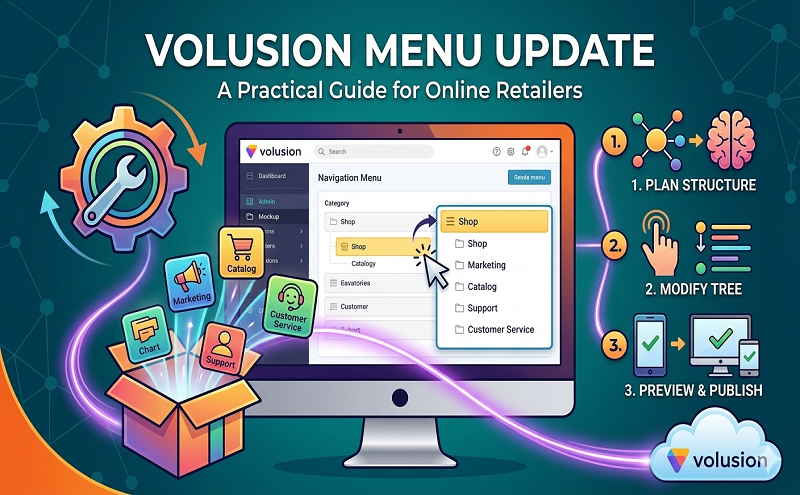
Note that within the Navigation Menu page, navigation settings can be configured for each template loaded into your store. The settings for each template are independent of each other. Change the Navigation Menu settings configured for each template with the View Menus For Template menu near the top right of the page. Select any of the templates loaded into the store to configure menu settings for that template.
Note that when settings are changed within any of the menu levels within the Navigation Menu page, you must click Save at the bottom of the page.
If Enable Immediate Publish in Config Variables is deselected, there will be three options in the radio button menu above the Save button:
The first option will save the settings within the Navigation Menu page as-is but will not affect the actual storefront.
Choosing Preview this Design After Saving will save the menu changes and show a preview of the storefront in a new window, but will not publish the changes.
The last option will immediately update the storefront with the changes made on this page.
Summary
The Navigation Menu allows quick access to change the look and feel of the navigation elements within your storefront. Being able to do this can be vital, as the navigation menus form the basis of how visitors to your store interact with the storefront, find products, and place orders.
Note that some of the settings within this page are designed for advanced users. Some knowledge of HTML is required for using some of these advanced features. However, the Navigation Menu can scale in usability from basic to advanced users.










