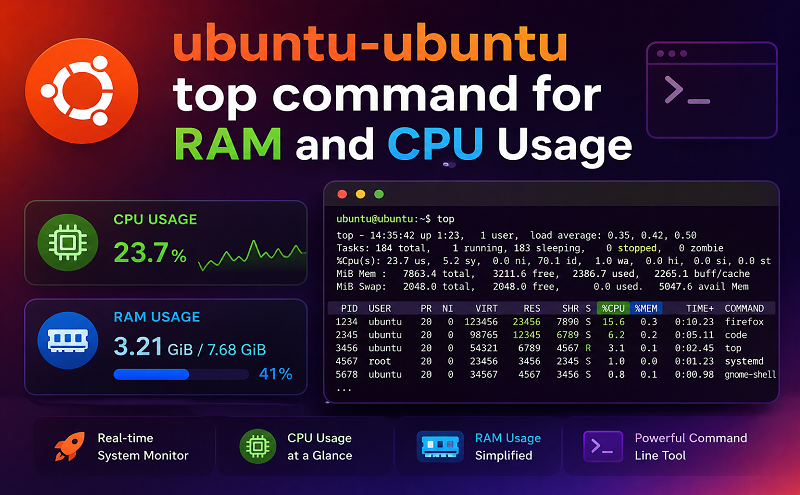
Know how much an individual process or system-wide consume CPU or memory.
As a sysadmin, you often have to deal with an incident where the application is slow or unresponsive due to high CPU/memory/network utilization. If the server host just one process, then it’s easy to find out when the process consumes all the resources. However, imagine a shared server where multiple services are running, and you need to find which one is eating all the resources.
There are many monitoring software which does this out of the box. But if you don’t have one or looking for a command-based solution, then here you go. They are all FREE!
top
You may want to start by looking into top or htop result to see the processes overview.
As you can see below, it gives an excellent idea about what all processes are utilizing. If you look at the first one, which is MySQL is taking 11.9% of CPU and 2.5% of CPU.
The top is installed on almost all Linux distribution.
Once you identify the suspect, then you may want to focus on that process instead of everything like you saw above. You can still use top command but with some argument.
Let’s say you know the process id (PID); you can use the below command.
top -p $PID
Below an example of top -p 3102
You may also use grep with top. Below an example of checking Docker utilization.
htop
Similar to the top but with more information. As you can, it got the command column, which is handy to identify the process path. And also it is colorful.

htop may not be installed by default, but you can always do it as below.