October 1, 2022 . 2 MIN READ
When installing software on Ubuntu, you often add PPAs (Personal Package Archives) to access the latest versions of applications. However, as Ubuntu evolves, older PPAs may stop receiving updates, leading to the “Repository does not have a release file” error.
Whether you are troubleshooting update failures or simply cleaning up your system, here is how to safely remove a PPA.
🚧 Important: Before removing a PPA, it is best practice to uninstall the specific application associated with it using
sudo apt remove application_name.
If you prefer a visual interface, Ubuntu provides a built-in tool to manage your repositories.
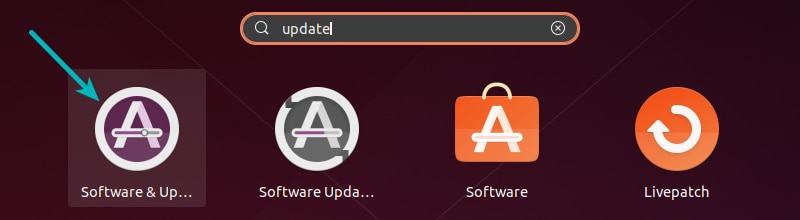
Open the Activities overview (Super key) and search for Software & Updates.
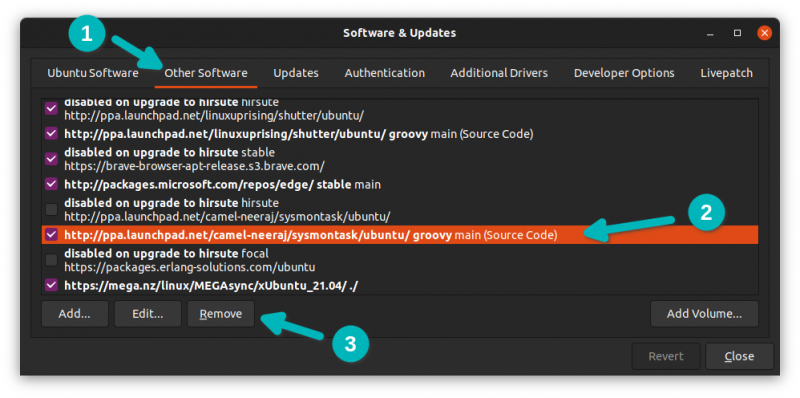
Navigate to the Other Software tab.
Select the PPA you wish to delete from the list.
Click Remove.
This is the most direct method. If you used add-apt-repository to add a PPA, you can use the --remove flag to take it out.
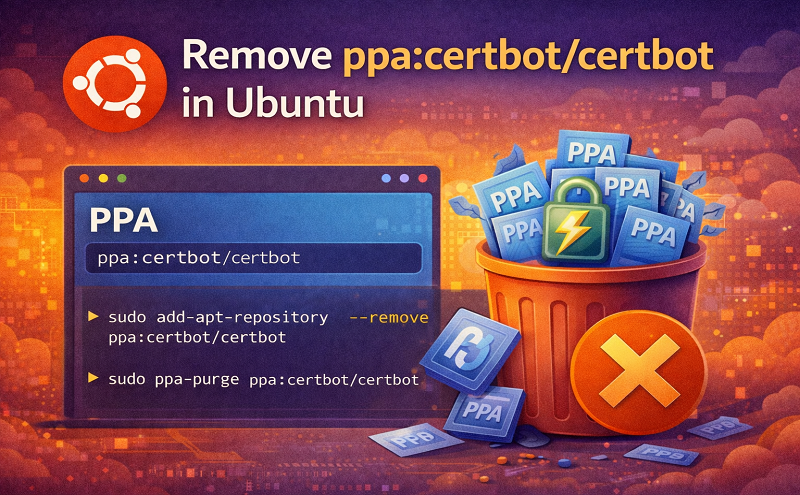
sudo add-apt-repository --remove ppa:PPA_Name/ppa
Replace PPA_Name with the actual name of the repository. This method is clean and handles the removal of the underlying .list and GPG keys correctly.
This method involves removing the configuration file directly from the system directory. While effective, it is less automated than Method 2.
List your PPAs:
ls /etc/apt/sources.list.d
Remove the specific .list file:
sudo rm -i /etc/apt/sources.list.d/PPA_Name.list
The -i flag adds a safety prompt to confirm the deletion.
The previous methods remove the repository but leave the installed software on your system (often in a “broken” or un-updatable state). PPA Purge goes a step further: it disables the PPA and attempts to “downgrade” any installed packages to the official versions provided by the Ubuntu repositories.
Install PPA Purge:
sudo apt install ppa-purge
Purge the PPA:
sudo ppa-purge ppa:PPA_Name/ppa
| Method | Best For… | What it removes |
| GUI | Beginners who dislike the terminal | The repository link only |
--remove |
Quick, standard cleanup | The repository link and GPG key |
Manual rm |
Advanced users/troubleshooting | The specific configuration file |
ppa-purge |
System stability and clean uninstalls | Repo link + downgrades software |
Next Step: Would you like me to generate a terminal-style image showing the exact command syntax for the ppa-purge process?
Reference:
https://itsfoss.com/how-to-remove-or-delete-ppas-quick-tip/