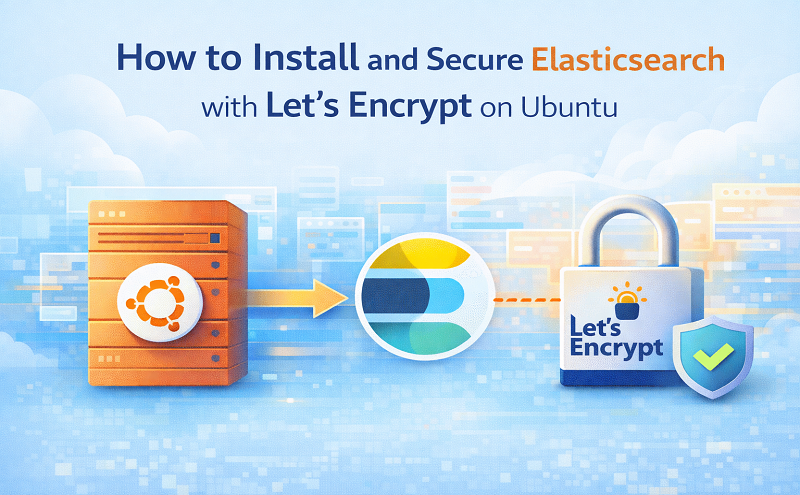
How to Install and Secure Elasticsearch with Let’s Encrypt on Ubuntu

October 26, 2022 . 1 MIN READ

Steps to Generate and Configure a Valid SSL Certificate

  1. Create a DNS Record
    Add an A record that points to the Droplet’s IP address.

  2. Open Port 80
    Open port 80 on the Droplet, as it is required for the Certbot verification process.

  3. Install and Run Certbot

    sudo apt install certbot
    sudo certbot certonly –standalone
    • Enter your domain name when prompted.

    • Certificate files will be generated in:
      /etc/letsencrypt/live/<domain>

  4. Copy Certificate Files to Elasticsearch

    sudo rm /etc/elasticsearch/certs/*
    sudo cp /etc/letsencrypt/live/<domain>/* /etc/elasticsearch/certs/
    sudo chmod 640 /etc/elasticsearch/certs/*
    sudo chown -R root:elasticsearch /etc/elasticsearch/certs/
  5. Update Elasticsearch Configuration
    Edit /etc/elasticsearch/elasticsearch.yml and replace:

    xpack.security.http.ssl.keystore.path
    xpack.security.http.ssl.truststore.path

    with:

    xpack.security.http.ssl.key: certs/privkey.pem
    xpack.security.http.ssl.certificate: certs/fullchain.pem
    xpack.security.http.ssl.certificate_authorities: [“certs/chain.pem”]
  6. Restart Elasticsearch

    sudo systemctl restart elasticsearch
  7. Close Port 80
    Once the certificate is installed, close port 80 on the Droplet.


Notes

  • Let’s Encrypt certificates are valid for 90 days.

  • Set up automatic renewal using:

certbot renew
  • This can be scheduled using CRON to renew before expiration.

Reference:

https://www.cloudbooklet.com/install-and-secure-elasticsearch-with-lets-encrypt-on-ubuntu/

https://github.com/CollectionBuilder/collectionbuilder-sa_draft/issues/37

Leave a Reply

Your email address will not be published. Required fields are marked *