How To Install And Configure Openlitespeed Server Along With Mariadb And PHP On Ubuntu 2004

August 16, 2022 . 3 MIN READ

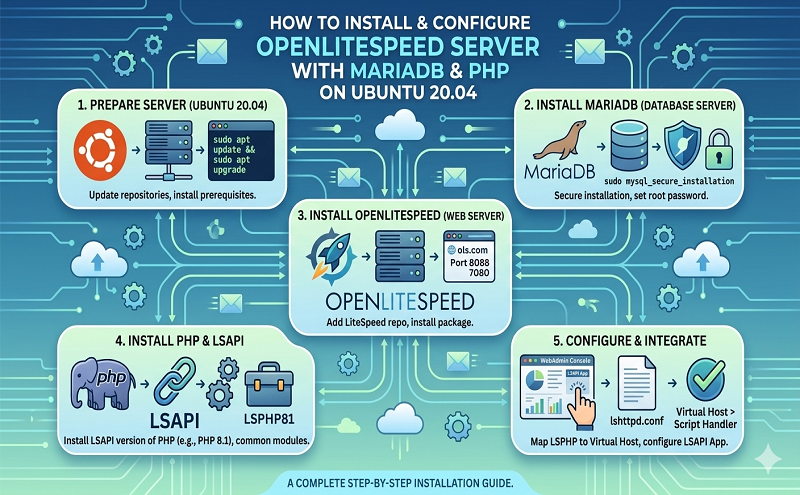
OpenLiteSpeed, PHP, and MariaDB Setup Guide

1. System Update & Firewall Configuration

sudo apt update
sudo apt upgrade

sudo ufw enable
sudo ufw allow OpenSSH
sudo ufw allow http
sudo ufw allow https
sudo ufw allow 7080/tcp
sudo ufw allow 8088/tcp


2. Install OpenLiteSpeed

wget -qO https://rpms.litespeedtech.com/debian/lst_repo.gpg | sudo apt-key add
echo “deb http://rpms.litespeedtech.com/debian/ focal main” | sudo tee /etc/apt/sources.list.d/openlitespeed.list

sudo apt update
sudo apt install openlitespeed

Start and enable the service:

sudo /usr/local/lsws/bin/lswsctrl start
sudo systemctl enable lshttpd
sudo systemctl start lshttpd
sudo systemctl status lshttpd

Check version and port:

/usr/local/lsws/bin/openlitespeed -v
ss -antpl | grep 8088

3. Change Default Port (8088 → 80)

sudo nano /usr/local/lsws/conf/httpd_config.conf

Find:

address *:8088

Replace with:

address *:80

Restart service:

sudo systemctl restart lshttpd

4. Install PHP (LSAPI)

sudo apt-cache search lsphp
sudo apt install lsphp74 lsphp74-common lsphp74-mysql lsphp74-curl

Verify:

/usr/local/lsws/lsphp74/bin/php7.4 –modules

5. Install MariaDB

sudo apt install mariadb-server
sudo systemctl start mariadb
sudo systemctl enable mariadb
sudo mysql_secure_installation

Login:

sudo mysql -u root -p

Create database and user:

CREATE DATABASE testdb;
CREATE USER ‘testuser’ IDENTIFIED BY ‘password’;
GRANT ALL PRIVILEGES ON testdb.* TO ‘testuser’;
FLUSH PRIVILEGES;
EXIT;

6. Access Admin Panel

Set admin password:

sudo /usr/local/lsws/admin/misc/admpass.sh

Access panel:

http://<YOUR_SERVER_IP>:7080

7. Configure PHP in OpenLiteSpeed

  • Go to Server Configuration → External App

  • Add new LiteSpeed SAPI App with:

    • Name: lsphp74

    • Address: uds://tmp/lshttpd/lsphp.sock

    • Command: lsphp74/bin/lsphp

    • Max Connections: 35

    • Environment:

      PHP_LSAPI_MAX_REQUESTS=500
      PHP_LSAPI_CHILDREN=35
      LSAPI_AVOID_FORK=200M
  • Save and go to Script Handler

  • Update handler to use lsphp74

  • Restart server (Graceful Restart)

Test:

http://<YOUR_SERVER_IP>/phpinfo.php

8. Setup Virtual Host

sudo mkdir -p /usr/local/lsws/example.com/{html,logs}
sudo mkdir -p /usr/local/lsws/aff.example.com/{html,logs}

9. Create User & Permissions

sudo addgroup example
sudo useradd -m example -g example

sudo usermod -aG www-data example
sudo groupadd wwwexample

sudo usermod -aG wwwexample example
sudo usermod -aG wwwexample www-data
sudo usermod -aG wwwexample nobody

Set ownership:

sudo chown -R example:example /usr/local/lsws/aff.example.com
sudo chown -R www-data:wwwexample /usr/local/lsws/aff.example.com

Set permissions:

sudo find /usr/local/lsws/aff.example.com -type d -exec chmod 0775 {} \;
sudo find /usr/local/lsws/aff.example.com -type f -exec chmod 0664 {} \;

10. Configure SFTP (Optional)

Edit SSH config:

sudo nano /etc/ssh/sshd_config

Add:

Match User example
ForceCommand internal-sftp
PasswordAuthentication yes
ChrootDirectory /usr/local/lsws/aff.example.com
PermitTunnel no
AllowAgentForwarding no
AllowTcpForwarding no
X11Forwarding no

Restart SSH:

sudo systemctl restart ssh

11. Install SSL (Certbot)

sudo apt install certbot

Generate certificate:

sudo certbot certonly –webroot -w /usr/local/lsws/aff.example.com/html/ -d aff.example.com

Or standalone:

sudo certbot certonly –standalone -d aff.example.com

12. Auto Renewal Test

sudo certbot renew –dry-run

13. Final Notes

  • Restart OpenLiteSpeed after major changes:

sudo systemctl restart lshttpd
  • Ensure correct file ownership and permissions.

  • Keep your system and packages updated regularly.

Reference:

https://www.fcgid.com/how-to-install-openlitespeed-on-ubuntu-20-04-lts-focal-fossa/


https://www.howtoforge.com/tutorial/how-to-install-and-configure-openlitespeed-server-along-with-mariadb-and-php-on-ubuntu-2004/


https://www.secureserverlk.com/install-and-configure-openlitespeed-web-server/

https://upcloud.com/community/tutorials/install-openlitespeed-fast-secure-web-server/

https://itechzo.com/how-to-install-and-configure-openlitespeed-server-along-with-mariadb-and-php-on-ubuntu-20-04/


 

Leave a Reply

Your email address will not be published. Required fields are marked *