Introduction
Most Let’s Encrypt certificates are issued using HTTP validation, which makes it easy to install certificates on a single server. However, this method is not always suitable for certain environments. For example, HTTP validation cannot be used effectively for load-balanced websites or when issuing wildcard certificates.
An alternative approach is DNS validation, which verifies certificate requests using DNS records instead of HTTP responses. With this method, certificates can be issued for multiple servers behind a load balancer or even for systems that are not directly accessible from the internet. DNS validation also supports wildcard certificates.
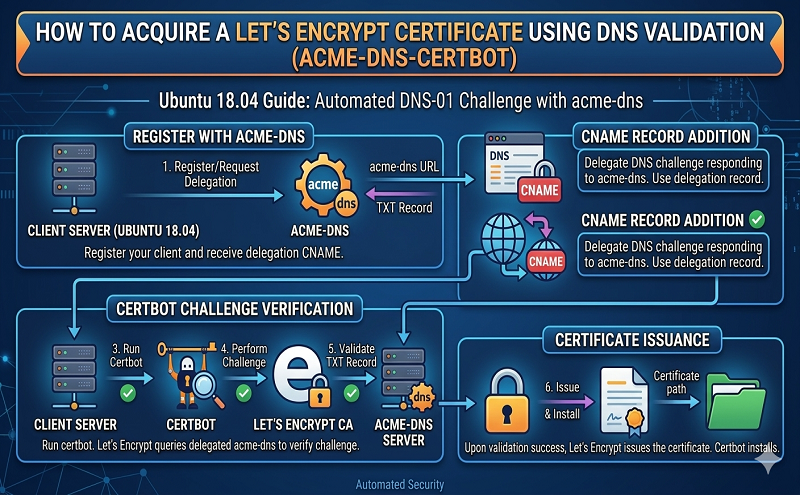
The acme-dns-certbot tool connects Certbot with a third-party DNS service. When you request a certificate, the tool automatically creates the required DNS verification records through an API. This approach improves security because Certbot does not need full access to your DNS provider account or your entire DNS configuration.
Another advantage of this method is the use of delegated DNS zones, which redirect certificate verification requests to the external DNS service. After the initial configuration, you can issue multiple certificates without manually adding DNS records each time.
Additionally, acme-dns-certbot is useful for generating certificates for servers behind load balancers or for internal systems that are not publicly accessible. In such cases, traditional HTTP validation would require manually placing verification files on every server.
In this tutorial, you will learn how to use the acme-dns-certbot hook with Certbot to obtain a Let’s Encrypt certificate using DNS validation.
Prerequisites
Before starting, ensure you have the following:
-
An Ubuntu 18.04 server configured with a non-root user that has sudo privileges.
-
A domain name that you control and can modify DNS records for.
In this guide, example domains such as your-domain, subdomain.your-domain, and *.your-domain will be used. These examples can be replaced with your own domain or subdomains as needed.
Once your server and domain are ready, log in to your server using the non-root user account to begin.
Step 1 — Install Certbot
First, install Certbot, a widely used tool for requesting and managing Let’s Encrypt certificates.
Although Certbot is available in Ubuntu’s default repositories, it is recommended to install it from the official Certbot repository, which provides the most up-to-date version.
Add the Certbot repository:
Press ENTER when prompted to confirm the addition of the repository.
Next, install Certbot:
After installation, confirm that Certbot is working correctly:
You should see output similar to:
With Certbot installed, the next step is to install the acme-dns-certbot hook.
Step 2 — Install acme-dns-certbot
Now that Certbot is installed, you can download the acme-dns-certbot script, which enables DNS-based validation.
Download the script:
For security reasons, it is good practice to review the repository and the script before running it.
Make the script executable:
Next, open the file in a text editor:
Modify the first line so the script runs with Python 3:
This ensures the script uses the supported Python version instead of Python 2.
After saving the file, move it to the Let’s Encrypt configuration directory:
The acme-dns-certbot hook is now installed.
Step 3 — Configure acme-dns-certbot
To begin using acme-dns-certbot, you must run Certbot once to perform the initial setup.
Run the following command to request a certificate using DNS validation:
–manual \
–manual-auth-hook /etc/letsencrypt/acme-dns-auth.py \
–preferred-challenges dns \
–debug-challenges \
-d \*.your-domain -d your-domain
Explanation of the key options:
-
--manualdisables automatic installation features. -
--manual-auth-hooktells Certbot to use the acme-dns script. -
--preferred-challenges dnsensures DNS validation is used. -
--debug-challengespauses the process so you can add DNS records. -
-dspecifies the domain names for the certificate.
If issuing a wildcard certificate, remember to escape the asterisk (*) with a backslash (\).
During the process, Certbot will display instructions similar to:
_acme-challenge.your-domain CNAME <unique-id>.auth.acme-dns.io
You must create this CNAME record in your domain’s DNS configuration. This delegates the _acme-challenge subdomain to the ACME DNS service, allowing it to automatically create the required verification records.
Set the TTL value to around 300 seconds to speed up DNS propagation.
After adding the record, return to the terminal and press ENTER to continue verification.
If everything is configured correctly, you will receive a confirmation message showing the certificate location:
/etc/letsencrypt/live/your-domain/privkey.pem
You have now successfully issued your first certificate using DNS validation.
Step 4 — Using acme-dns-certbot
After completing the initial setup, you can issue additional certificates for the same domain without creating new DNS records.
For example, you can request another wildcard certificate:
–manual \
–manual-auth-hook /etc/letsencrypt/acme-dns-auth.py \
–preferred-challenges dns \
–debug-challenges \
-d \*.your-domain
If you request a certificate for a new subdomain, you will need to add another CNAME record for that subdomain.
Example command:
–manual \
–manual-auth-hook /etc/letsencrypt/acme-dns-auth.py \
–preferred-challenges dns \
–debug-challenges \
-d subdomain.your-domain
Certbot will then provide the required DNS record to create.
Automatic Certificate Renewal
Let’s Encrypt certificates expire after a limited period, but Certbot can automatically renew them.
Run the renewal command:
Certbot will reuse the configuration from the original setup and renew certificates when necessary.
To test the renewal process without making real changes, run a dry test:
This simulates the renewal process and ensures everything is configured correctly.
Conclusion
By configuring Certbot with acme-dns-certbot, you can issue Let’s Encrypt certificates using DNS validation. This method is particularly useful for environments where HTTP validation is not practical, such as load-balanced systems or servers that are not publicly accessible.
DNS validation also enables the creation of wildcard certificates, making it easier to manage certificates across multiple subdomains.
Be sure to periodically check the acme-dns-certbot repository for updates to ensure you are using the latest and most secure version of the script. If needed, the acme-dns server component can also be self-hosted for environments requiring higher security or custom infrastructure.