https://www.lifewire.com/forward-outlook-mail-1170648
Forward Specific Emails Using a Rule in Outlook.com
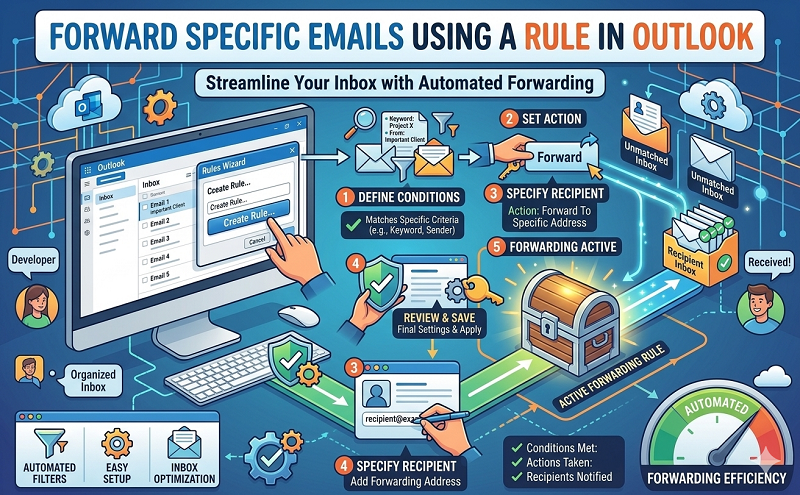
To set up a rule in Outlook on the web that forwards certain messages (based on multiple criteria) to an email address:
- Select Settings> View all Outlook settings.
- Select Mail > Rules.
- Select Add a new rule.
- Enter a descriptive name for the new rule. Select a name that makes it easy for you to remember how the rule is used.
- Choose how to forward the emails by selecting an item from the Add acondition dropdown like these examples (although there are others you can choose from):
- Choose Has attachment to forward all emails with attachments.
- Choose From to forward all emails from a specific sender.
- Choose Importanceto forward only emails marked with high importance.
All conditions must be met for a message to be forwarded.
- Select the Add an actiondropdown arrow and choose the format of the forwarded message:
- Select Forward toif you want the messages forwarded as an email.
- Select Forward as attachmentto forward complete emails as unmodified attachments.
- Enter the email addresswhere new messages matching the rule should be sent automatically.
If you want to forward the email to multiple people, specify more than one address.
- To exclude emails that match certain criteria from being forwarded:
- Select Add an exception.
- Select the Select onedropdown arrow and choose the desired condition. For example, select Sensitivity to exclude messages with a certain priority.
- Select the Select an option dropdown arrow and choose the desired option.For example, select Private to exclude messages marked as private.
- Select Save.
https://www.technipages.com/automatically-forward-email-outlook