

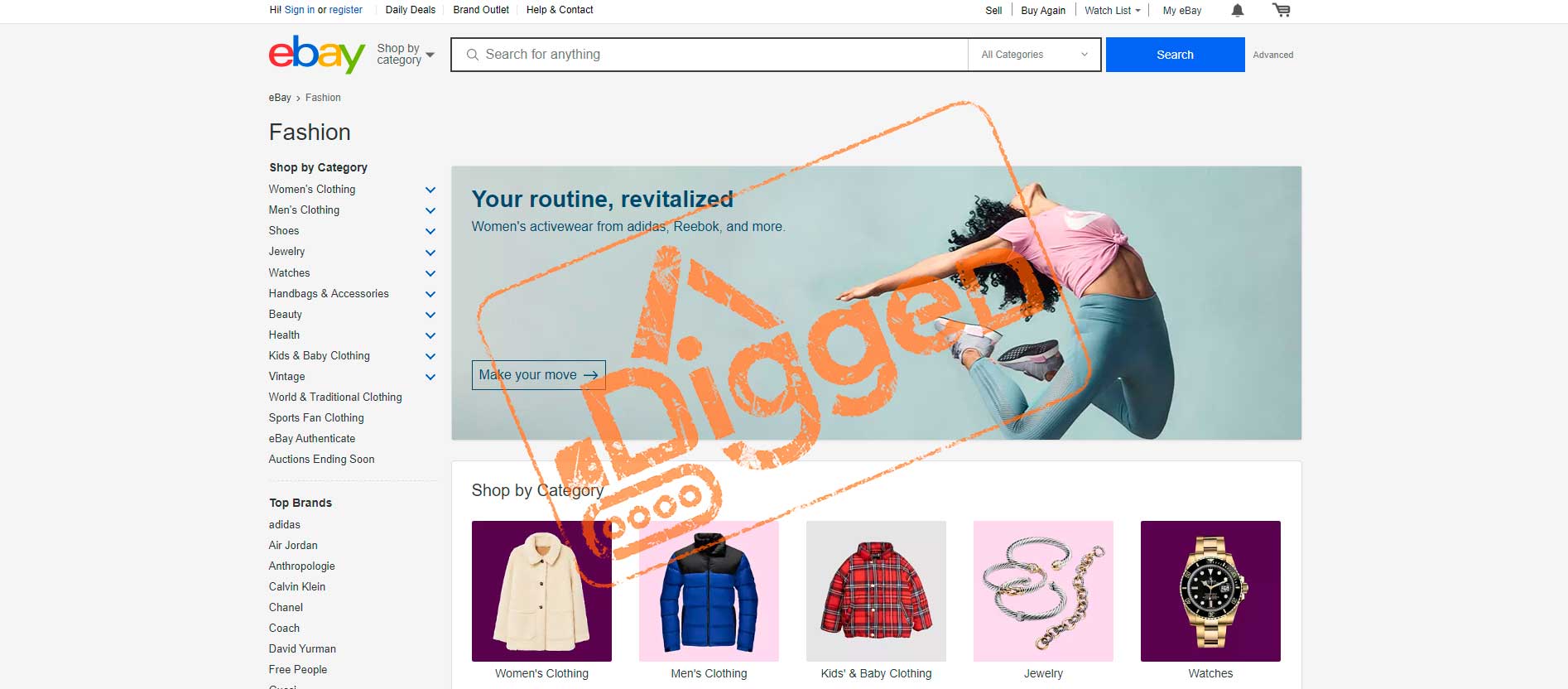
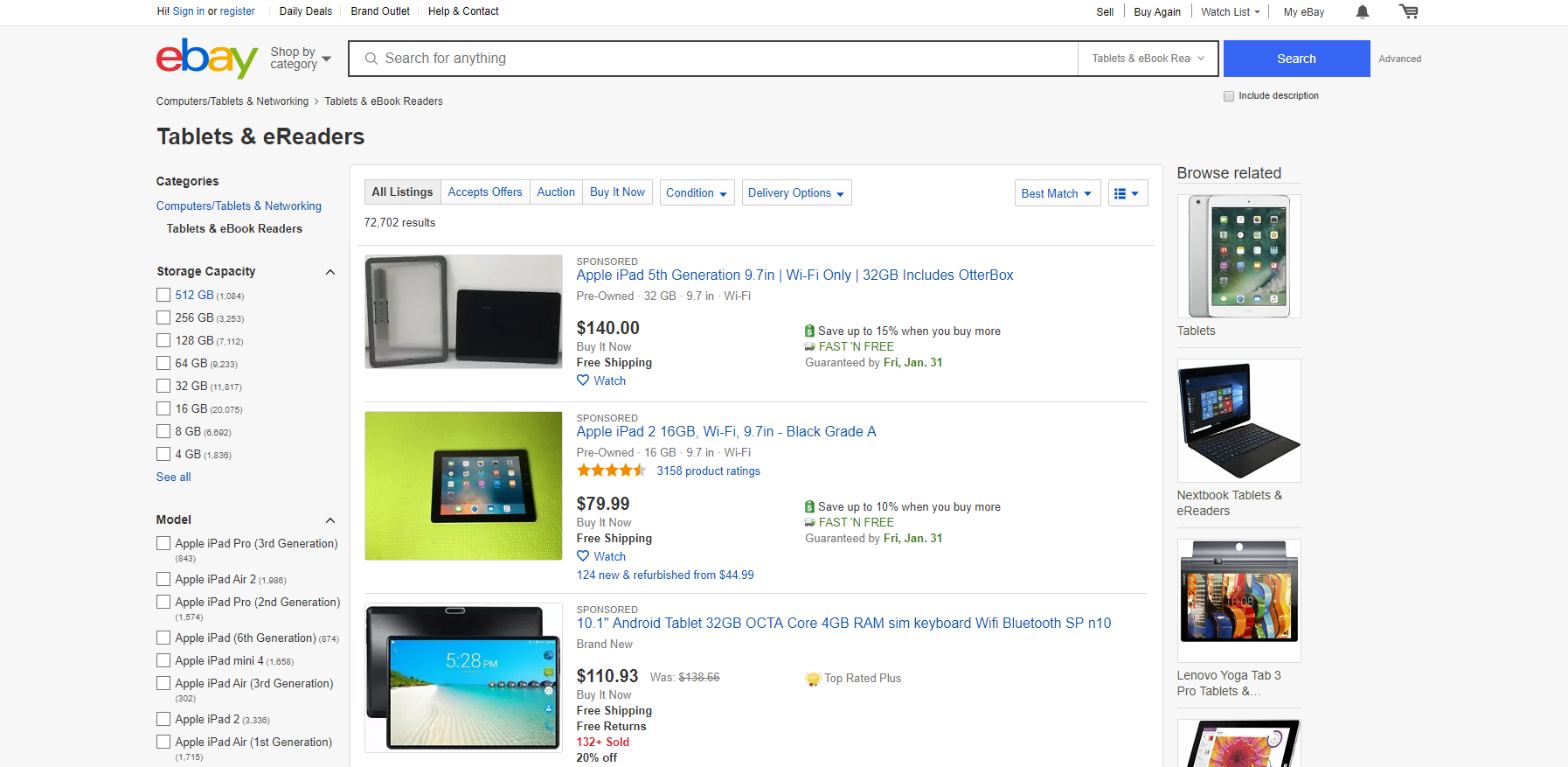
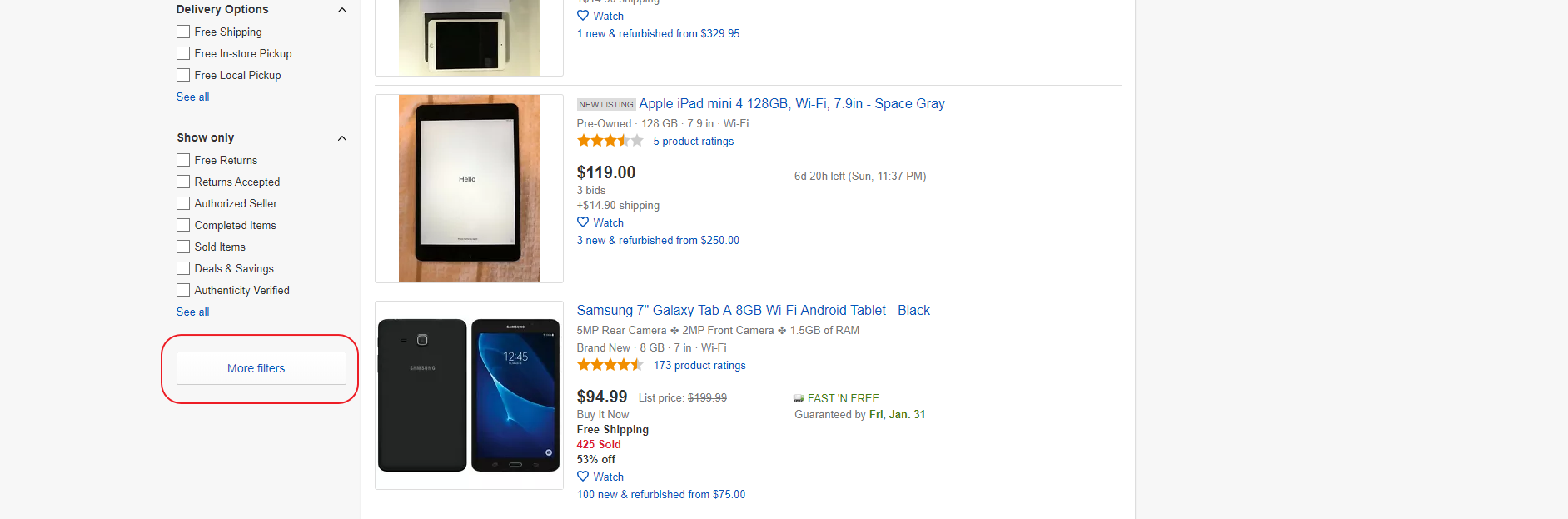
 However, tablets are also shown in this category, and we are only interested in e-readers. To do this, we need to configure the filter for the type of product. Unfortunately, there is no such filter in the main set, so you need to click on the “More Filters” button, which will open a window with a list of all filters.
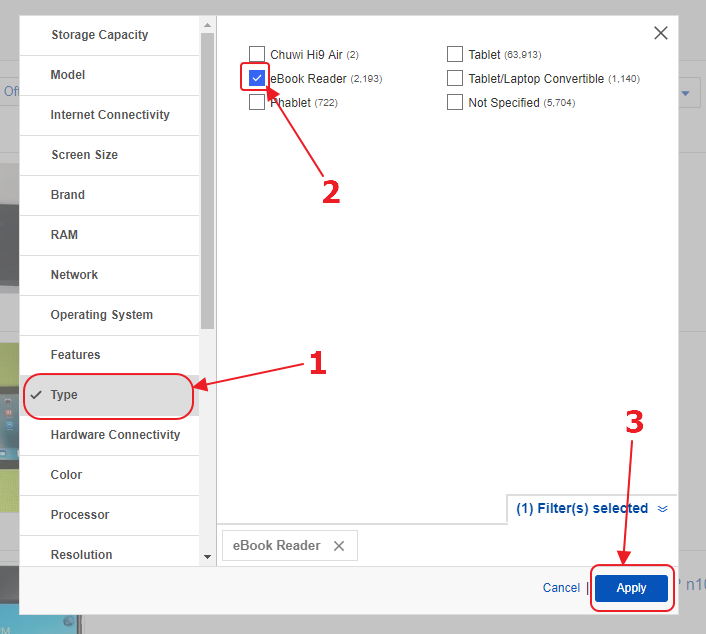
There we need to find the “Type” filter, select the “e Reader” option in it and click on the “Apply” button.
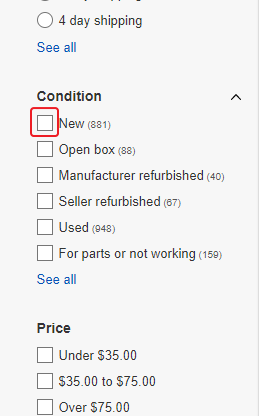
We see that there are significantly fewer products, but we are only interested in new devices. Therefore, we need to select the “New” option in the “Condition” filter.
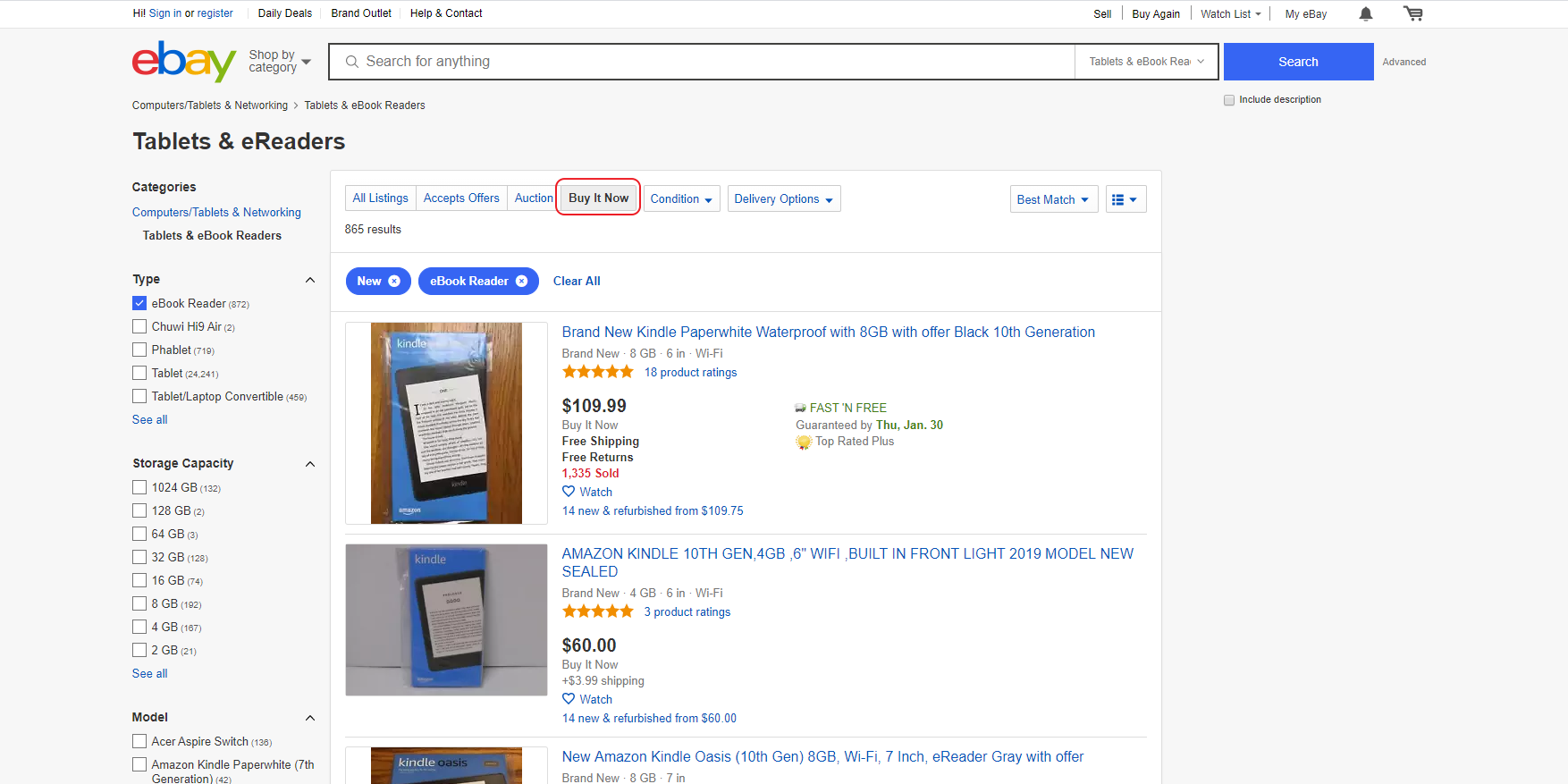
We are not interested in auctions either, so we’ll select the “Buy It Now” option above the listings block.
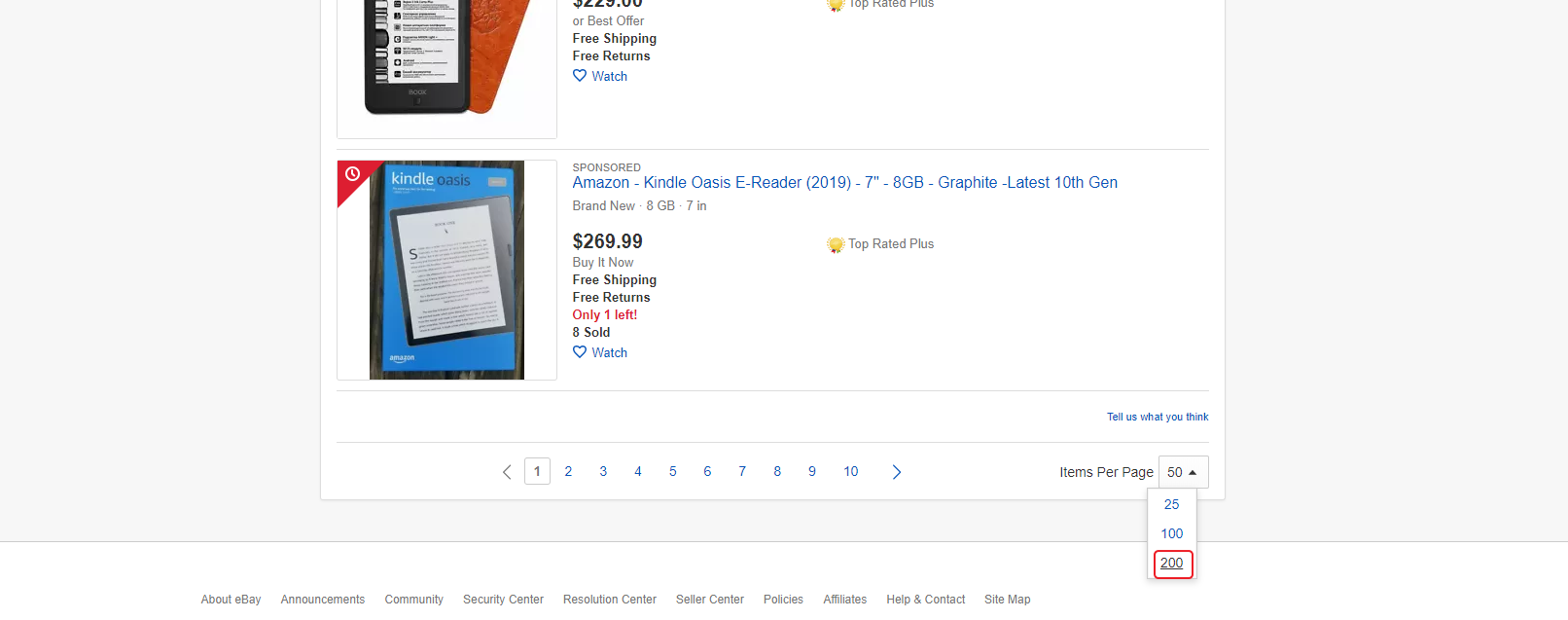
Now, to save on page requests, increase the number of displayed results on the page. By default, eBay displays 50 listings. We can choose 200, which will save our costs of going through the entire catalog of the filtered category by 4 times. To do this, under the block with the results, you need to select the number of results to show: 200.
After we set up all the filters and options, we need to copy the URL from the address bar:
https://www.ebay.com/sch/Tablets-eBook-Readers/171485/i.html?_dcat=171485&_fsrp=1&_sacat=171485&rt=nc&Type=eBook%2520Reader&LH_ItemCondition=1000&LH_BIN=1&_ipg=200
This will be our starting URL.
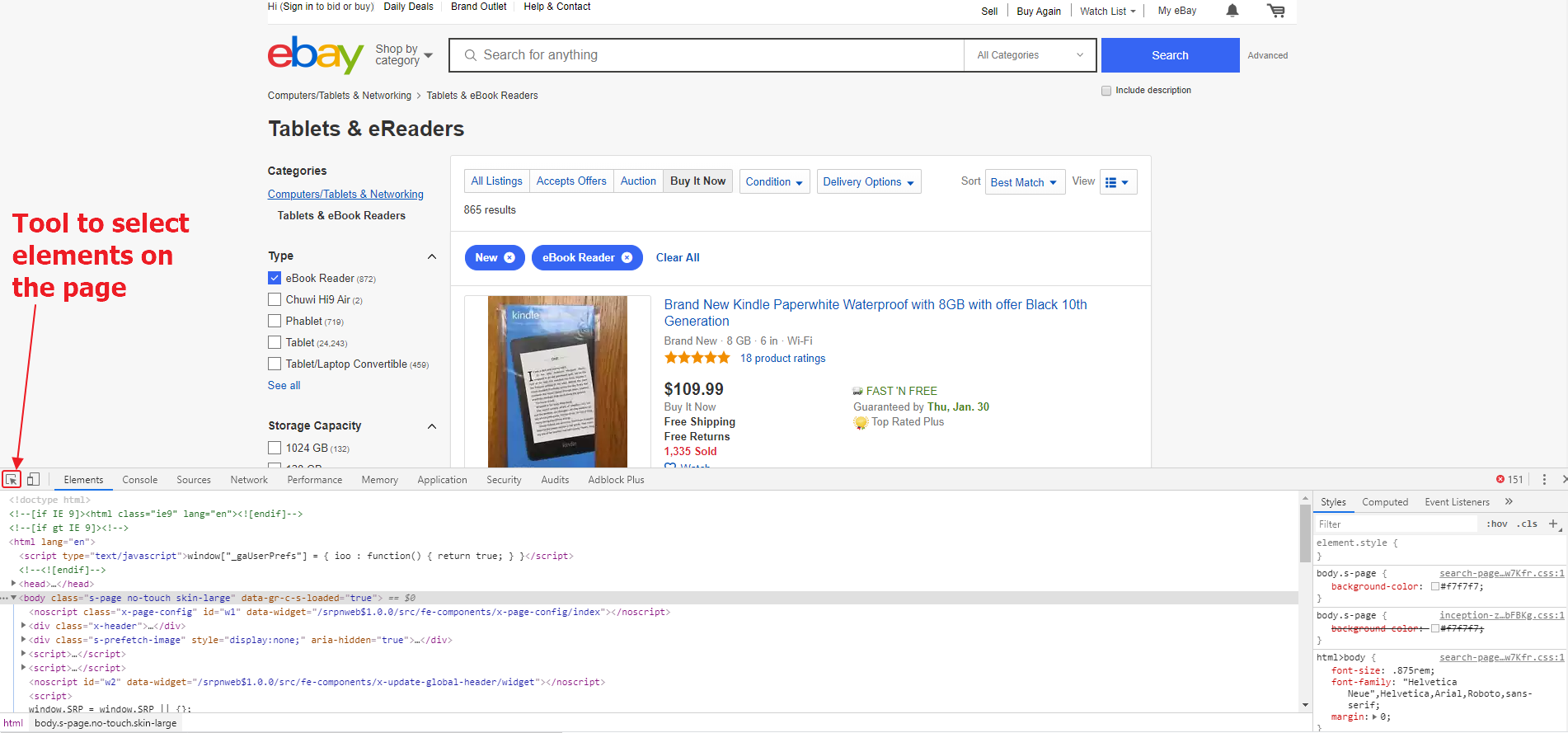
Next, we need to disable JS on the page. We will do this, as usual, using the extension for Google Chrome: Quick Javascript Switcher. Next, open the developer tools in Google Chrome by pressing Ctrl + Shift + I. Then, using the tool to select elements, we will find the blocks we need on the page and CSS selectors for them. Firstly, we are interested in the listing block, and secondly, the link to the next page.
First, let’s collect all the blocks with listings, that is, define a CSS selector for them.
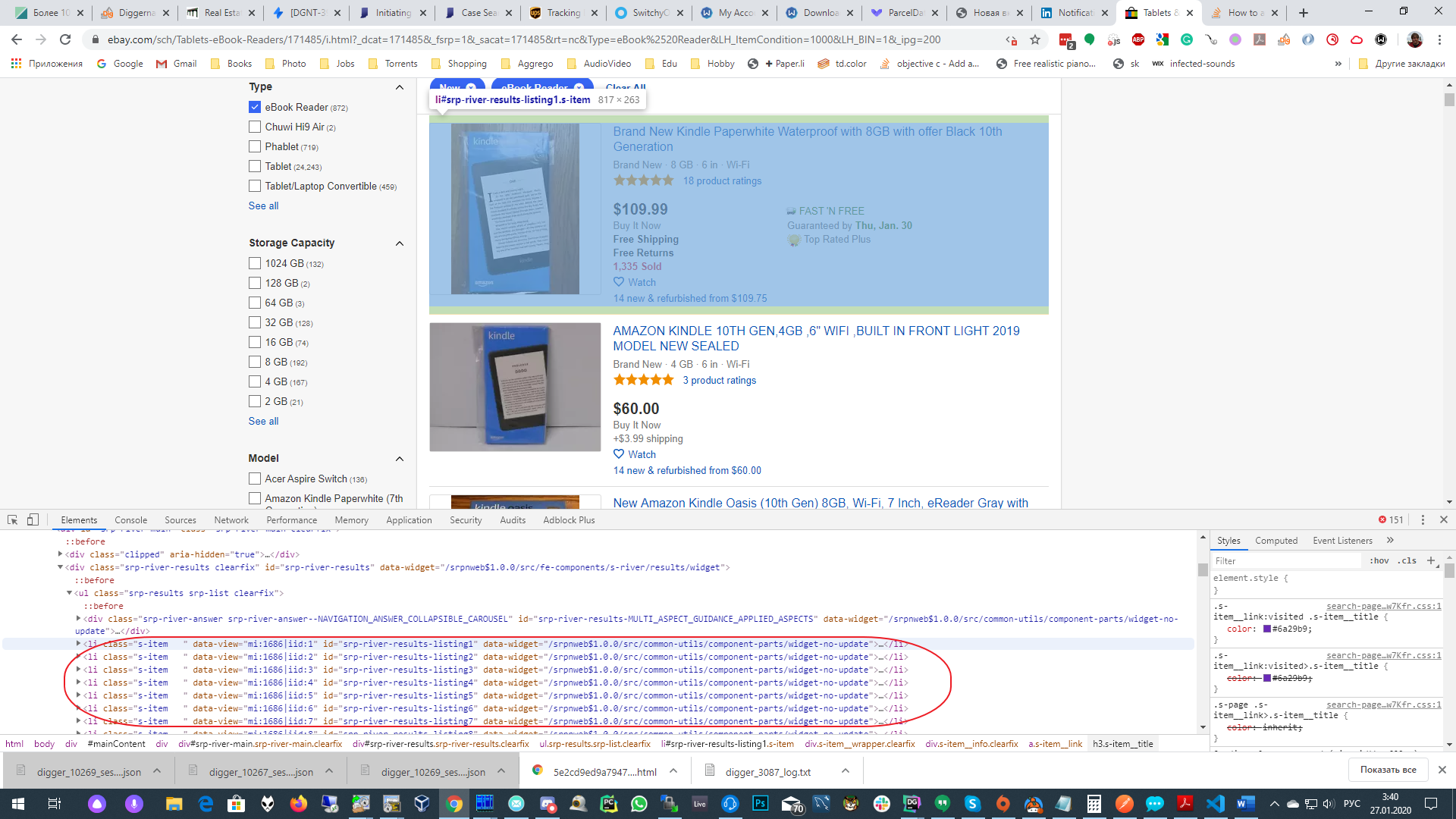
CSS selector: ul> li.s-item. To check, we will do a search in the “Elements” section (by pressing Ctrl + F in it). And make sure that the selector selects all the listings. We will see that more than 200 elements have been selected, although there should be 200 exactly. This happened because eBay, in addition to regular listings, also shows us Sponsored ads.
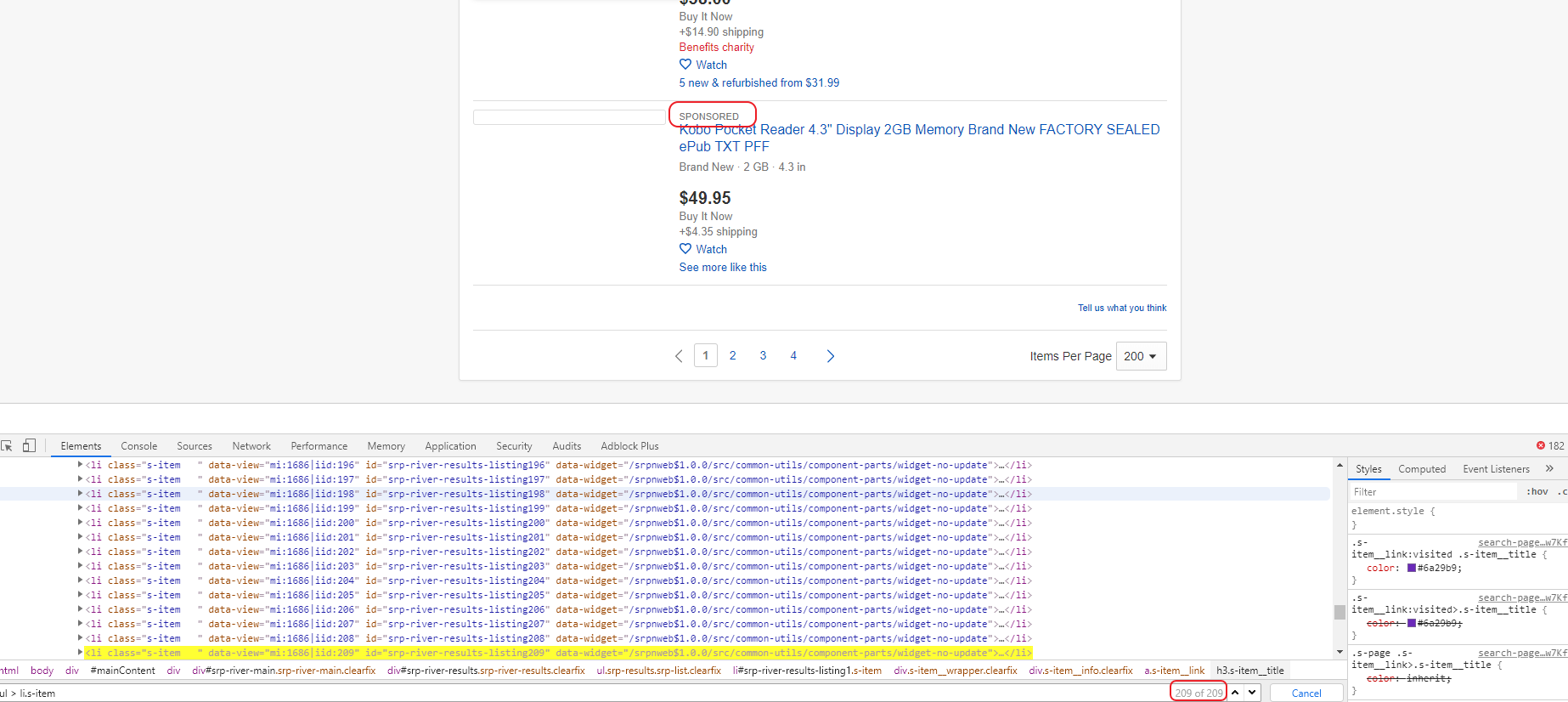
Filtering them out will not be easy, but we will try to do it. Click on one of the letters in the word “SPONSORED” and see which element opens in the “Elements” window. We will see a set of span elements containing a random set of characters.
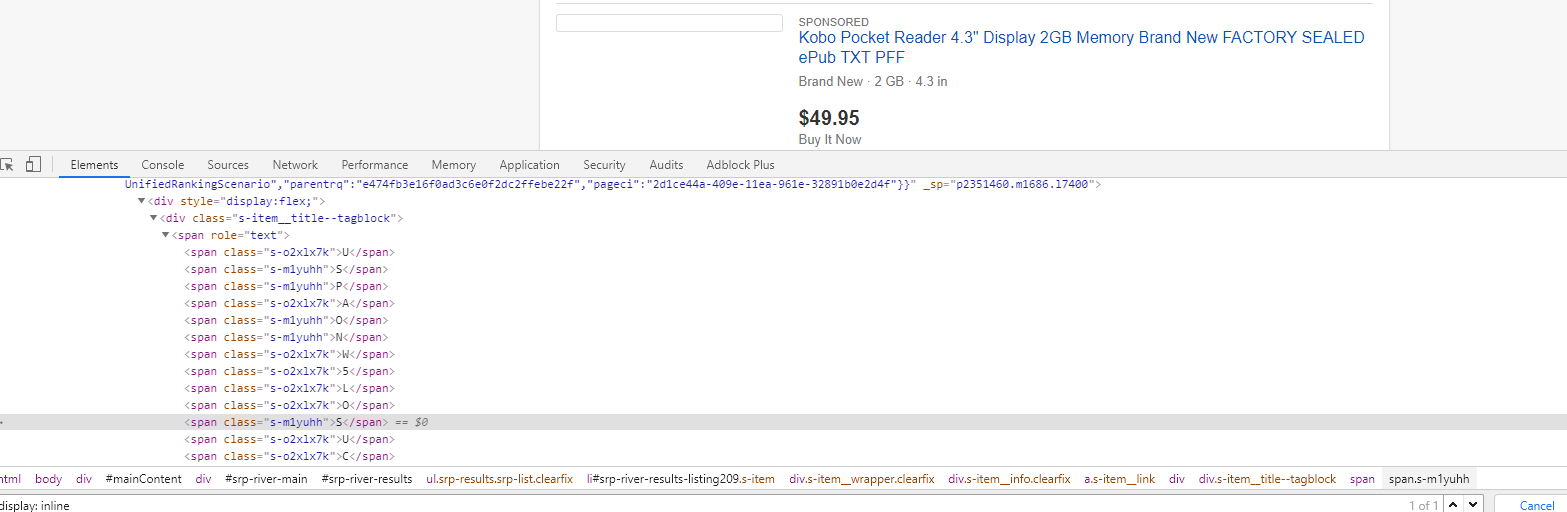
We see that these elements have different classes. It is quite clear that “SPONSORED” is shown on the page due to the fact that one of the classes is shown, and the second is not. But we can’t just take the class we need as a constant. Because, judging by the name of the class, it is not static, but dynamically generated. Therefore, we cannot rely on his name. However, if one of the classes is shown, and the second is not, somewhere on the page there should be CSS that sets this rule. To find it, do a search in the elements by the name of the class and find that the page contains the following code:
<style type="text/css"> span.s-m1yuhh { display: inline; } span.s-o2xlx7k { display: none; } </style> Our task now is to construct a selector for it and check it in the “Elements” window, making sure that the selector selects only 1 element on the page.
style:contains(“display: inline;”) – such a selector will work just fine for our task.
Now that we have found the desired element, we need to pull out the class that is shown from there. To do this, in the parse command we will use the filter option. Let’s see which regular expression helps highlight the name of the class we need:
span\.([^\s\{]+)\s*\{\s*display\:\s*inline;
Using this regular expression, we will extract the class name: s-m1yuhh.
Now that we have a class, we can go into the span [role =” text ”] element and remove all span elements with a class other than our class (which we will write to the class variable beforehand). You can do this with the node_remove command:
- node_remove: span:not(.<%class%>) Then you need to use the parse command and compare the result in the register with the string “SPONSORED” using the if command.
This way we can skip commercial listings.
Now you can look into the listing block and select the fields that we will collect:
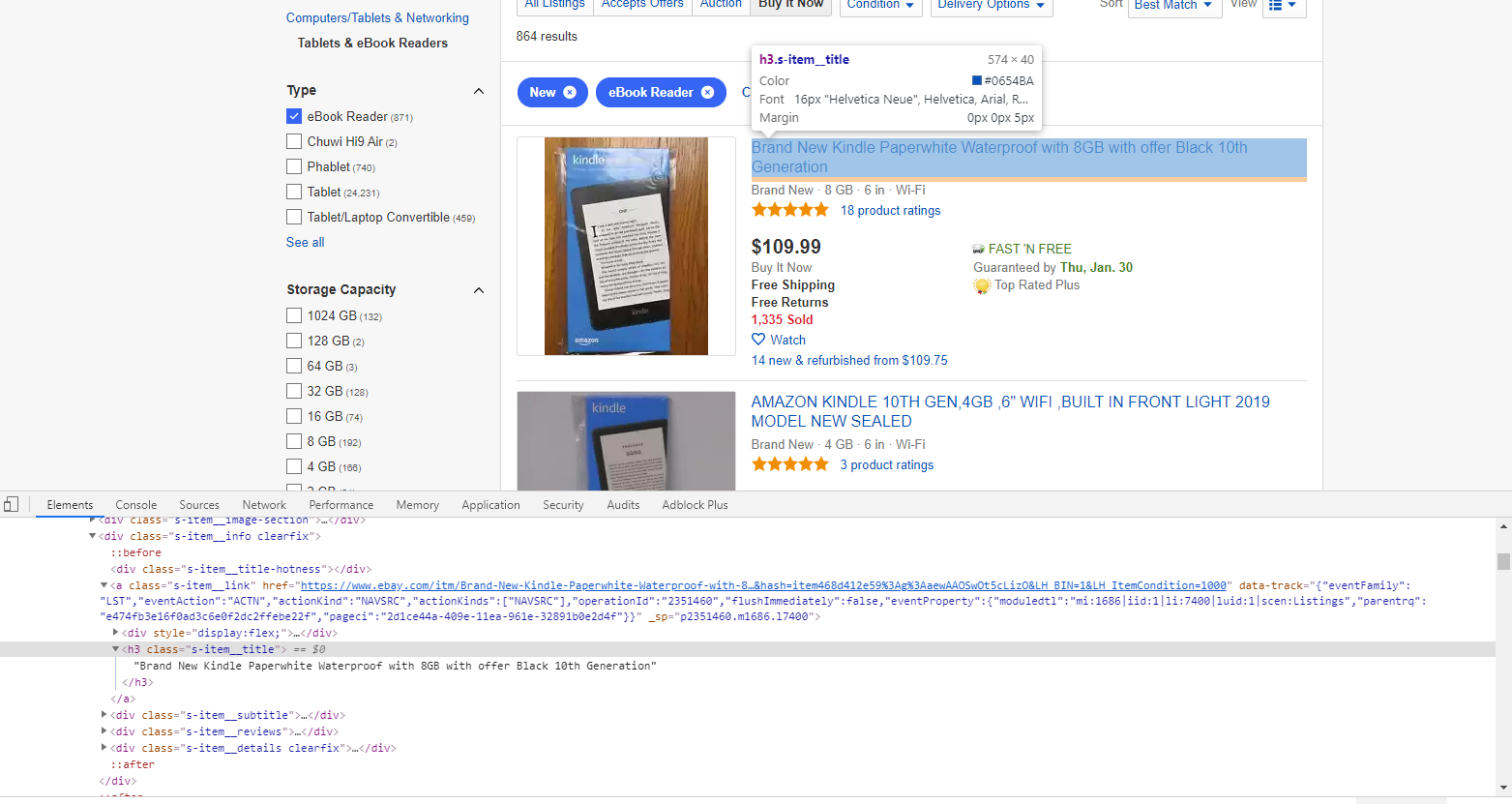
From this page we will collect:
- product name:
h3.s-item__title - product price:
span.s-item__price - shipping cost:
span.s-item__shipping.s-item__logisticsCost - listing rating:
div.b-starrating> span.clipped - number of reviews:
span.s-item__reviews-count> span: not (.clipped) - number of people watching this listing:
span.s-item__hotness: contains (“ Watching ”) - number of items sold:
span.s-item__hotness: contains (“ Sold ”) - product link:
a.s-item__link
As part of this article, we restrict ourselves to collecting data from the catalog page without going to the product page. You can independently improve the eBay scraper by adding the scraping logic of the product page. To do this, you must use the walk command to go to the product page and the find command to go through the blocks using CSS selectors.
Now that we have split the product data block into its constituent parts and got the selectors, let’s find a selector to go to the next page of the category.
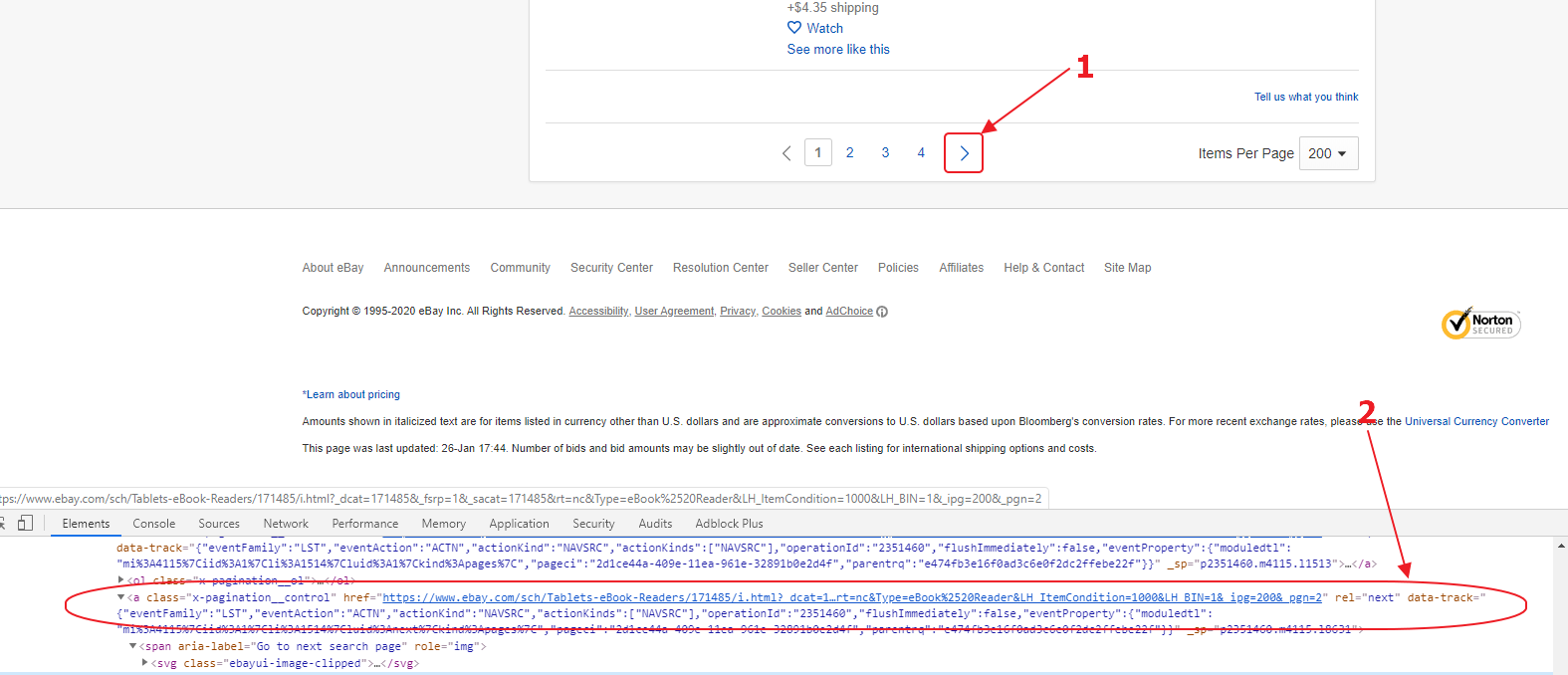
The image shows that the selector a [rel = “next”] is suitable for us. He is alone on the page, and all that remains for us to do is parse the href attribute and put the value to the link pool.










