July 13, 2021 . 4 MIN READ
ubuntu@ip-172-31-7-138:~$ df -hT
/dev/loop2 squashfs 29M 29M 0 100% /snap/amazon-ssm-agent/2012
/dev/loop3 squashfs 18M 18M 0 100% /snap/amazon-ssm-agent/1566
/dev/loop4 squashfs 97M 97M 0 100% /snap/core/9665
tmpfs tmpfs 787M 0 787M 0% /run/user/1001
tmpfs tmpfs 787M 0 787M 0% /run/user/1000
ubuntu@ip-172-31-7-138:~$ lsblk
NAME MAJ:MIN RM SIZE RO TYPE MOUNTPOINT
loop1 7:1 0 96.5M 1 loop /snap/core/9436
loop2 7:2 0 28.1M 1 loop /snap/amazon-ssm-agent/2012
loop3 7:3 0 18M 1 loop /snap/amazon-ssm-agent/1566
loop4 7:4 0 97M 1 loop /snap/core/9665
nvme0n1 259:0 0 20G 0 disk
└─nvme0n1p1 259:1 0 8G 0 part /
ubuntu@ip-172-31-7-138:~$ sudo growpart /dev/nvme0n1 1
CHANGED: partition=1 start=2048 old: size=16775135 end=16777183 new: size=41940959,end=41943007
ubuntu@ip-172-31-7-138:~$ lsblk
NAME MAJ:MIN RM SIZE RO TYPE MOUNTPOINT
loop1 7:1 0 96.5M 1 loop /snap/core/9436
loop2 7:2 0 28.1M 1 loop /snap/amazon-ssm-agent/2012
loop3 7:3 0 18M 1 loop /snap/amazon-ssm-agent/1566
loop4 7:4 0 97M 1 loop /snap/core/9665
nvme0n1 259:0 0 20G 0 disk
└─nvme0n1p1 259:1 0 20G 0 part /
ubuntu@ip-172-31-7-138:~$ sudo resize2fs /dev/nvme0n1p1
resize2fs 1.44.1 (24-Mar-2018)
Filesystem at /dev/nvme0n1p1 is mounted on /; on-line resizing required
old_desc_blocks = 1, new_desc_blocks = 3
The filesystem on /dev/nvme0n1p1 is now 5242619 (4k) blocks long.
ubuntu@ip-172-31-7-138:~$ df -h
Filesystem Size Used Avail Use% Mounted on
udev 3.9G 0 3.9G 0% /dev
tmpfs 787M 800K 786M 1% /run
/dev/nvme0n1p1 20G 7.6G 12G 40% /
tmpfs 3.9G 0 3.9G 0% /dev/shm
tmpfs 5.0M 0 5.0M 0% /run/lock
tmpfs 3.9G 0 3.9G 0% /sys/fs/cgroup
/dev/loop1 97M 97M 0 100% /snap/core/9436
/dev/loop2 29M 29M 0 100% /snap/amazon-ssm-agent/2012
/dev/loop3 18M 18M 0 100% /snap/amazon-ssm-agent/1566
/dev/loop4 97M 97M 0 100% /snap/core/9665
tmpfs 787M 0 787M 0% /run/user/1001
tmpfs 787M 0 787M 0% /run/user/1000
ubuntu@ip-172-31-7-138:~$
#####################
https://docs.aws.amazon.com/AWSEC2/latest/UserGuide/requesting-ebs-volume-modifications.html
https://medium.com/findworka/how-to-increase-disk-size-for-an-ec2-instance-on-aws-b82181df6215
https://aws.amazon.com/premiumsupport/knowledge-center/expand-root-ebs-linux/
https://til.codes/extending-the-disk-space-on-an-amazon-ec2-instance/
When you create an EC2 instance or EBS instance with the default configuration the allocated disk space is 8GB unless you explicitly configure this. This would be more than enough for most of the applications that are running on a t2.micro instance. But at times, you will need some extra space on your server. You can either add that when you spin up a new instance or can even extend your existing disk on the server and add more space.
I am going to focus on how to extend the disk space on a running instance in this article.
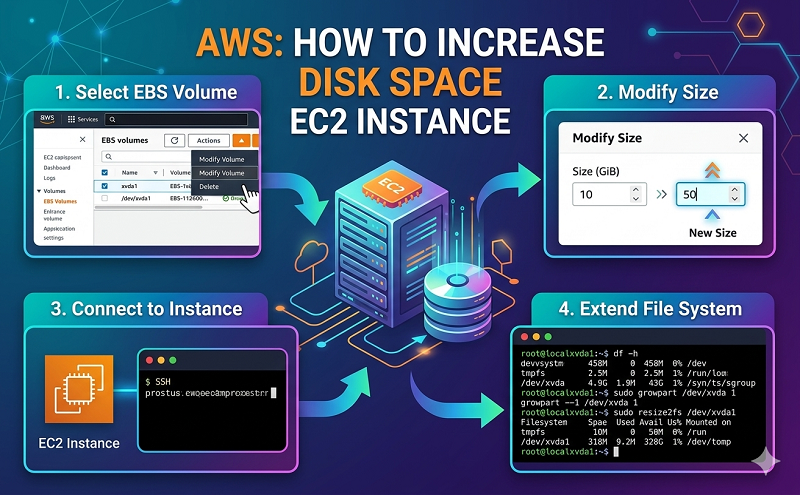
Let’s say we want to increase the size of our boot drive from the default 8GB to a 100GB. It can be done by following three steps:
Resize Volume
The first step is to modify the Volume to add more space. To do that:
Once that is done, we need to resize the partition on the OS level. To make the change, we need to ssh into your instance and run some Linux commands.
First of all let’s list block devices attached to our box: lsblk
lsblk
NAME MAJ:MIN RM SIZE RO TYPE MOUNTPOINT
xvda 202:0 0 100G 0 disk
└─xvda1 202:1 0 8G 0 part /
As you can see, even though we extended our volume, /dev/xvda1 is still the default 8GB partition on a 100 GB device and there are no other partitions on the volume. We now need to resize the partition on the disk.
Resize partition
Let’s use growpart to resize 8G partition up to 100G:
growpart /dev/xvda1
Let’s check the result (you can see /dev/xvda1 is now 100G):
lsblk
NAME MAJ:MIN RM SIZE RO TYPE MOUNTPOINT
xvda 202:0 0 100G 0 disk
└─xvda1 202:1 0 100G 0 part /
Awesome.!
Resize Filesystem
The last thing to do is the resize the file system to grow all the way to fully utilized the newly added space.
Let’s check the current file system size using the df -h command:
df -h
Filesystem Size Used Avail Use% Mounted on
udev 488M 0 488M 0% /dev
tmpfs 100M 5.6M 94M 6% /run
/dev/xvda1 7.7G 2.0G 5.7G 26% /
tmpfs 496M 0 496M 0% /dev/shm
tmpfs 5.0M 0 5.0M 0% /run/lock
tmpfs 496M 0 496M 0% /sys/fs/cgroup
tmpfs 100M 0 100M 0% /run/user/1000
Now let’s resize filesystem using resize2fs command
resize2fs /dev/xvda1
Let’s recheck the file system size to confirm our changes:
df -h
Filesystem Size Used Avail Use% Mounted on
/dev/xvda1 100G 2.0G 97.9G 2% /
Known gotchas
AWS will only allow you to resize the Volume once per day. So if you want to resize the volume again, you will have to wait a day. So be sure to do your math and get it right the first time. 🙂