July 13, 2021 . 4 MIN READ
https://docs.aws.amazon.com/AWSEC2/latest/UserGuide/recognize-expanded-volume-linux.html
To verify the file system in use for each volume on your instance, connect to your instance and run the file -s command.
Example: File systems on an instance built on the Nitro System
The following example shows an instance built on the Nitro System that has a boot volume with an XFS file system and an additional volume with an XFS file system.
[ec2-user ~]$ sudo file -s /dev/nvme?n*/dev/nvme0n1: x86 boot sector …/dev/nvme0n1p1: SGI XFS filesystem data …/dev/nvme0n1p128: data/dev/nvme1n1: SGI XFS filesystem data …
Example: File systems on a T2 instance
The following example shows a T2 instance that has a boot volume with an ext4 file system and an additional volume with an XFS file system.
[ec2-user ~]$ sudo file -s /dev/xvd*/dev/xvda: DOS/MBR boot sector ../dev/xvda1: Linux rev 1.0 ext4 filesystem data …/dev/xvdf: SGI XFS filesystem data …
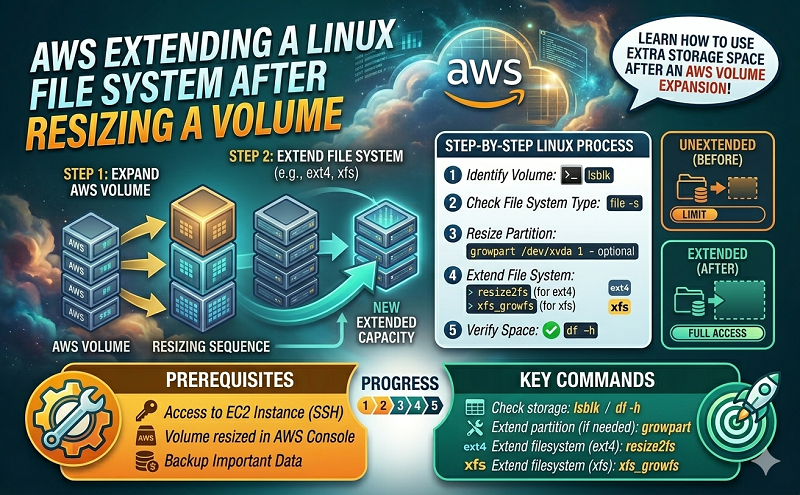
Your EBS volume might have a partition that contains the file system and data. Increasing the size of a volume does not increase the size of the partition. Before you extend the file system on a resized volume, check whether the volume has a partition that must be extended to the new size of the volume.
Use the lsblk command to display information about the block devices attached to your instance. If a resized volume has a partition and the partition does not reflect the new size of the volume, use the growpart command to extend the partition. For information about extending an LVM partition, see Extending a logical volume.
Example: Partitions on an instance built on the Nitro System
The following example shows the volumes on a Nitro-based instance:
[ec2-user ~]$ lsblkNAME MAJ:MIN RM SIZE RO TYPE MOUNTPOINTnvme1n1 259:0 0 30G 0 disk /datanvme0n1 259:1 0 16G 0 disk└─nvme0n1p1 259:2 0 8G 0 part /└─nvme0n1p128 259:3 0 1M 0 part
To extend the partition on the root volume, use the following growpart command. Notice that there is a space between the device name and the partition number.
[ec2-user ~]$ sudo growpart /dev/nvme0n1 1
You can verify that the partition reflects the increased volume size by using the lsblk command again.
[ec2-user ~]$ lsblkNAME MAJ:MIN RM SIZE RO TYPE MOUNTPOINTnvme1n1 259:0 0 30G 0 disk /datanvme0n1 259:1 0 16G 0 disk└─nvme0n1p1 259:2 0 16G 0 part /└─nvme0n1p128 259:3 0 1M 0 part
Example: Partitions on a T2 instance
The following example shows the volumes on a T2 instance:
[ec2-user ~]$ lsblkNAME MAJ:MIN RM SIZE RO TYPE MOUNTPOINTxvda 202:0 0 16G 0 disk└─xvda1 202:1 0 8G 0 part /xvdf 202:80 0 30G 0 disk└─xvdf1 202:81 0 8G 0 part /data
To extend the partition on each volume, use the following growpart commands. Note that there is a space between the device name and the partition number.
[ec2-user ~]$ sudo growpart /dev/xvda 1[ec2-user ~]$ sudo growpart /dev/xvdf 1
You can verify that the partitions reflect the increased volume size by using the lsblk command again.
[ec2-user ~]$ lsblkNAME MAJ:MIN RM SIZE RO TYPE MOUNTPOINTxvda 202:0 0 16G 0 disk└─xvda1 202:1 0 16G 0 part /xvdf 202:80 0 30G 0 disk└─xvdf1 202:81 0 30G 0 part /data
Use a file system-specific command to resize each file system to the new volume capacity. For a file system other than the examples shown here, refer to the documentation for the file system for instructions.
Example: Extend an ext2, ext3, or ext4 file system
Use the df -h command to verify the size of the file system for each volume. In this example, both /dev/xvda1 and /dev/xvdf reflect the original size of the volumes, 8 GB.
[ec2-user ~]$ df -hFilesystem Size Used Avail Use% Mounted on/dev/xvda1 8.0G 1.9G 6.2G 24% //dev/xvdf1 8.0G 45M 8.0G 1% /data…
Use the resize2fs command to extend the file system on each volume.
[ec2-user ~]$ sudo resize2fs /dev/xvda1[ec2-user ~]$ sudo resize2fs /dev/xvdf1
You can verify that each file system reflects the increased volume size by using the df -h command again.
[ec2-user ~]$ df -hFilesystem Size Used Avail Use% Mounted on/dev/xvda1 16G 1.9G 14G 12% //dev/xvdf1 30G 45M 30G 1% /data…
Example: Extend an XFS file system
Use the df -h command to verify the size of the file system for each volume. In this example, each file system reflects the original volume size, 8 GB.
[ec2-user ~]$ df -hFilesystem Size Used Avail Use% Mounted on/dev/nvme0n1p1 8.0G 1.6G 6.5G 20% //dev/nvme1n1 8.0G 33M 8.0G 1% /data…
To extend the XFS file system, install the XFS tools as follows, if they are not already installed.
[ec2-user ~]$ sudo yum install xfsprogs
Use the xfs_growfs command to extend the file system on each volume. In this example, / and /data are the volume mount points shown in the output for df -h.
[ec2-user ~]$ sudo xfs_growfs -d /[ec2-user ~]$ sudo xfs_growfs -d /data
You can verify that each file system reflects the increased volume size by using the df -h command again.
[ec2-user ~]$ df -hFilesystem Size Used Avail Use% Mounted on/dev/nvme0n1p1 16G 1.6G 15G 10% //dev/nvme1n1 30G 33M 30G 1% /data…