July 13, 2021 . 7 MIN READ
https://docs.aws.amazon.com/AmazonRDS/latest/AuroraUserGuide/Aurora.CreateInstance.html
https://docs.aws.amazon.com/AmazonRDS/latest/AuroraUserGuide/CHAP_SettingUp_Aurora.html
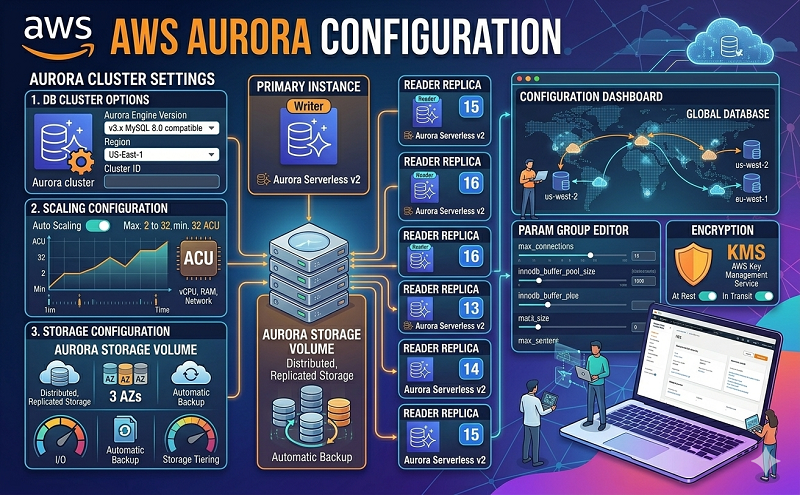
An Amazon Aurora DB cluster consists of a DB instance, compatible with either MySQL or PostgreSQL, and a cluster volume that represents the data for the DB cluster, copied across three Availability Zones as a single, virtual volume. By default, the DB cluster contains a primary writer DB instance and, optionally, up to 15 Aurora Replicas (reader DB instances). For more information about Aurora DB clusters, see Amazon Aurora DB Clusters.
In the following topic, you can find out how to create an Aurora DB cluster. To get started, first see DB Cluster Prerequisites.
For simple instructions on connecting to your Aurora DB cluster, see Connecting to an Amazon Aurora DB Cluster.
Important
Before you can create an Aurora DB cluster, you must complete the tasks in Setting Up Your Environment for Amazon Aurora.
The following are prerequisites to create a DB cluster.
You can only create an Amazon Aurora DB cluster in a virtual private cloud (VPC) based on the Amazon VPC service, in an AWS Region that has at least two Availability Zones. The DB subnet group that you choose for the DB cluster must cover at least two Availability Zones. This configuration ensures that your DB cluster always has at least one DB instance available for failover, in the unlikely event of an Availability Zone failure.
If you are using the AWS Management Console to create your Aurora DB cluster, you can have Amazon RDS automatically create a VPC for you. Or you can use an existing VPC or create a new VPC for your Aurora DB cluster. Your VPC must have at least one subnet in each of at least two Availability Zones for you to use it with an Amazon Aurora DB cluster. For more information, see How to Create a VPC for Use with Amazon Aurora. For information on VPCs, see Amazon Virtual Private Cloud VPCs and Amazon Aurora.
Note
You can communicate with an EC2 instance that is not in a VPC and an Amazon Aurora DB cluster using ClassicLink. For more information, see A DB Instance in a VPC Accessed by an EC2 Instance Not in a VPC.
If you don’t have a default VPC or you haven’t created a VPC, you can have Amazon RDS automatically create a VPC for you when you create an Aurora DB cluster using the console. Otherwise, you must do the following:
If you are connecting to AWS using AWS Identity and Access Management (IAM) credentials, your AWS account must have IAM policies that grant the permissions required to perform Amazon RDS operations. For more information, see Identity and Access Management in Amazon Aurora.
If you are using IAM to access the Amazon RDS console, you must first sign on to the AWS Management Console with your IAM user credentials. Then go to the Amazon RDS console at https://console.aws.amazon.com/rds/.
If you want to tailor the configuration parameters for your DB cluster, you must specify a DB cluster parameter group and DB parameter group with the required parameter settings. For information about creating or modifying a DB cluster parameter group or DB parameter group, see Working with DB Parameter Groups and DB Cluster Parameter Groups.
You must determine the TCP/IP port number to specify for your DB cluster. The firewalls at some companies block connections to the default ports (3306 for MySQL, 5432 for PostgreSQL) for Aurora. If your company firewall blocks the default port, choose another port for your DB cluster. All instances in a DB cluster use the same port.
You can create an Aurora DB cluster using the AWS Management Console, the AWS CLI, or the RDS API.
Note
If you are using the console, a new console interface is available for database creation. Choose either the New Console or the Original Console instructions based on the console that you are using. The New Console instructions are open by default.
New Console
You can create a DB instance running MySQL with the AWS Management Console with Easy create enabled or not enabled. With Easy create enabled, you specify only the DB engine type, DB instance size, and DB instance identifier. Easy Create uses the default setting for other configuration options. With Easy create not enabled, you specify more configuration options when you create a database, including ones for availability, security, backups, and maintenance.
Note
For this example, Standard Create is enabled, and Easy Create isn’t enabled. For information about creating an Aurora MySQL DB cluster with Easy create enabled, see Getting Started with Amazon Aurora.
To create an Aurora DB cluster using the console
Aurora is not available in all AWS Regions. For a list of AWS Regions where Aurora is available, see Region Availability.
For more information, see Amazon Aurora DB Clusters.
For more information, see Using Amazon Aurora Serverless.
By default, the new DB instance uses an automatically generated password for the master user.
If you chose to use an automatically generated password, the View credential details button appears on the Databases page.
To view the master user name and password for the DB cluster, choose View credential details.
To connect to the DB instance as the master user, use the user name and password that appear.
Important
You can’t view the master user password again. If you don’t record it, you might have to change it. If you need to change the master user password after the DB instance is available, you can modify the DB instance to do so. For more information about modifying a DB instance, see Modifying an Amazon Aurora DB Cluster.
On the RDS console, the details for new DB cluster appear. The DB cluster and its DB instance have a status of creating until the DB cluster is ready to use. When the state changes to available for both, you can connect to the DB cluster. Depending on the DB instance class and the amount of storage, it can take up to 20 minutes before the new DB cluster is available.
When the state changes to available, you can connect to the primary instance for your DB cluster. Depending on the DB instance class and store allocated, it can take several minutes for the new instance to be available.
To view the newly created cluster, choose Databases from the navigation pane in the Amazon RDS console. Then choose the DB cluster to show the DB cluster details. For more information, see Viewing an Amazon Aurora DB Cluster.
On the Connectivity & security tab, note the port and the endpoint of the writer DB instance. Use the endpoint and port of the cluster in your JDBC and ODBC connection strings for any application that performs write or read operations.
Original Console
AWS CLI
RDS API
The following table contains details about settings that you choose when you create an Aurora DB cluster.
| For This Option | Do This |
| Availability zone | Determine if you want to specify a particular Availability Zone. For more information about Availability Zones, see Regions and Availability Zones . |
| Auto minor version upgrade | Choose Enable auto minor version upgrade if you want to enable your Aurora DB cluster to receive preferred minor version upgrades to the DB engine automatically when they become available.
The Auto minor version upgrade setting applies to botn Aurora PostgreSQL and Aurora MySQL DB clusters. For Aurora MySQL 1.x and 2.x clusters, this |