WebAdmin Console Makes Configuration Super Easy
One of OpenLiteSpeed’s advantages over Apache and nginx is a GUI interface called the WebAdmin Console. By default you should be able to access it through https://your-server-ip:7080. Make sure port 7080 is open in your firewall. Of course you can configure the port number to another port if you prefer. OLS WebAdmin Console makes OpenLiteSpeed configuration changes so much easier, eliminating the learning curve required for configuration directives. You can easily make configuration changes even you are new to OLS.
OpenLiteSpeed Dashboard
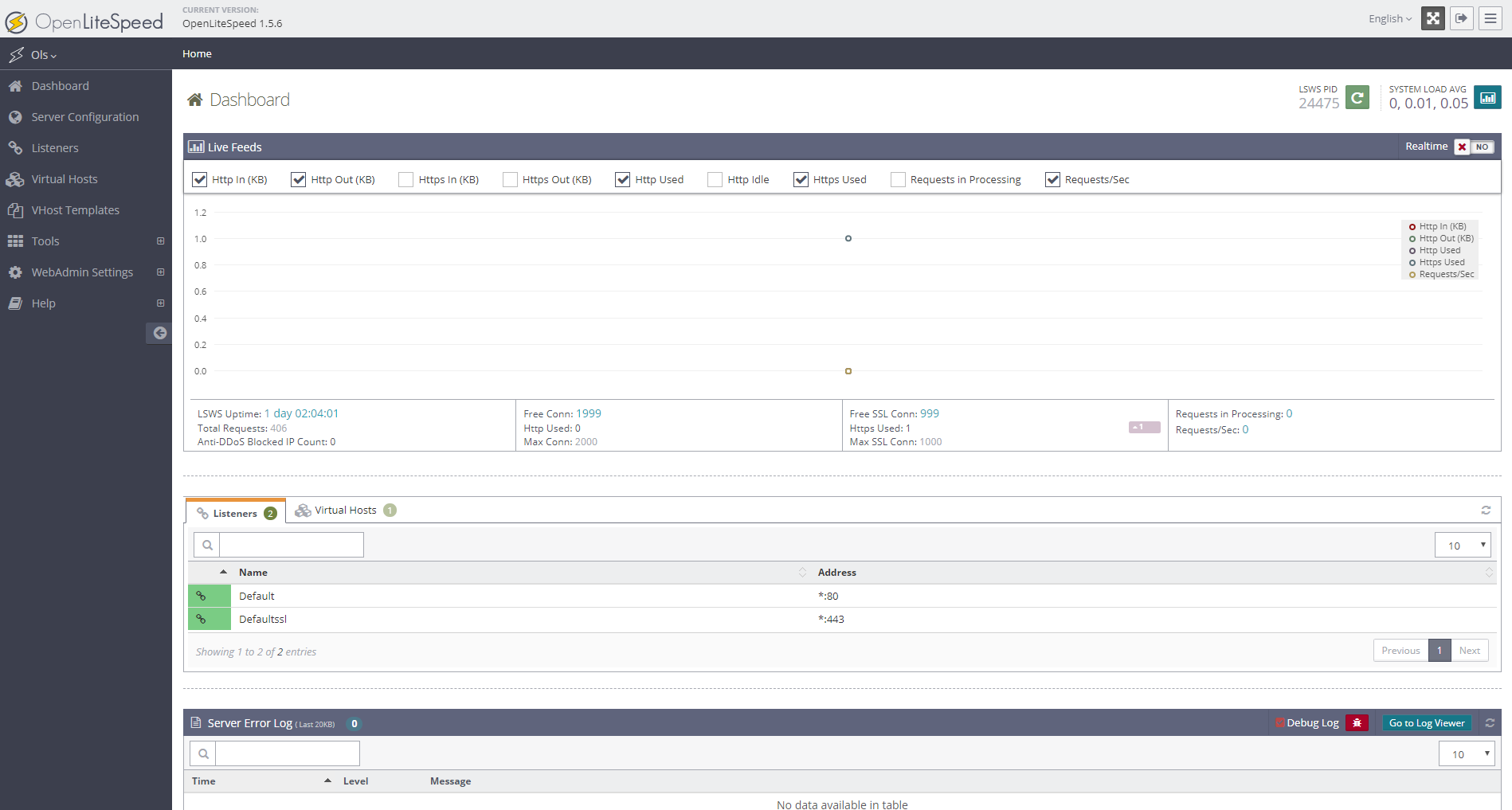
Log in to WebAdmin Console, and the Dashboard page will load by default. This shows realtime live feeds, Listeners and Virtual Hosts, and the Server Error Log.
OpenLiteSpeed Shortcuts
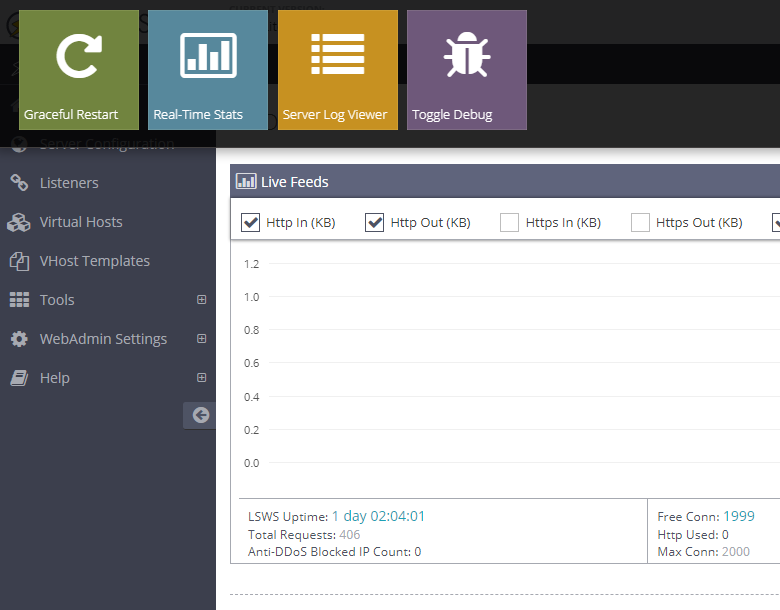
Click Ols at the left top corner to reveal a few important shortcut functions: Graceful Restart, Real-Time Stats, Server Log Viewer and Toggle Debug.
Server configuration
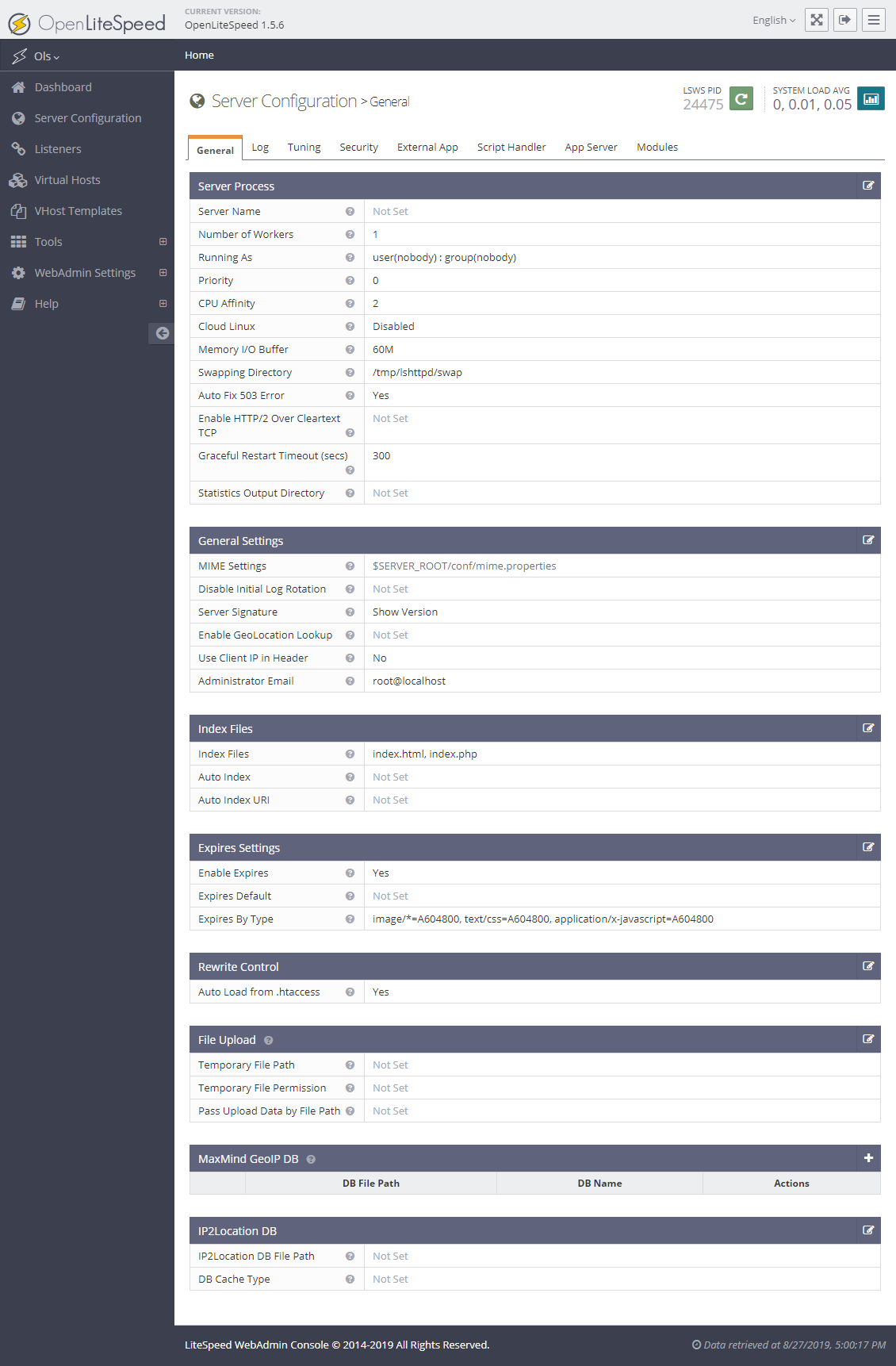
Server Configuration – General
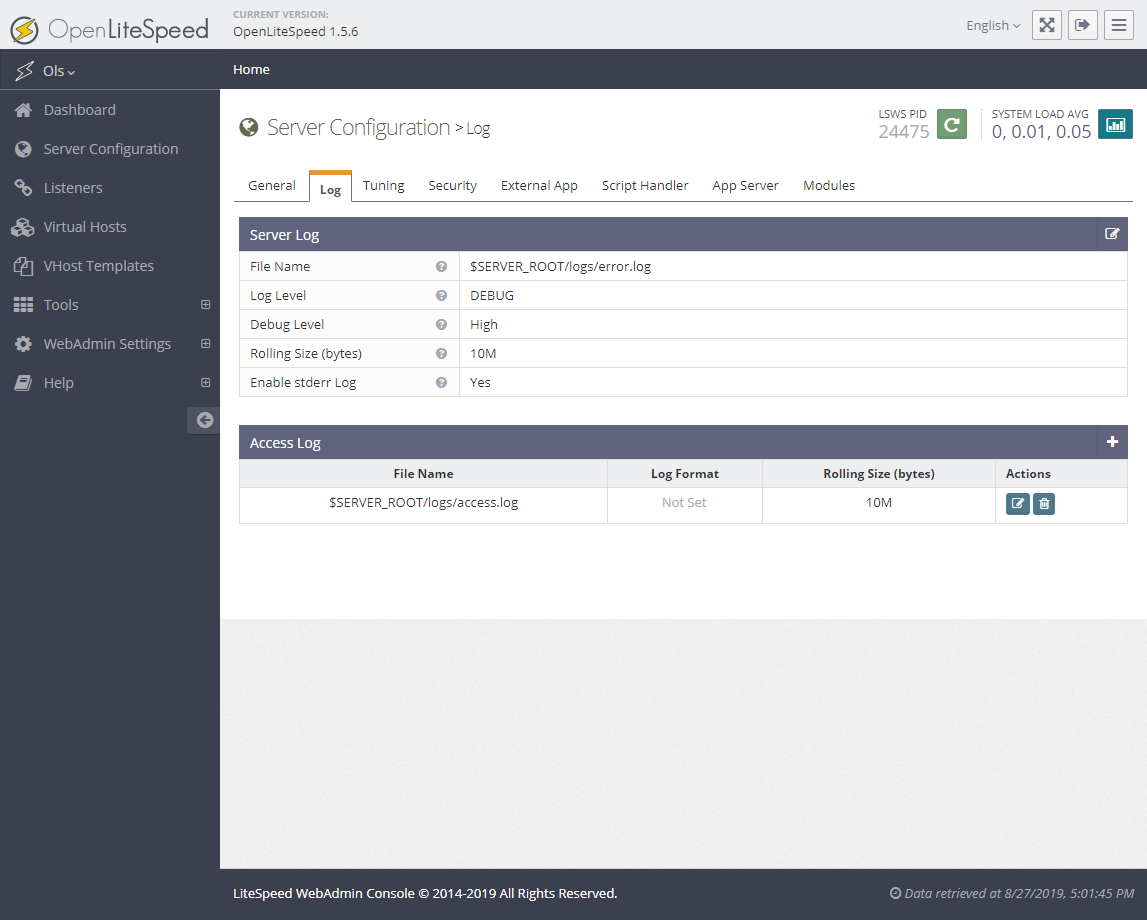
Server Configuration – Log
Server Configuration – Tuning
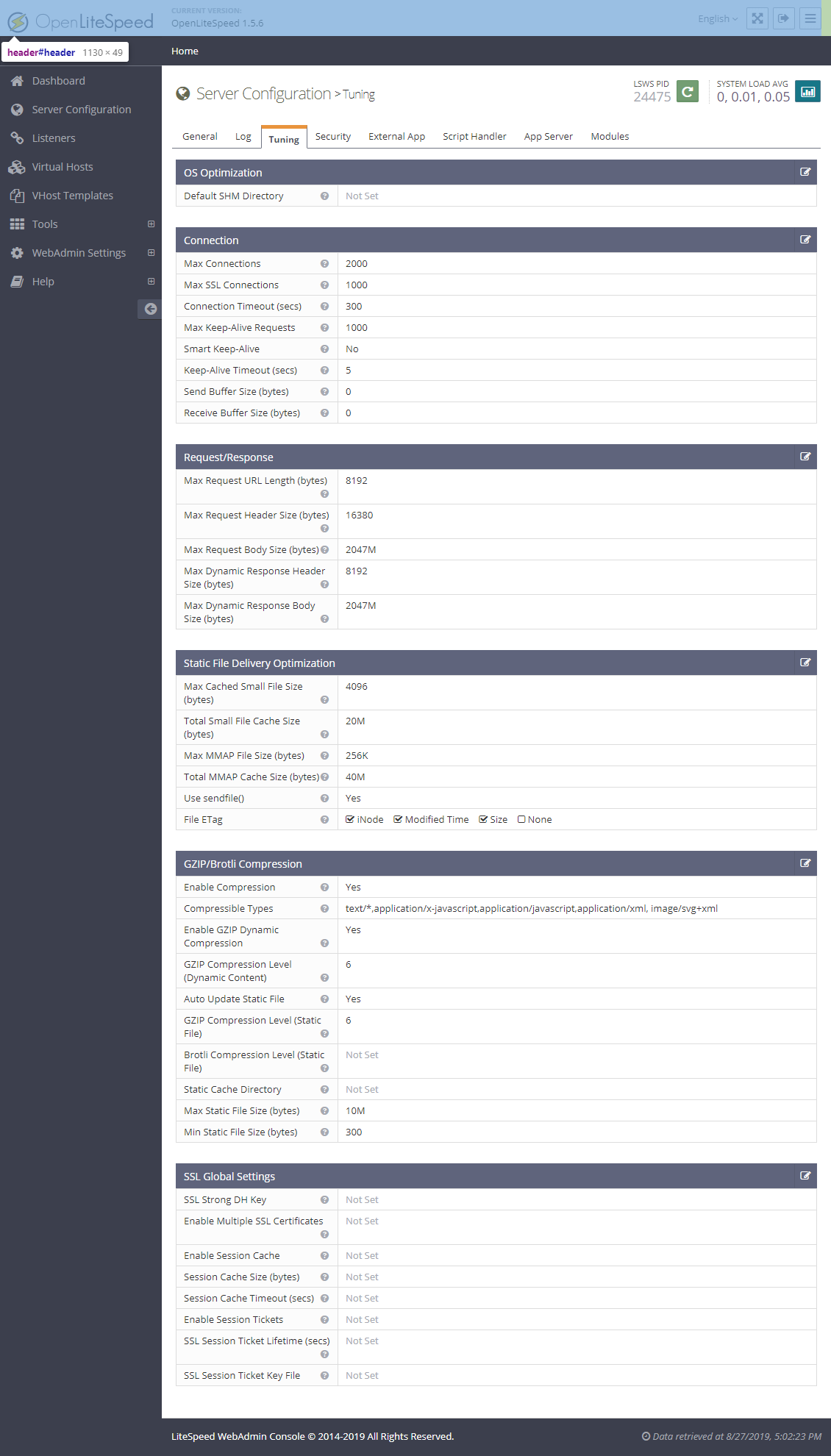
Server Configuration – Security
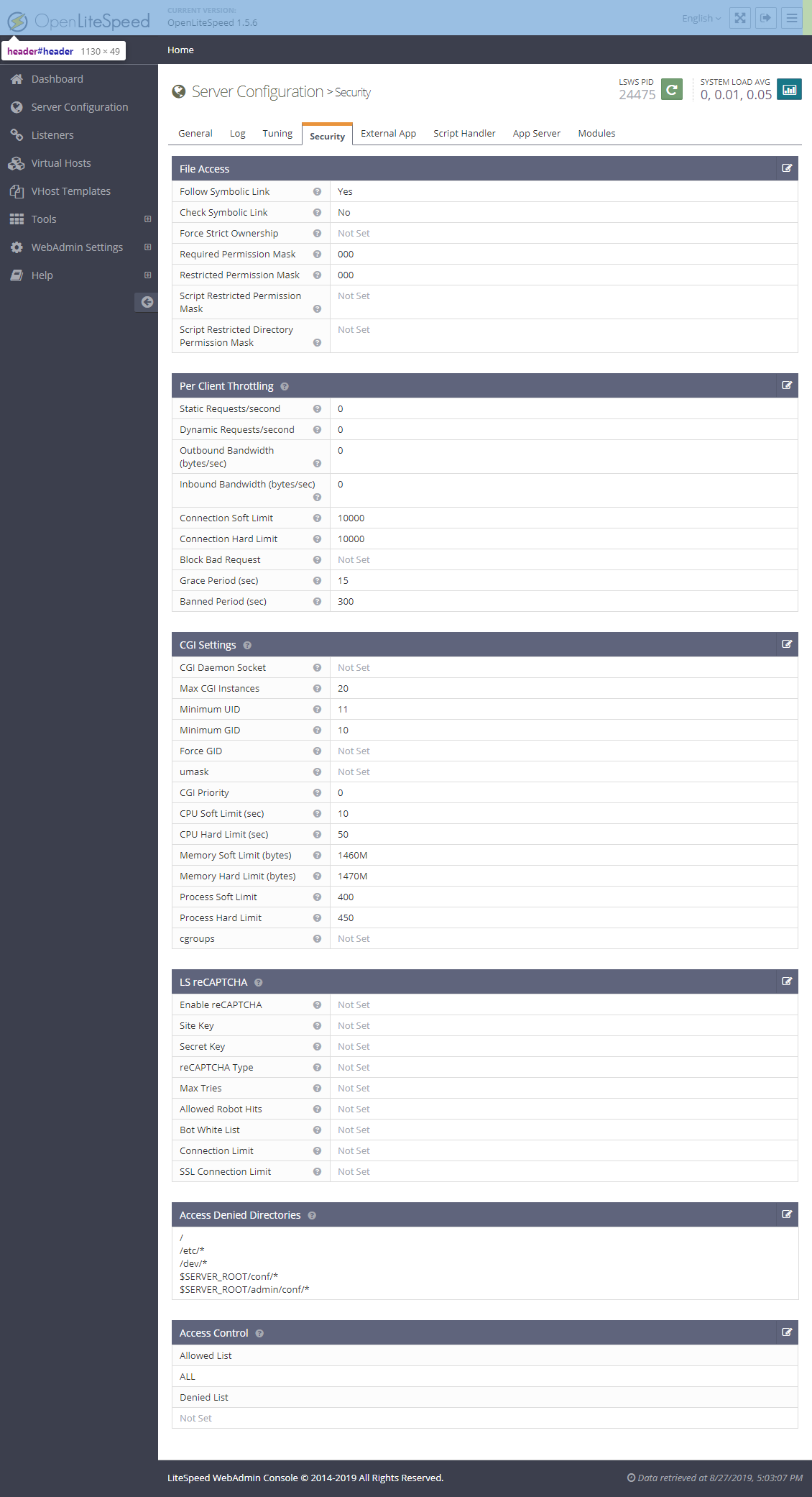
Server Configuration – External App
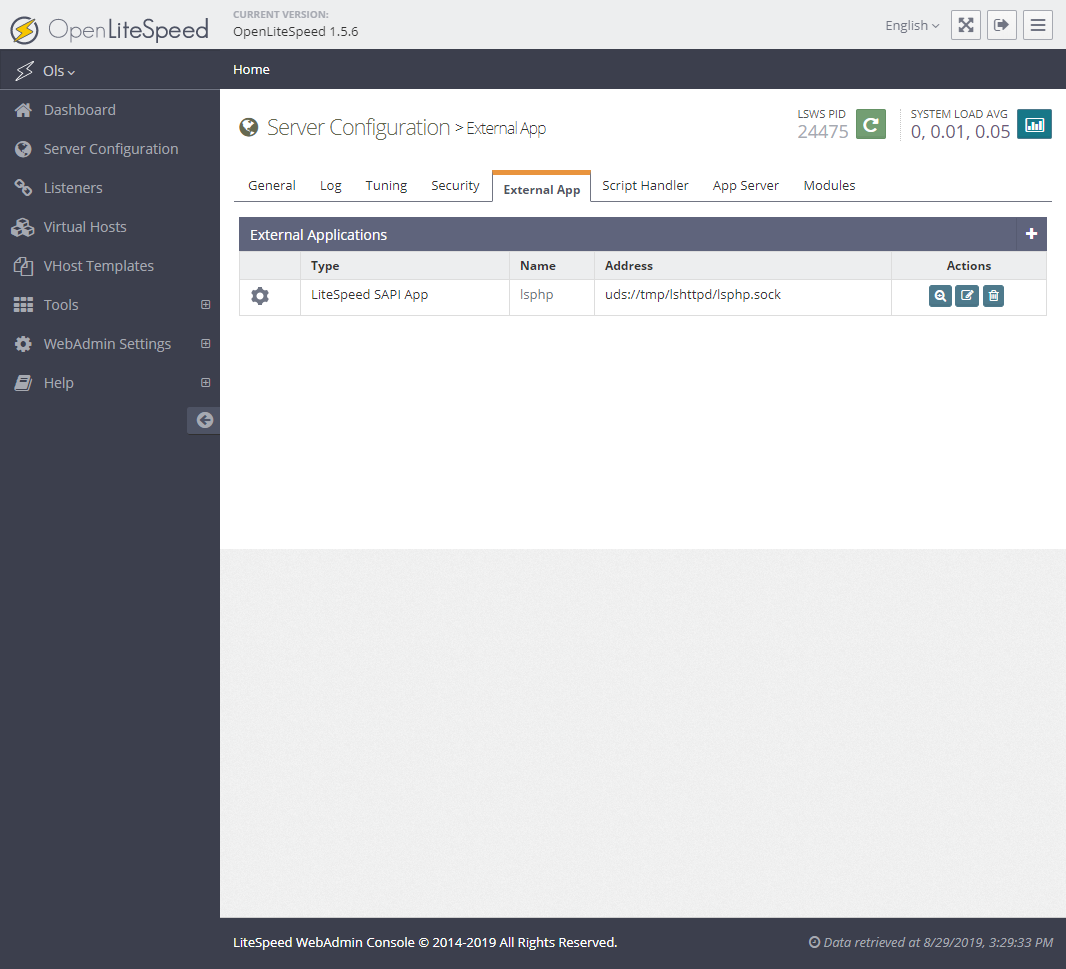
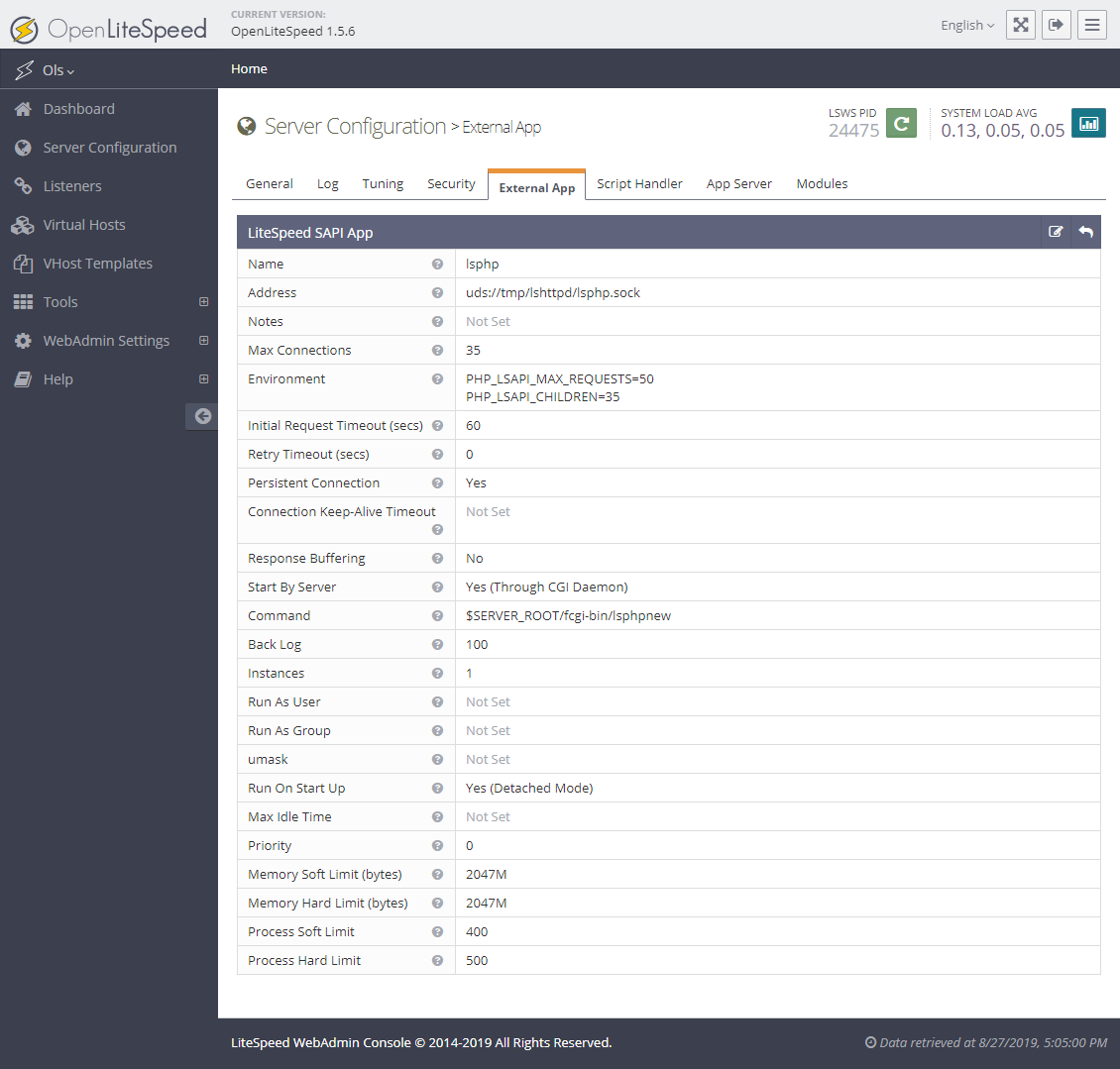
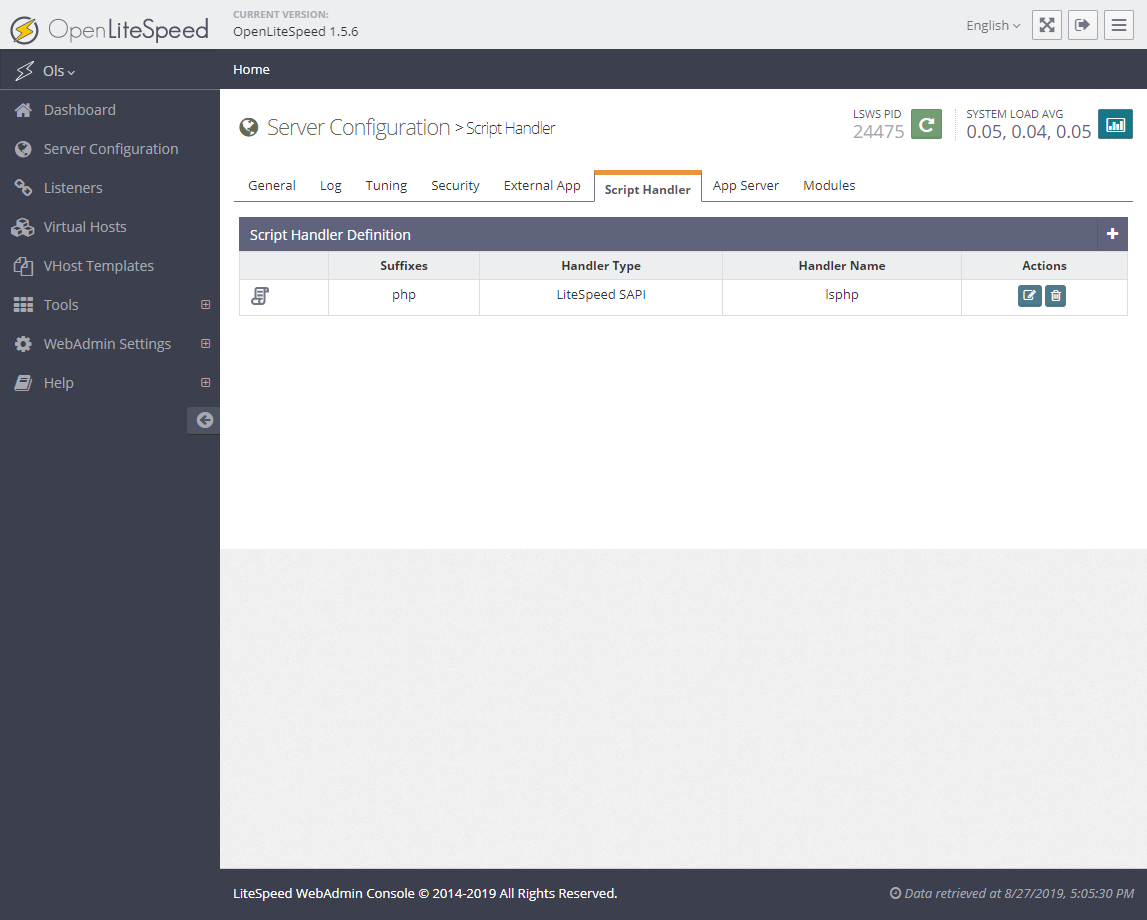
Server Configuration – Script Handler
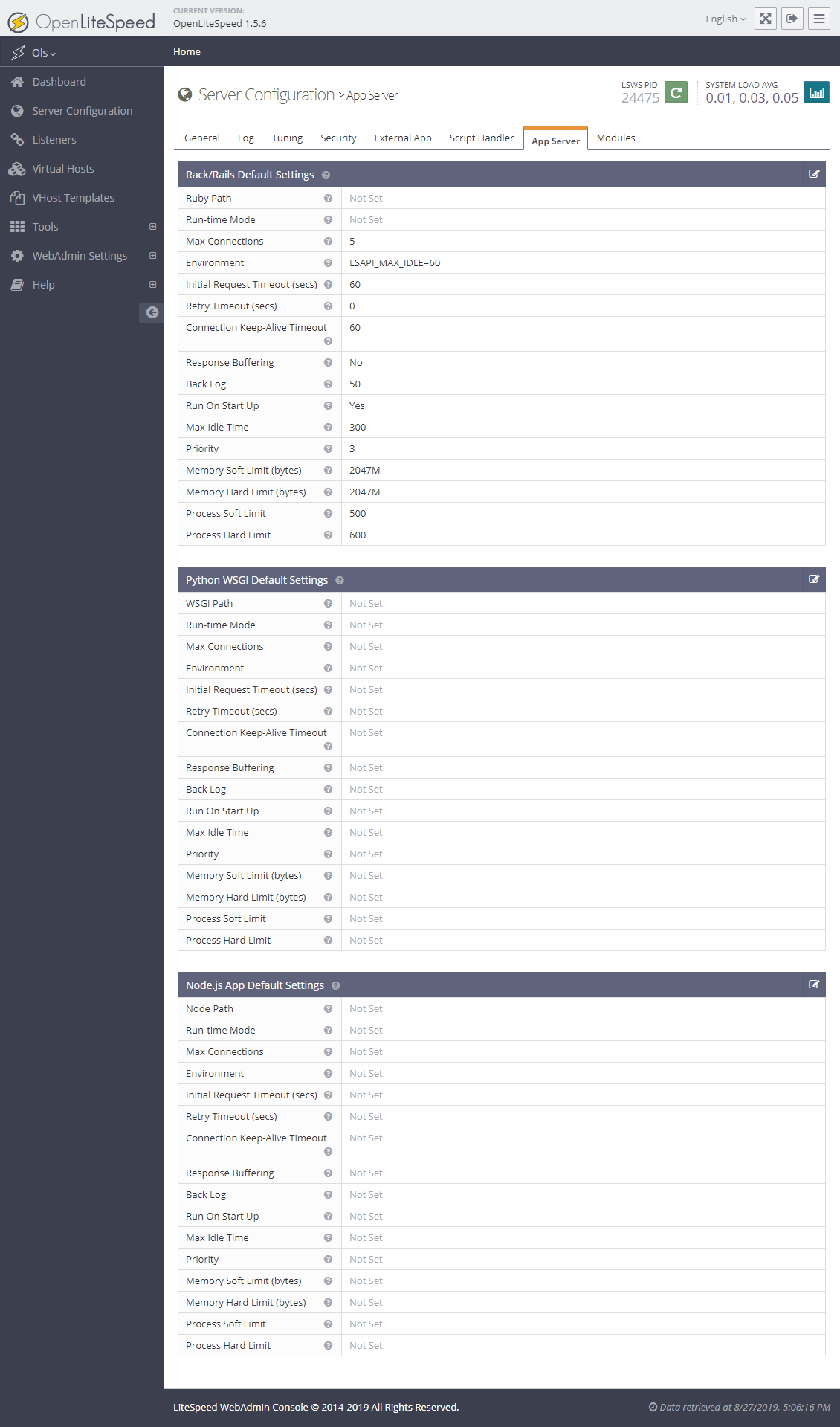
Server Configuration – App Server
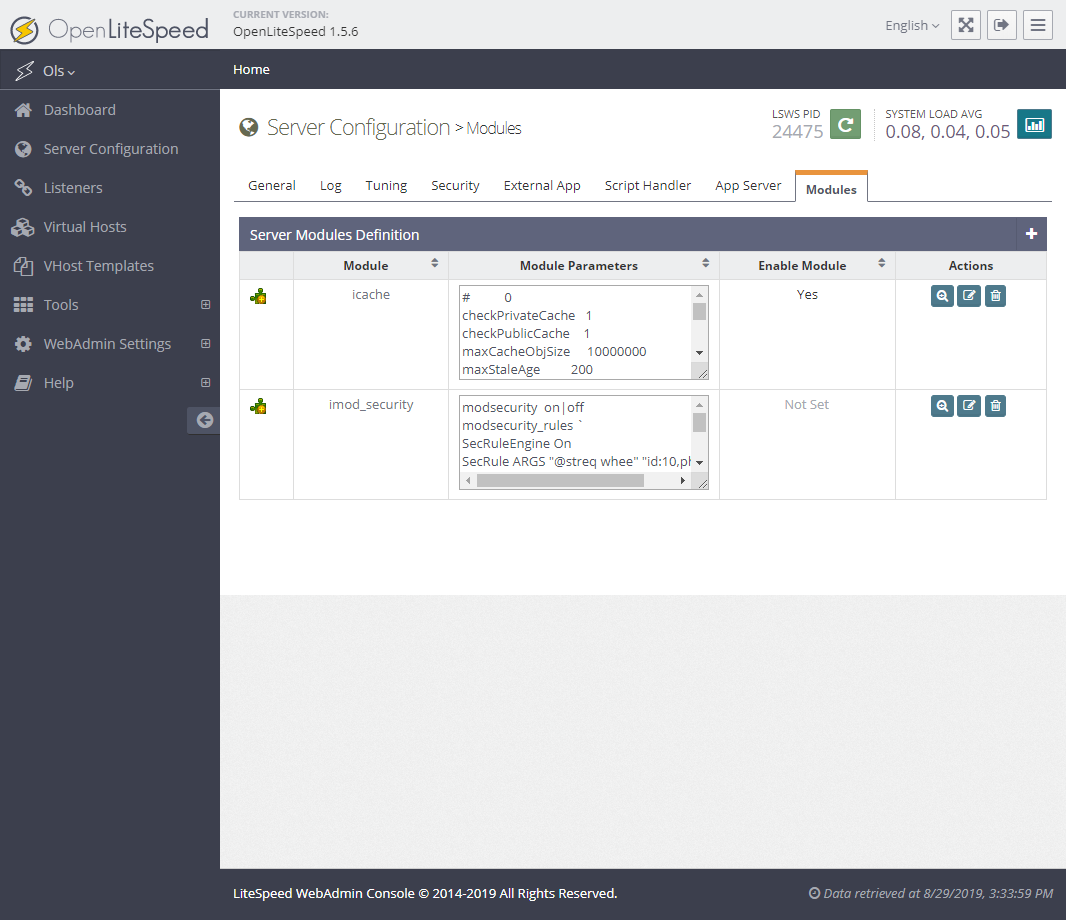
Server Configuration – Modules
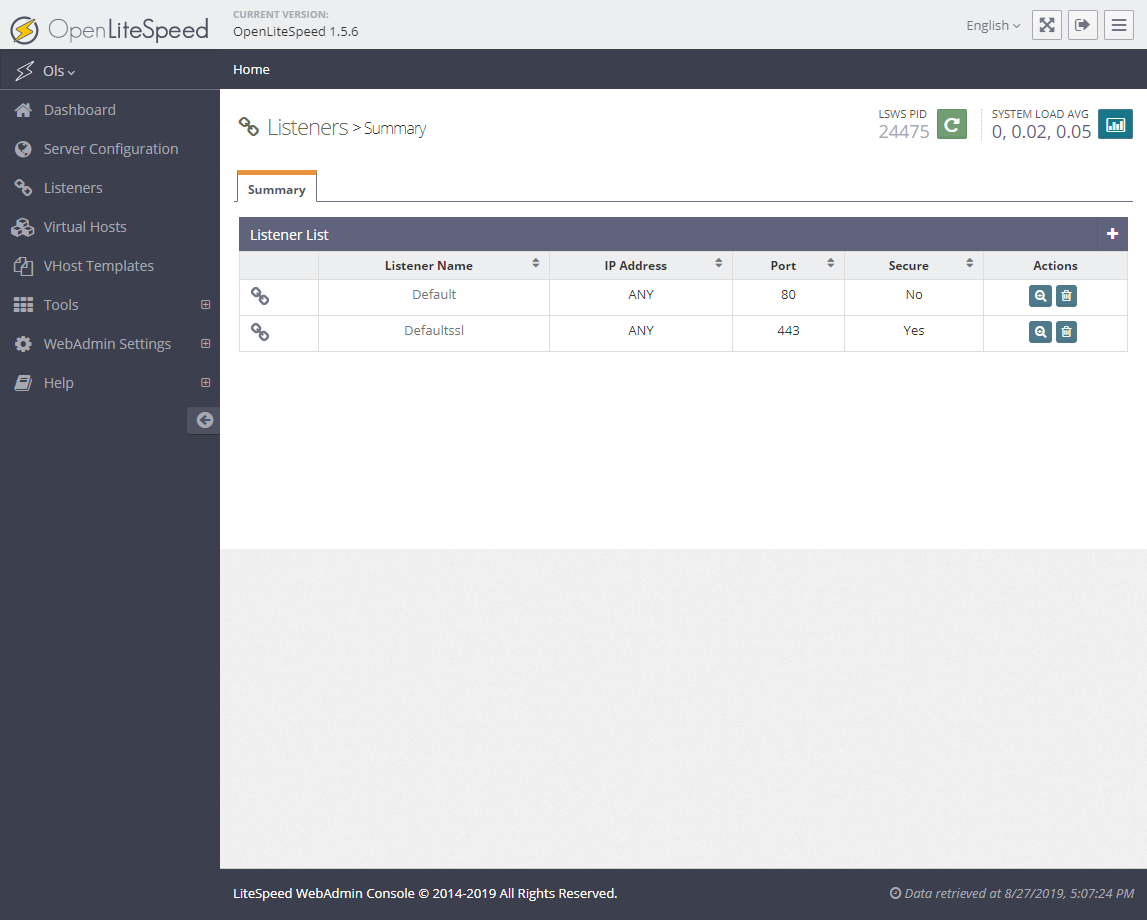
Listeners
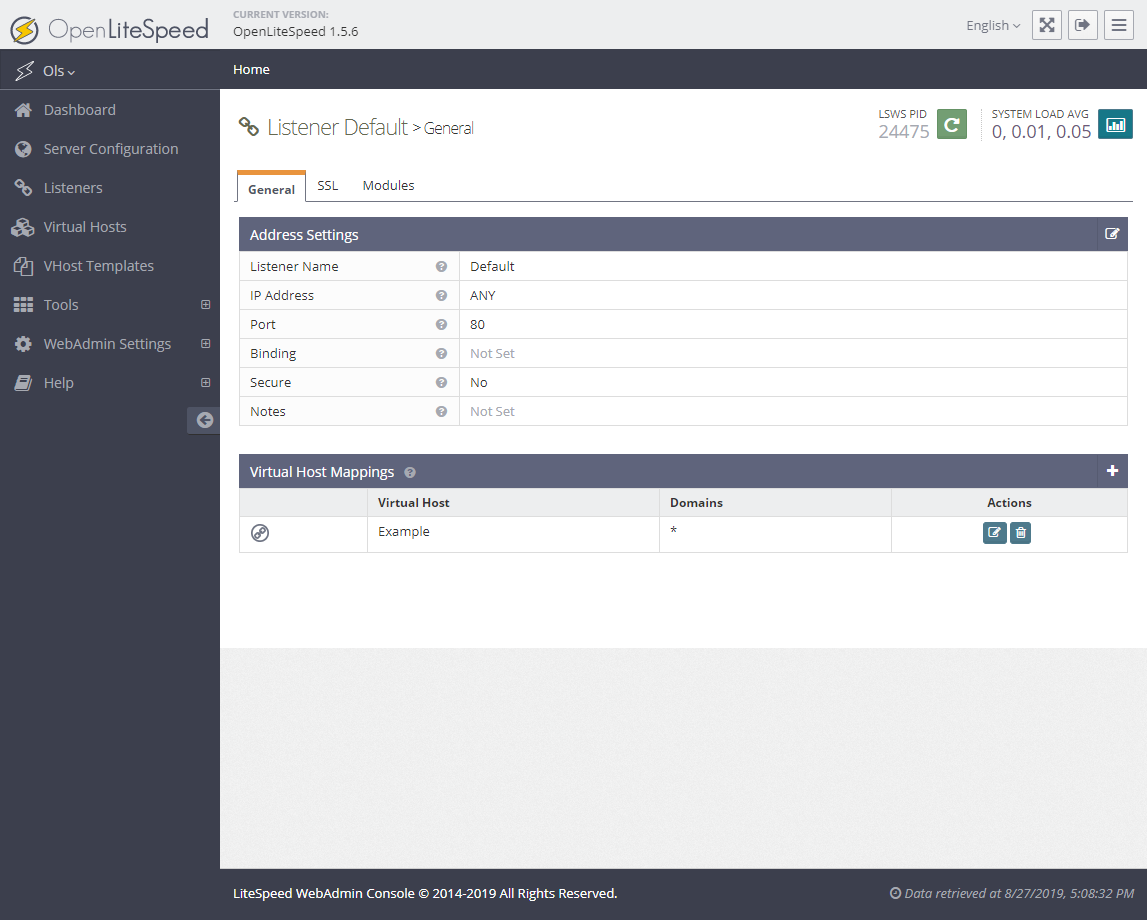
Listener – port 80
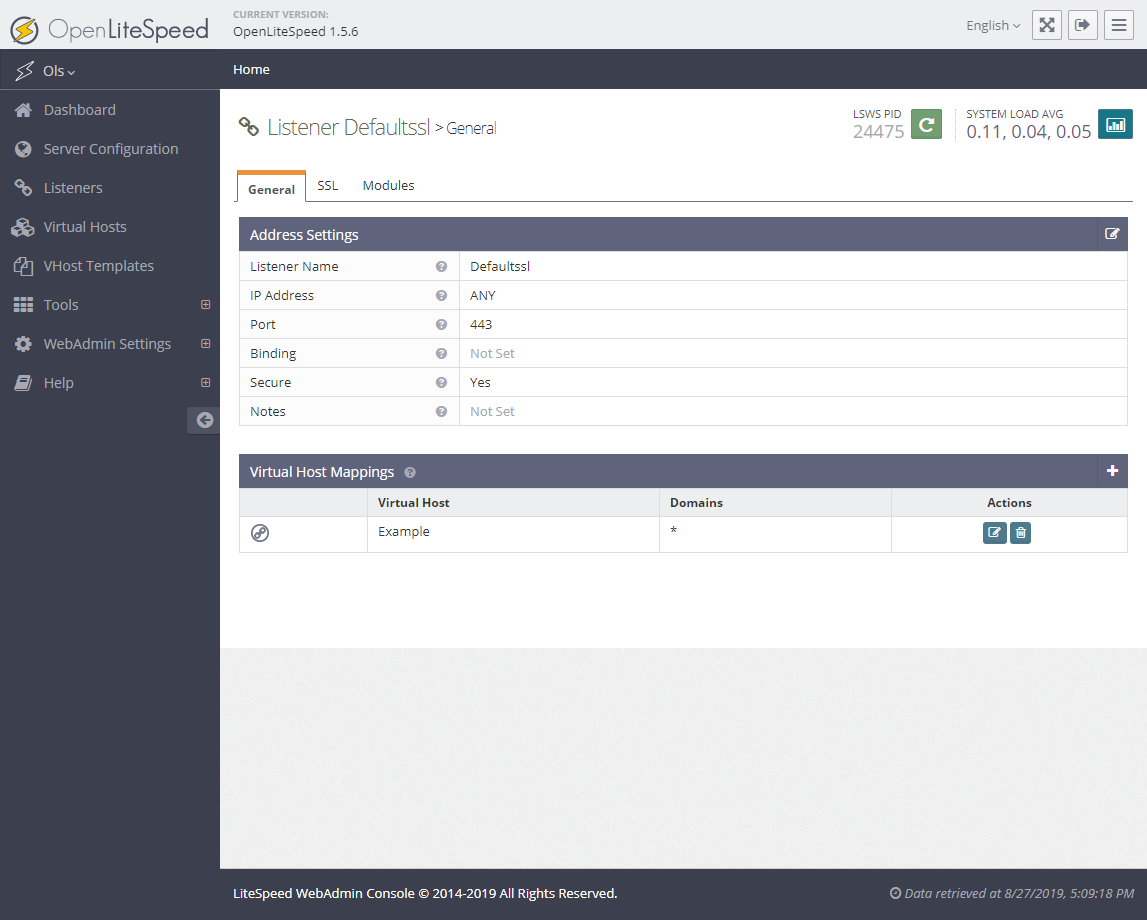
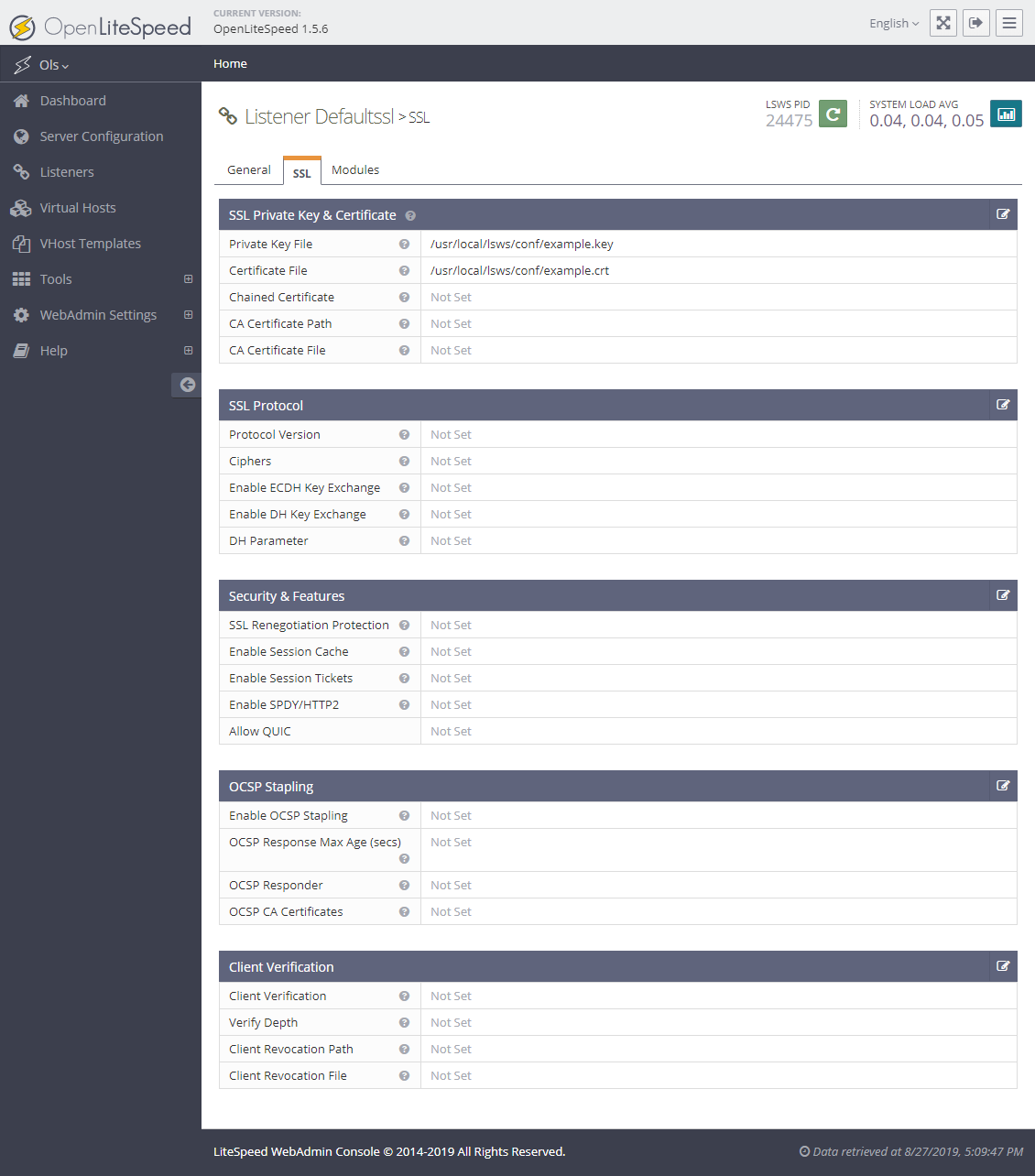
Listener – port 443
Virtual Hosts
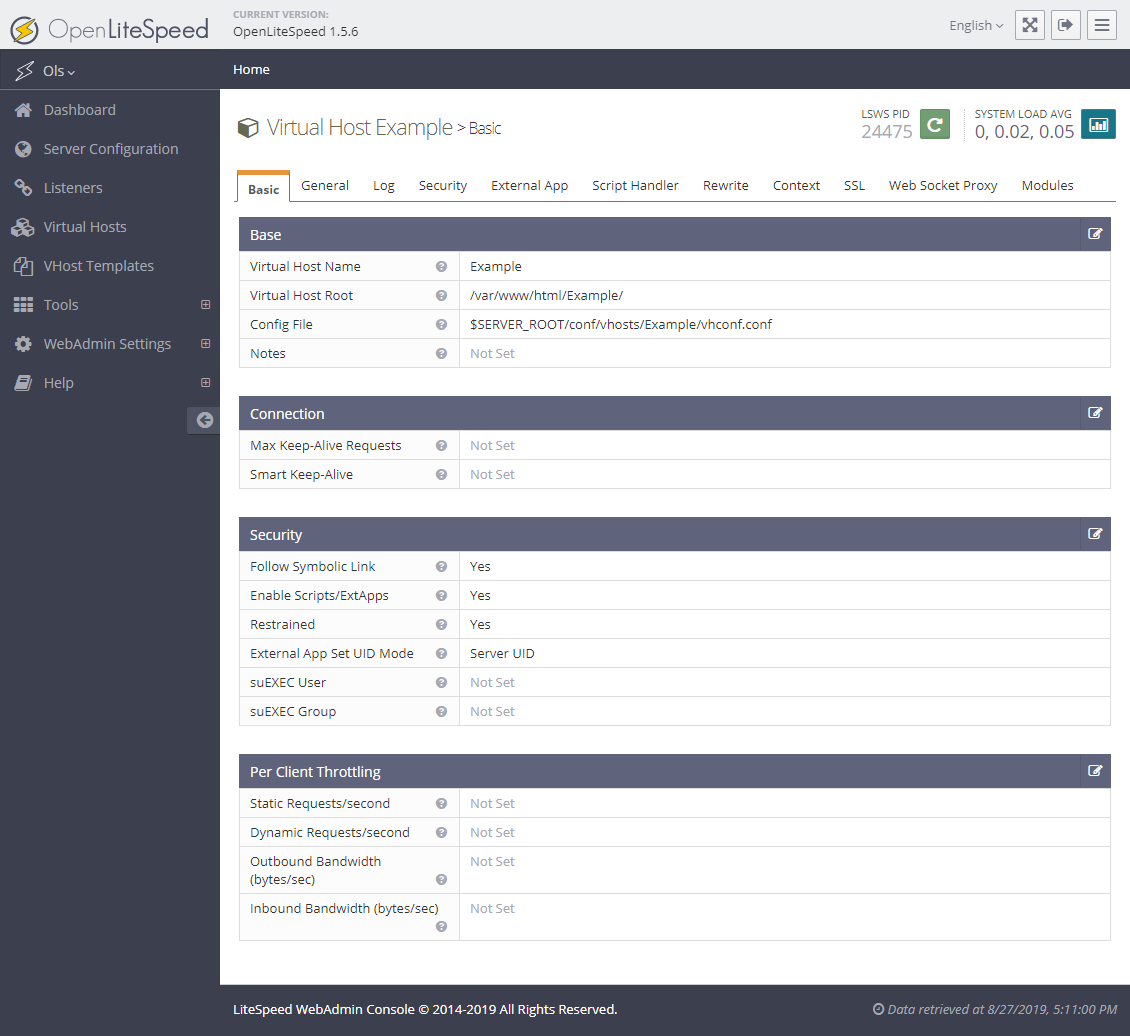
Virtual Hosts – Example – Basic
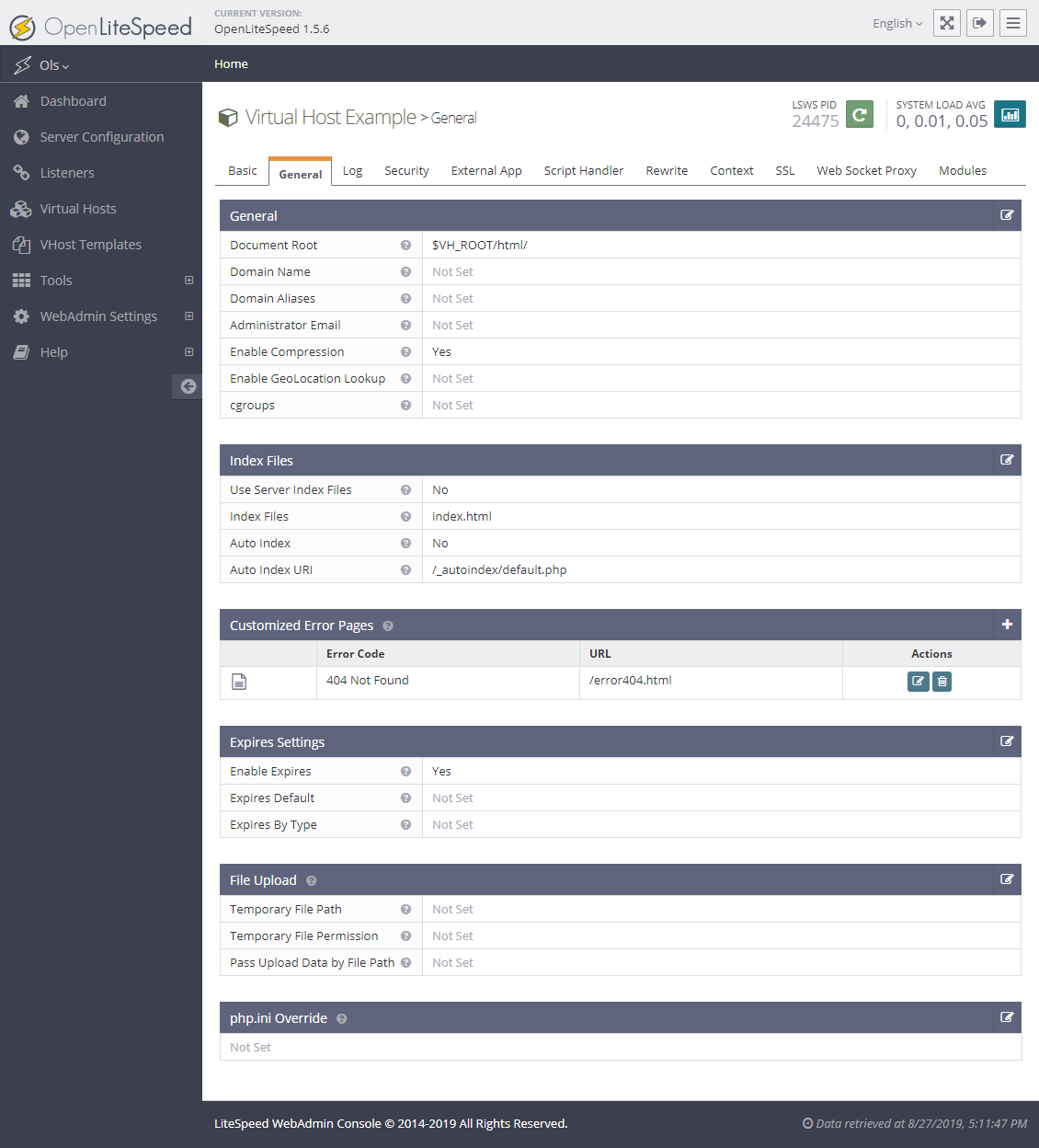
Virtual Hosts – Example – General
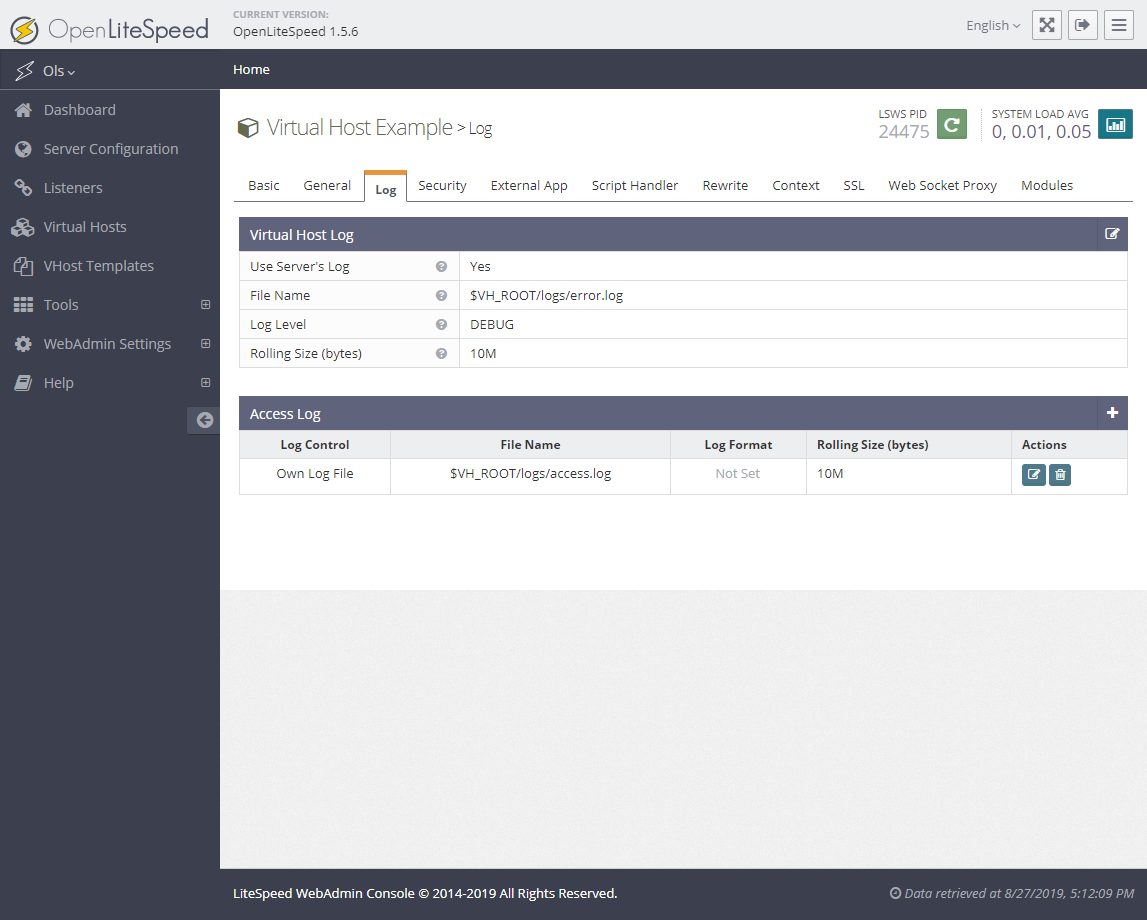
Virtual Hosts – Example – Log
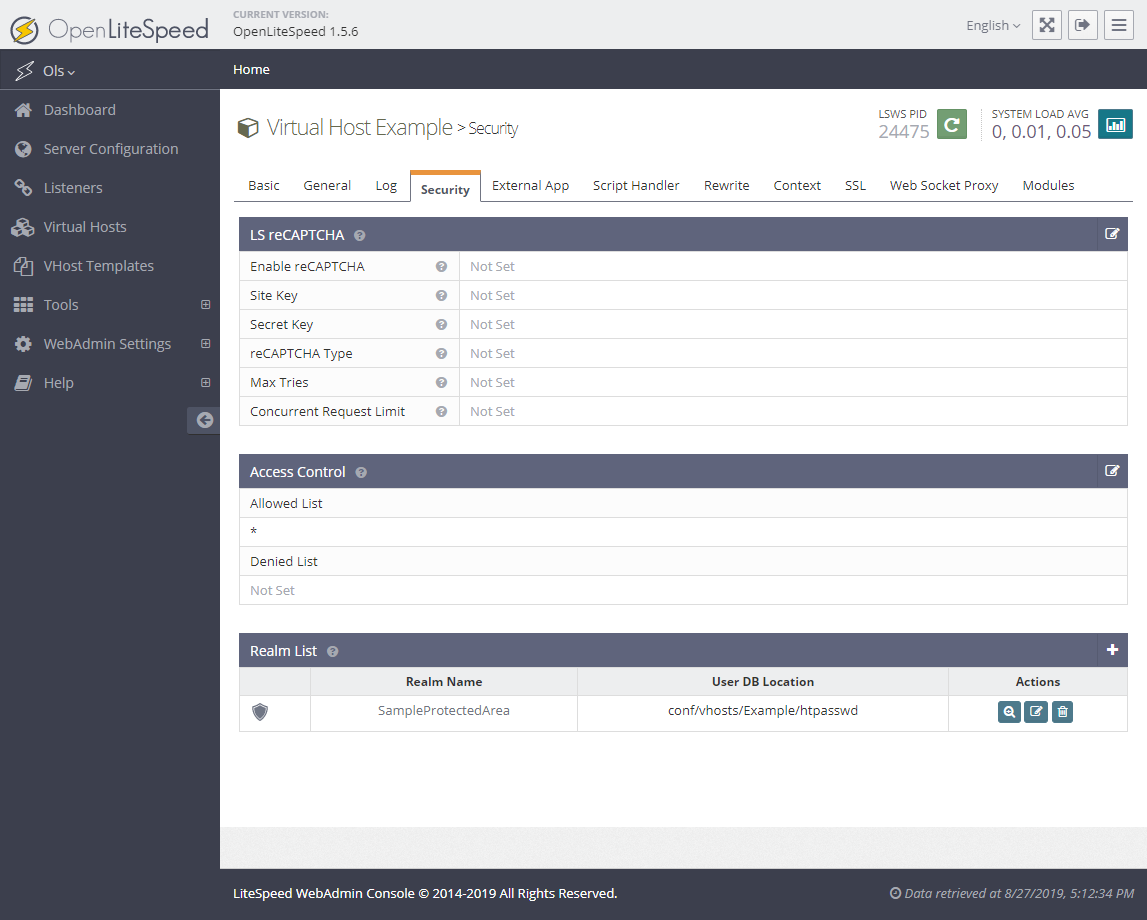
Virtual Hosts – Example – Security
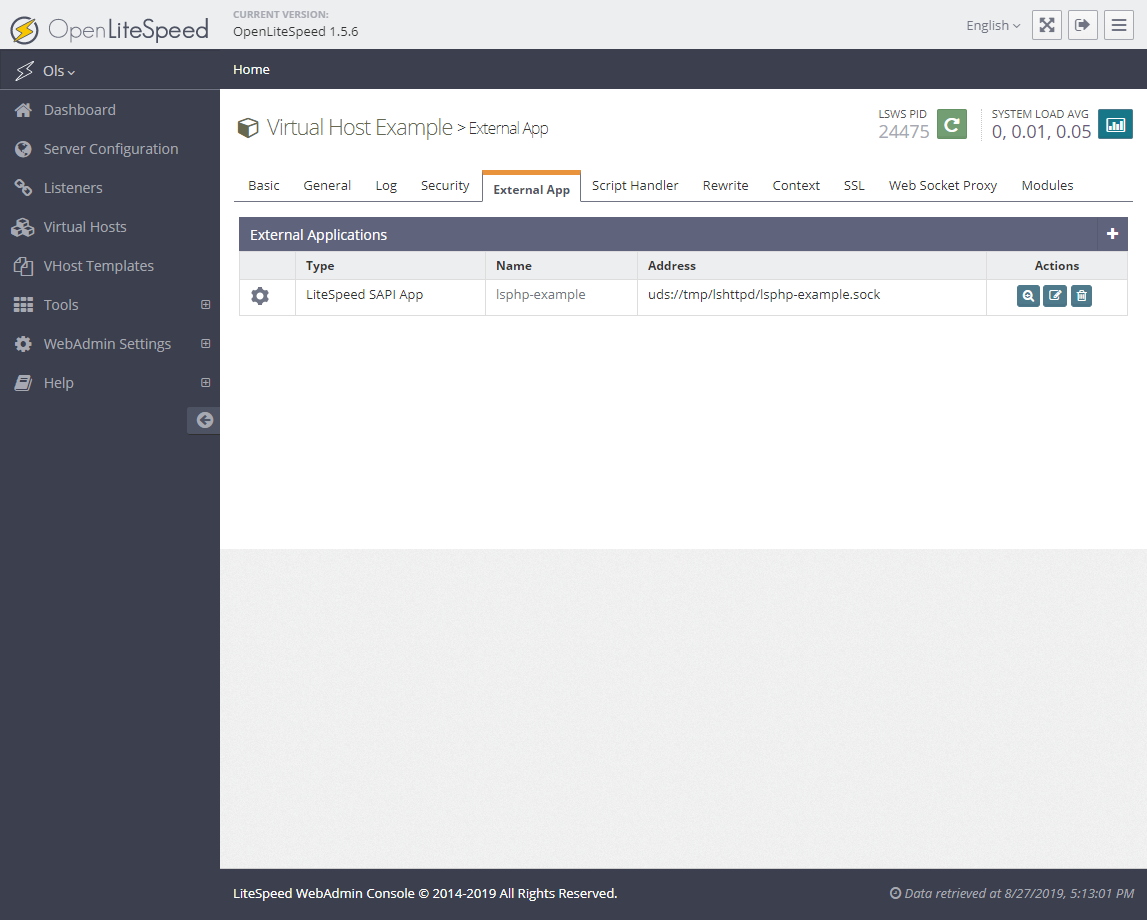
Virtual Hosts – Example – External App
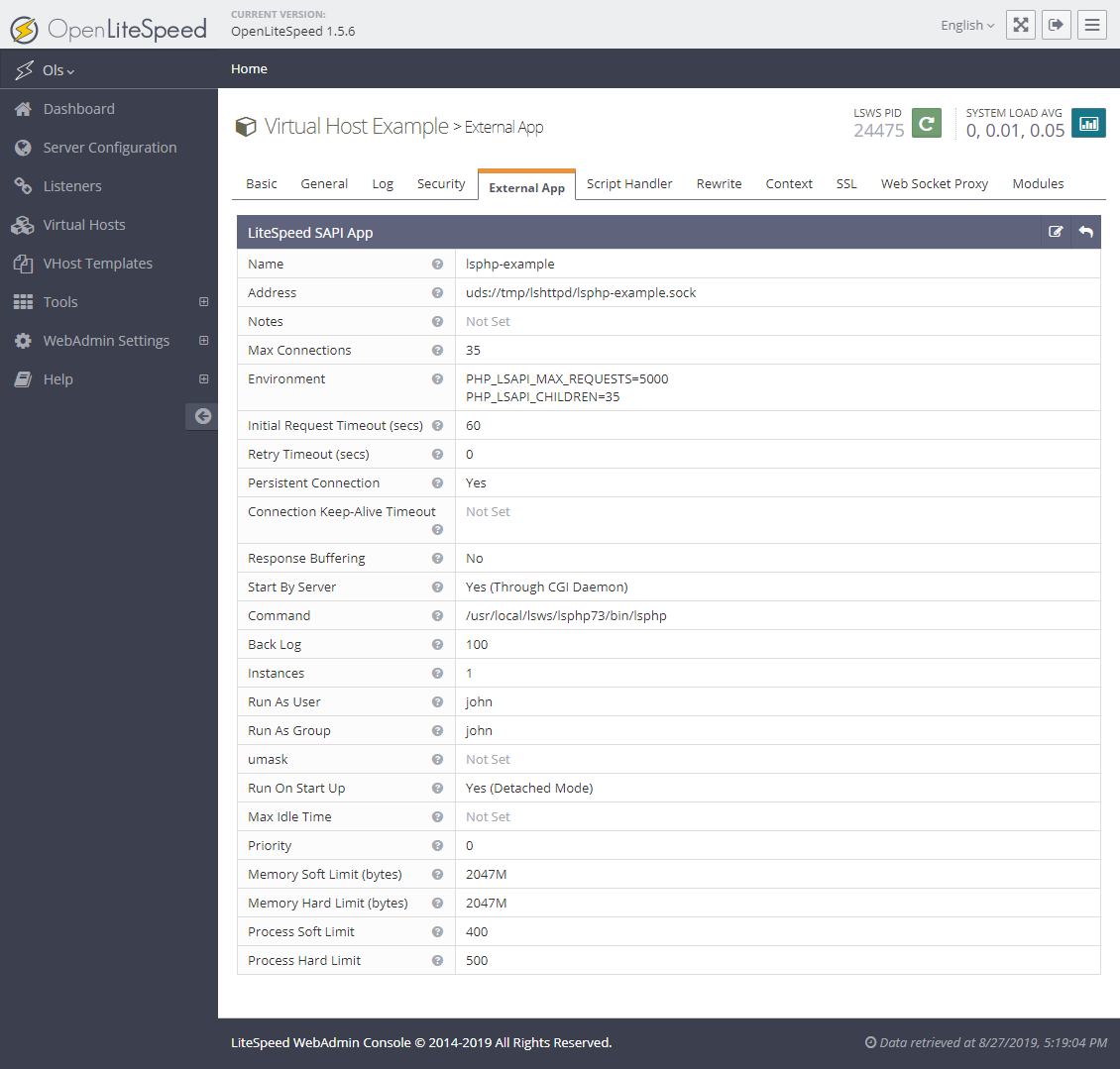
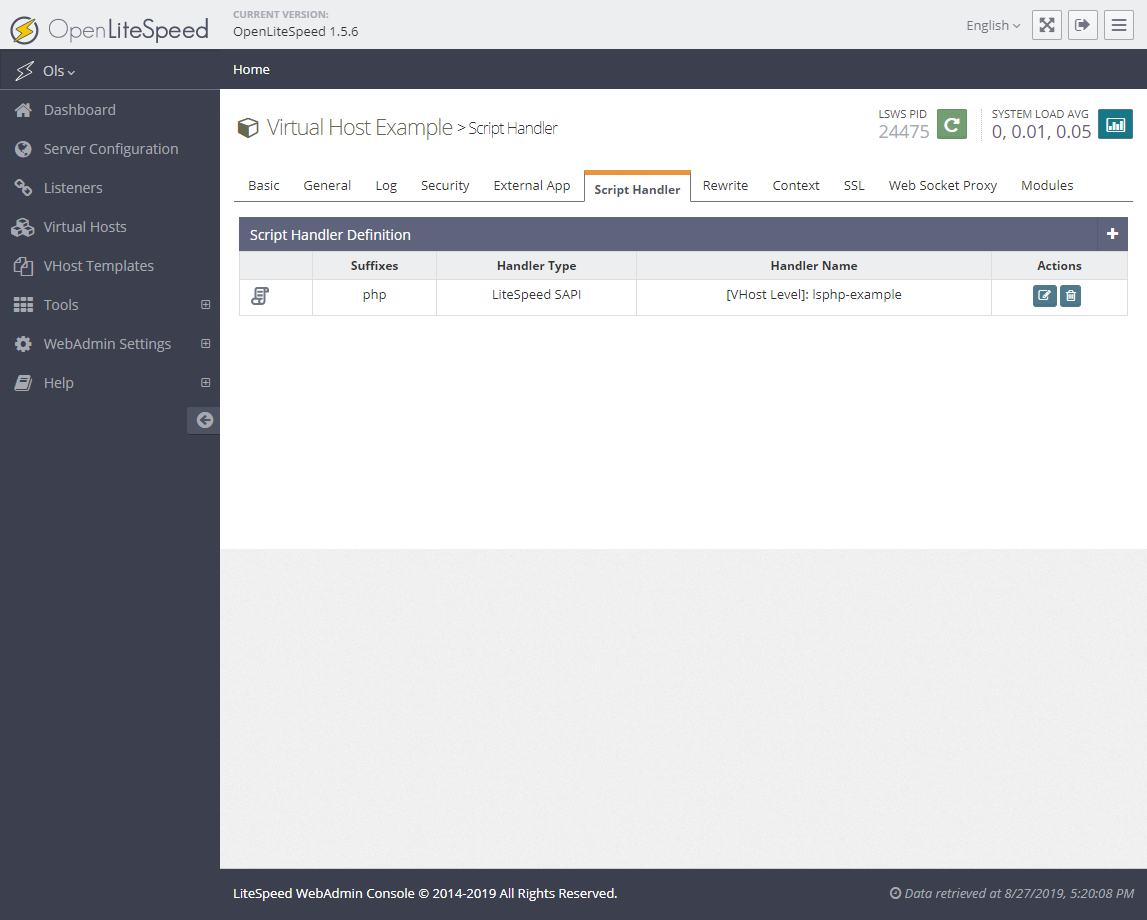
Virtual Hosts – Example – Script Handler
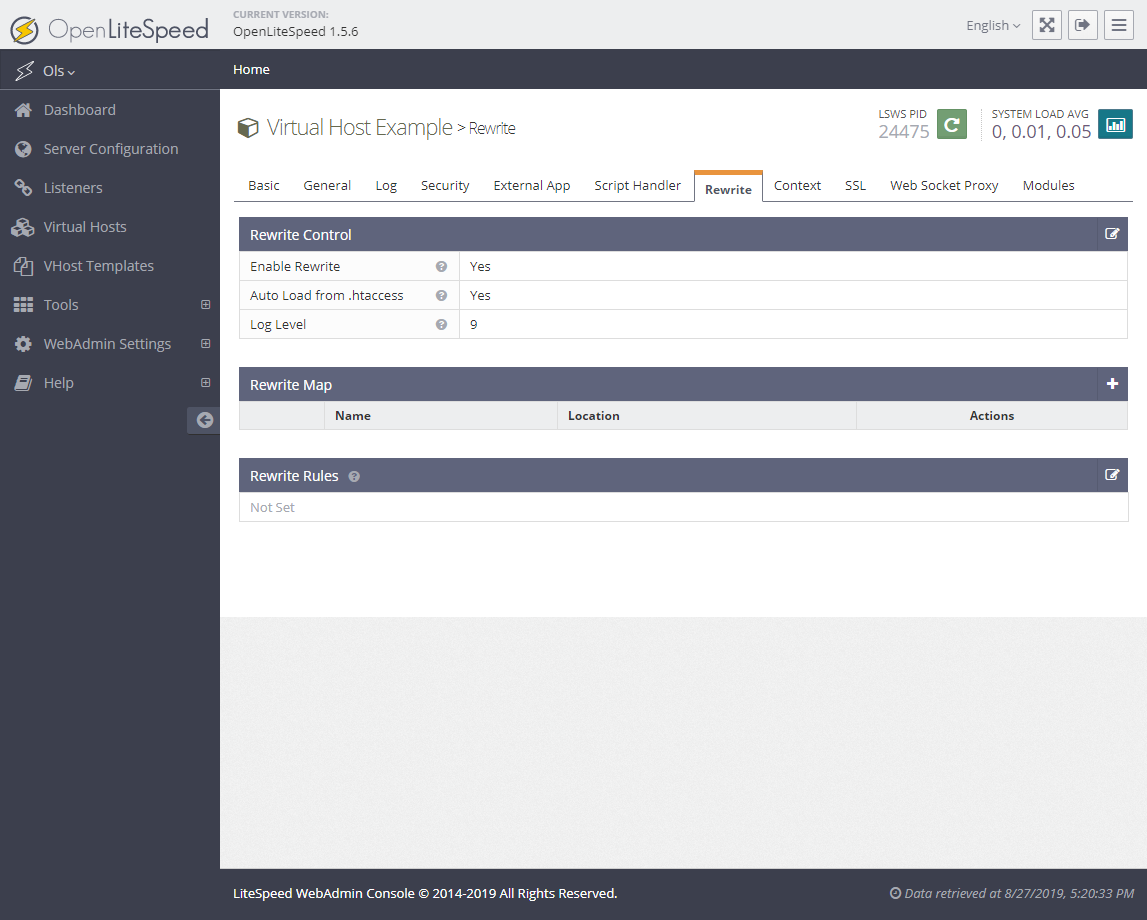
Virtual Hosts – Example – Rewrite
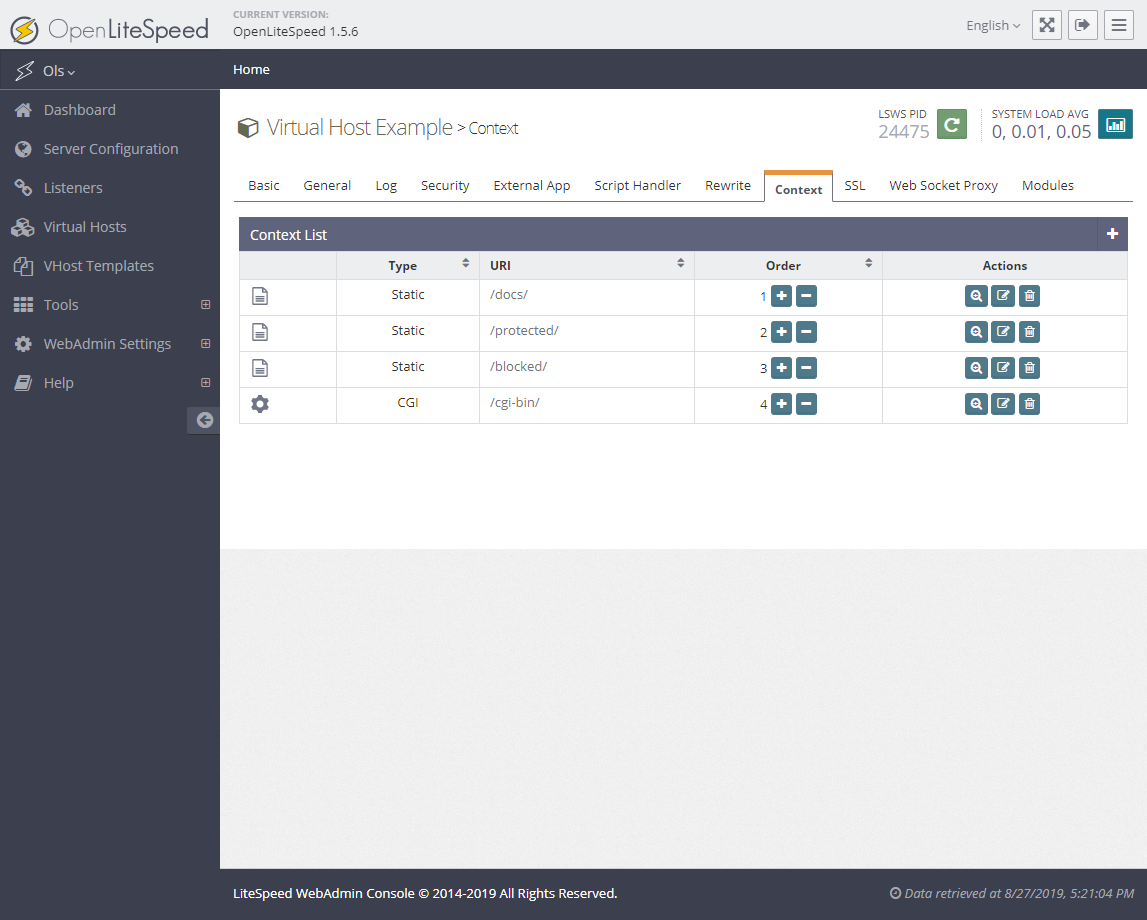
Virtual Hosts – Example – Context
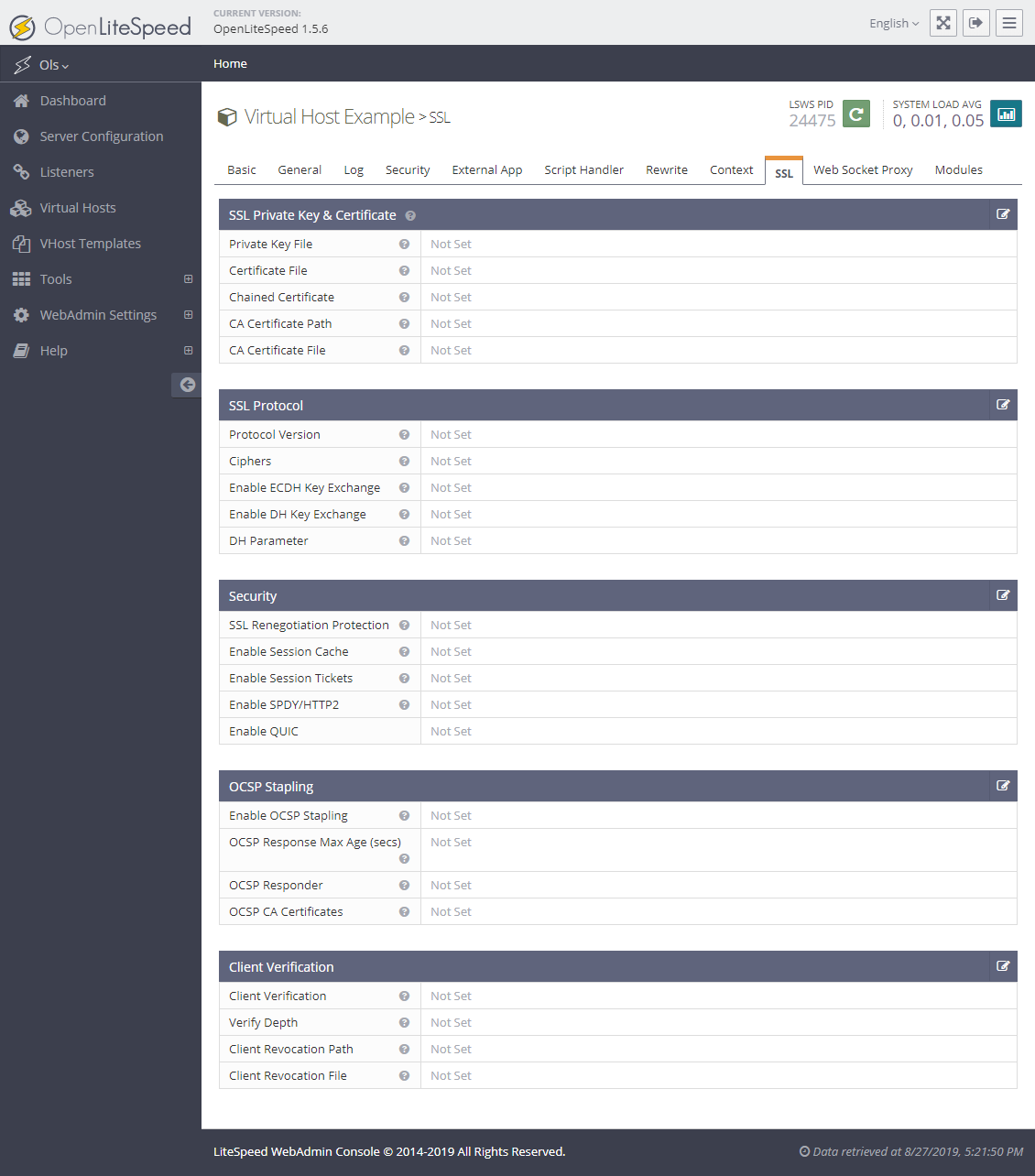
Virtual Hosts – Example – SSL
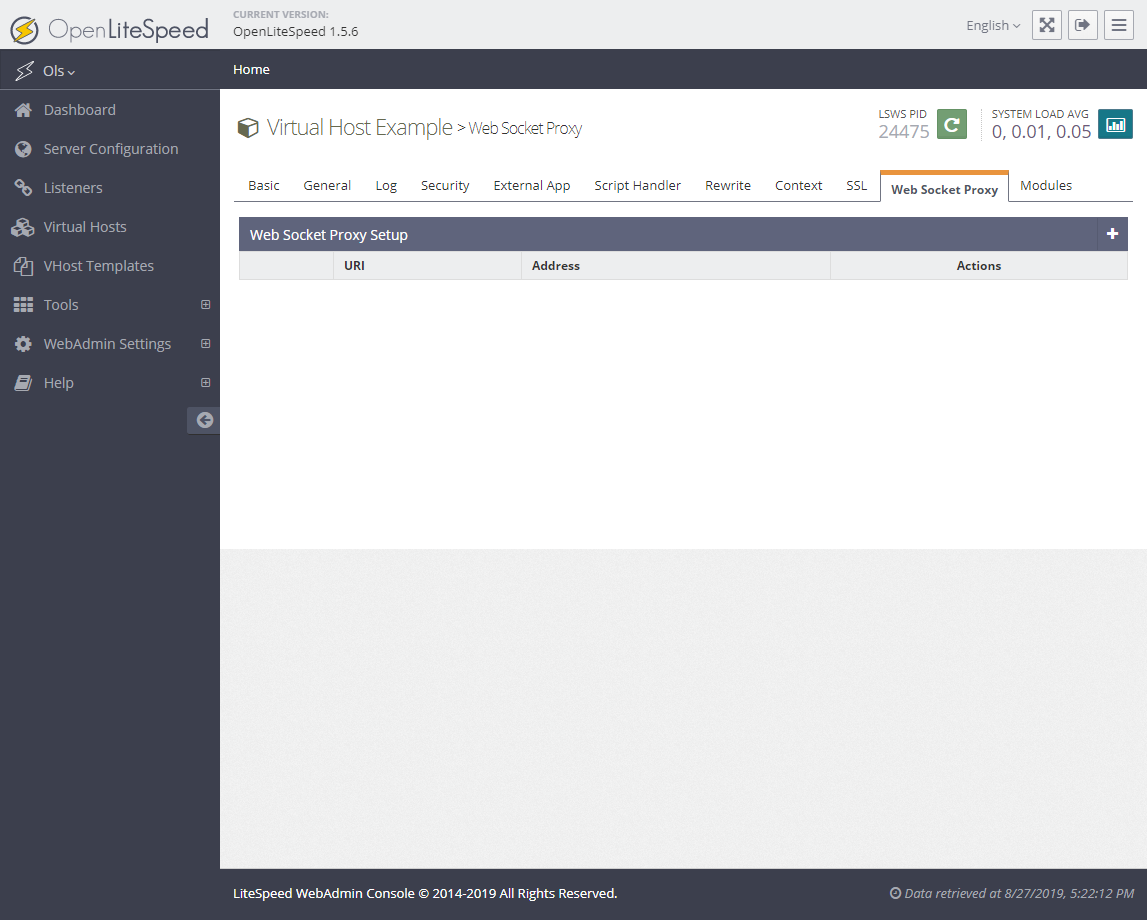
Virtual Hosts – Example – Web Socket Proxy
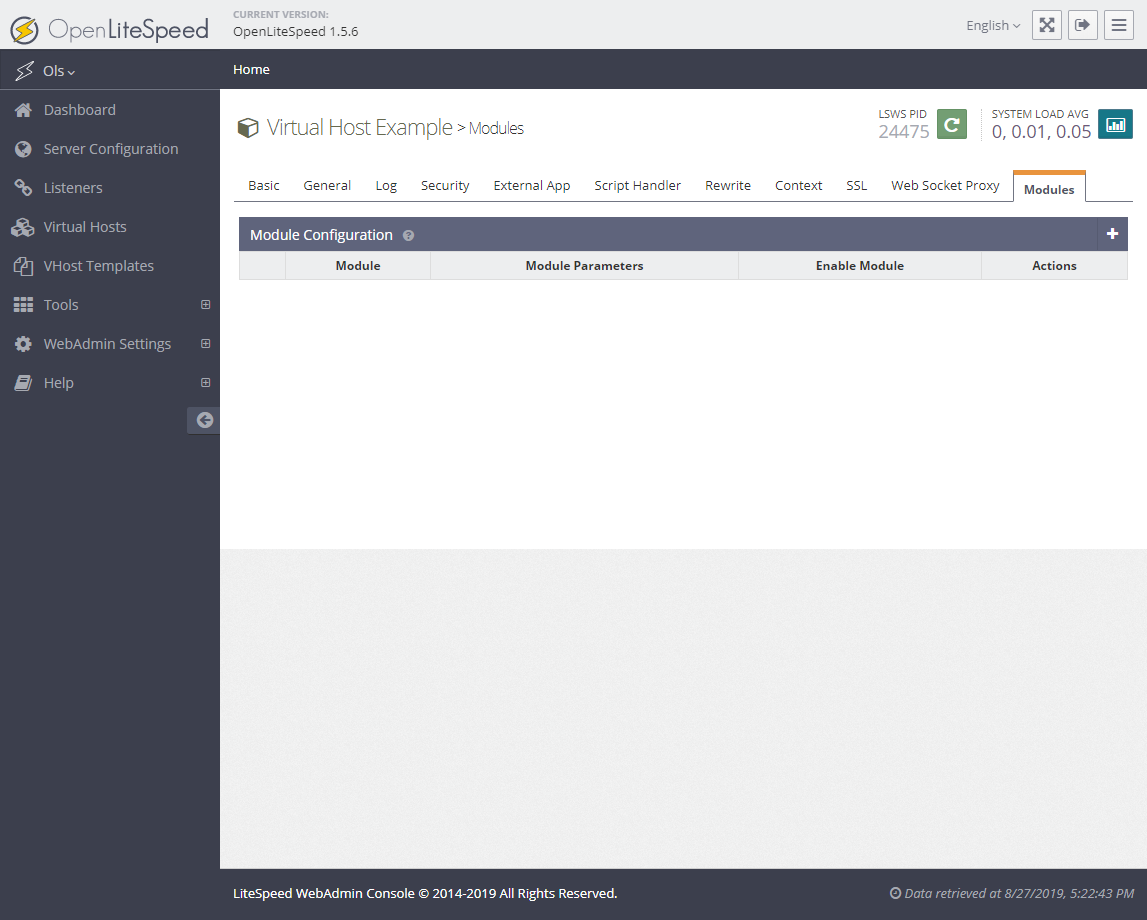
Virtual Hosts – Example – Modules
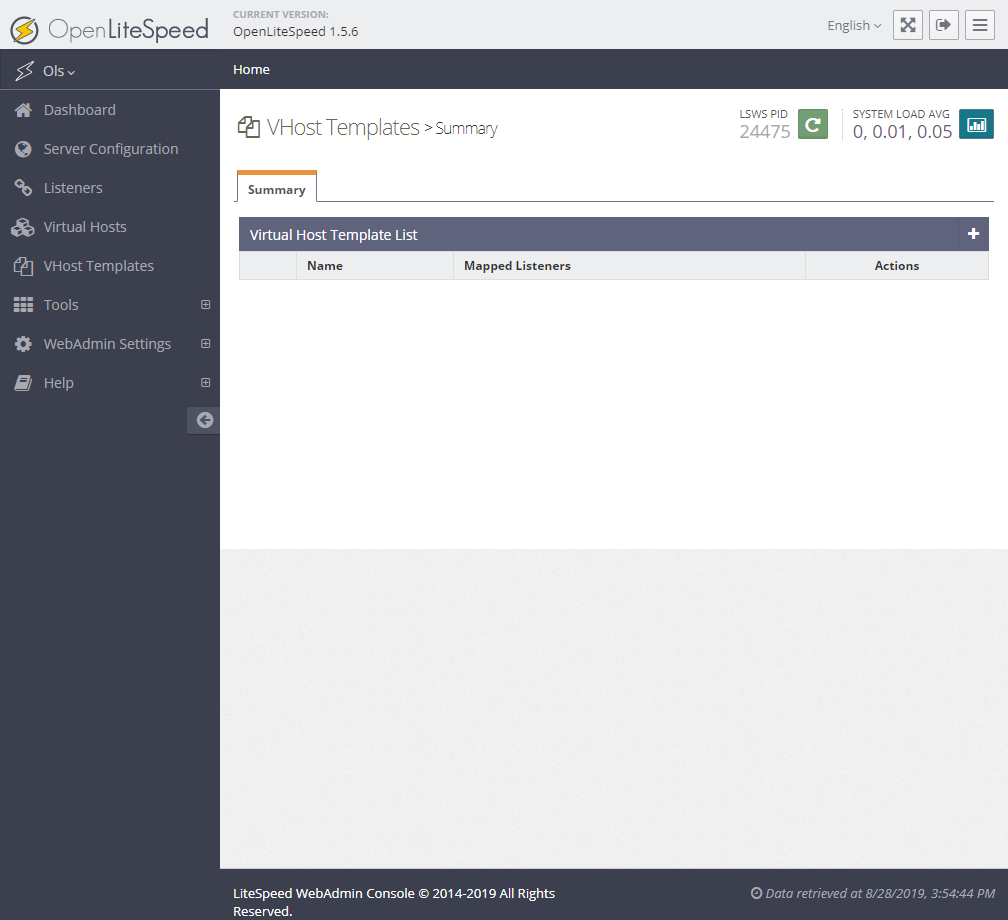
VHost Templates
Tools
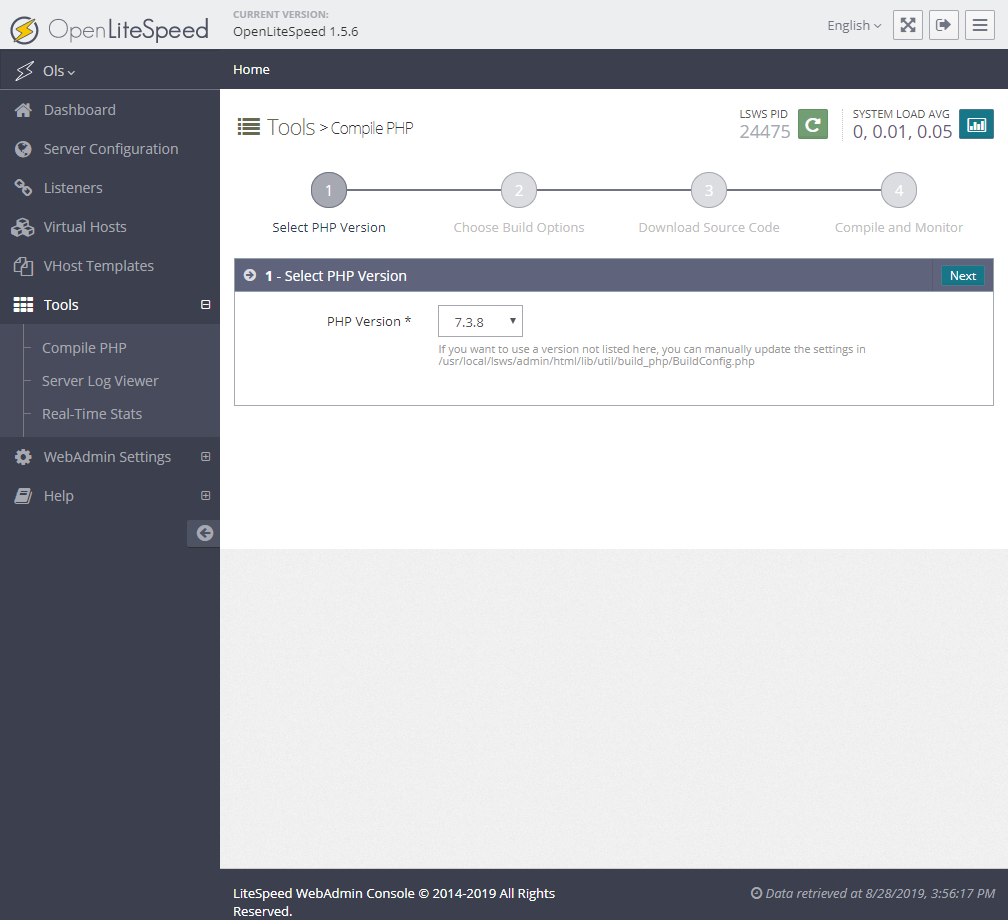
Tools – Compile PHP
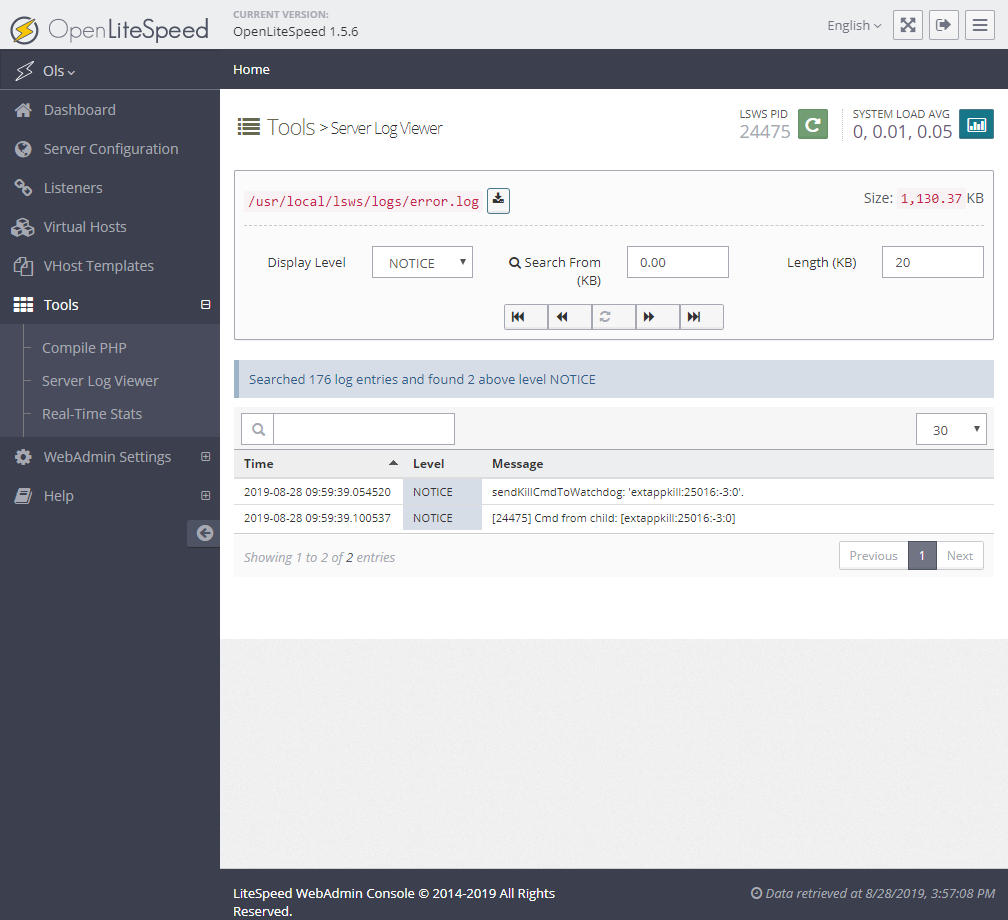
Tools – Server Log Viewer
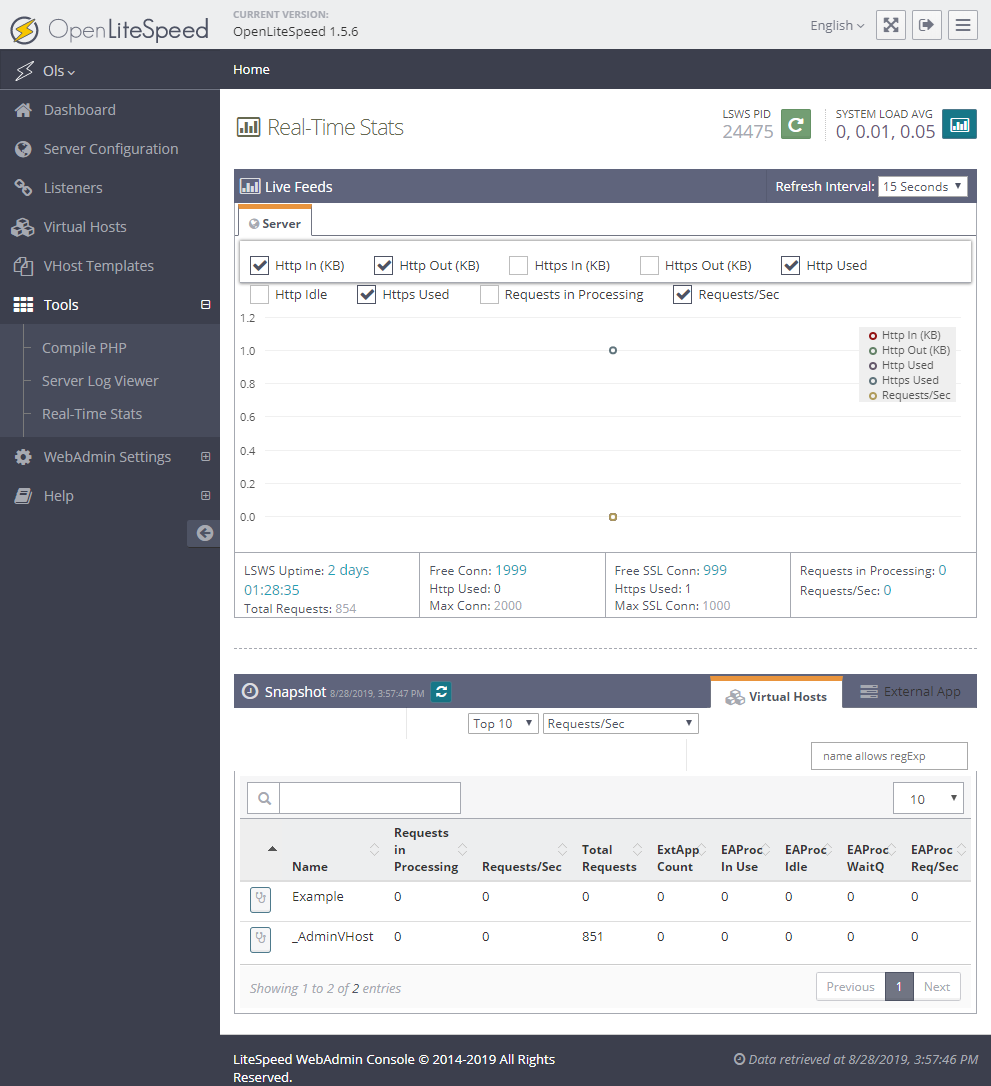
Tools – Real-Time Stats
WebAdmin Settings
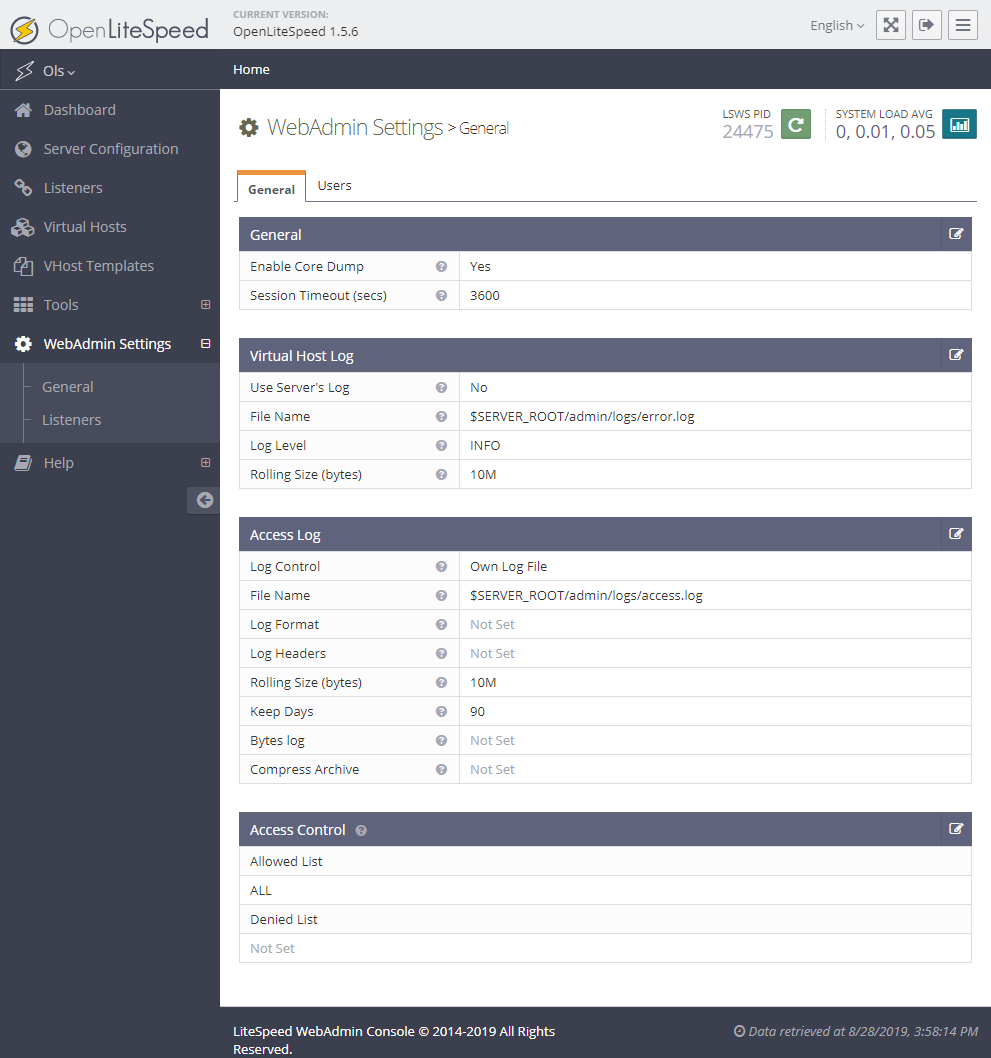
WebAdmin Settings – General
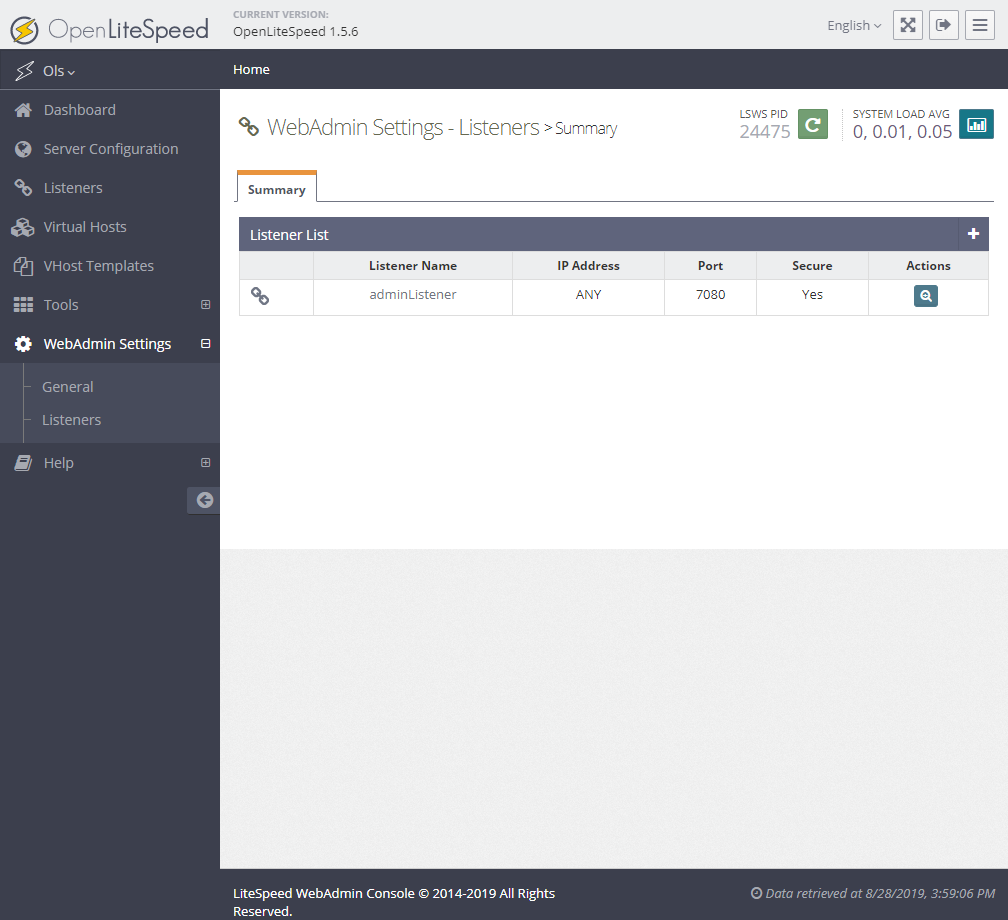
WebAdmin Settings – Listeners
Help
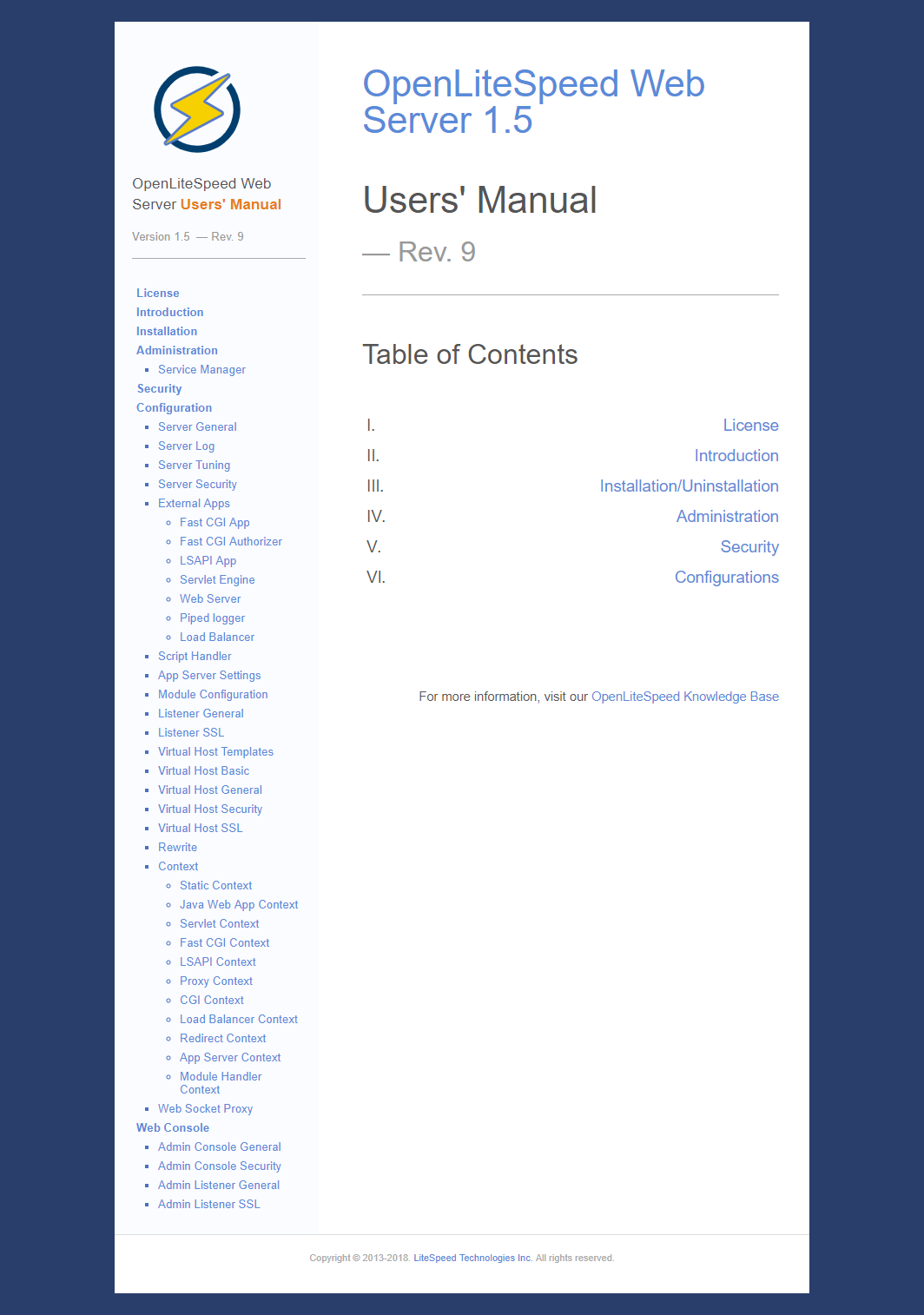
Help – Documentation
Reference:
https://openlitespeed.org/kb/ols-web-admin-console/











