October 31, 2022 . 3 MIN READ
RDS Auto Scaling allows a database to automatically adjust its capacity based on workload demand without causing downtime. Normally, when creating an RDS instance, we configure storage, memory, and capacity according to the expected requirements of the application. However, if the database workload grows beyond those expectations, the database capacity must be increased manually. Performing manual upgrades can lead to temporary application downtime.
Manual scaling also creates efficiency challenges. If the database resources are overused, the server may experience downtime or performance issues. On the other hand, allocating more resources than necessary increases operational costs. RDS Auto Scaling solves this problem by allowing administrators to define minimum and maximum limits for resources, enabling AWS to automatically adjust the capacity within that range.
AWS introduced Storage Auto Scaling for Amazon RDS, which helps databases automatically increase storage when needed, reducing the risk of running out of capacity.
AWS Auto Scaling continuously monitors the RDS instance and adjusts resources based on workload changes. This feature works with both new and existing database instances and can be enabled without additional charges. By scaling resources only when needed, Auto Scaling also helps reduce overall database costs.
After creating an RDS instance, follow the steps below to configure Auto Scaling.
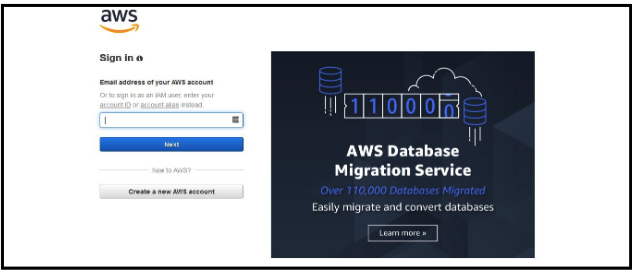
Sign in to the AWS Management Console using your valid credentials.
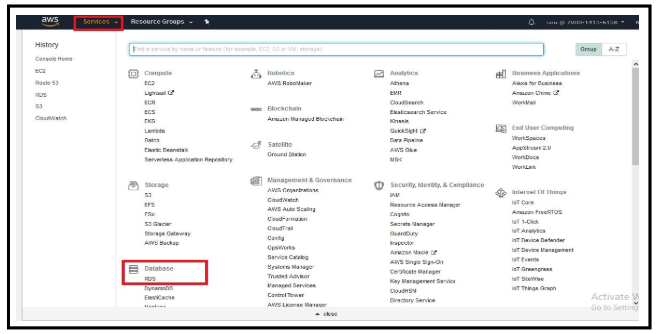
From the AWS Services menu, go to:
AWS Services → Database → RDS
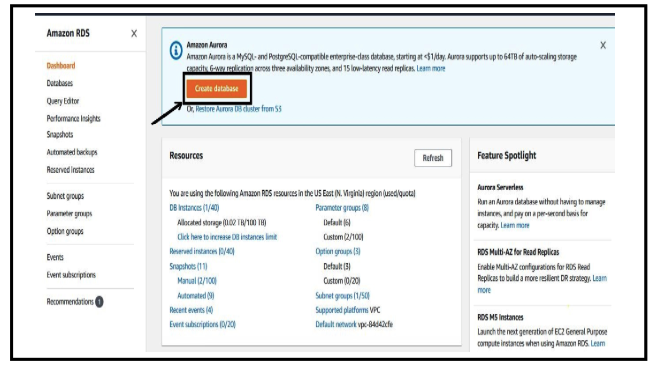
Open the RDS Dashboard and click Create Database.
Note:
If you want to enable Auto Scaling for an existing RDS instance, follow this process:
RDS Dashboard → Snapshots → Select Snapshot → Actions → Restore Snapshot
Then continue from Step 6.
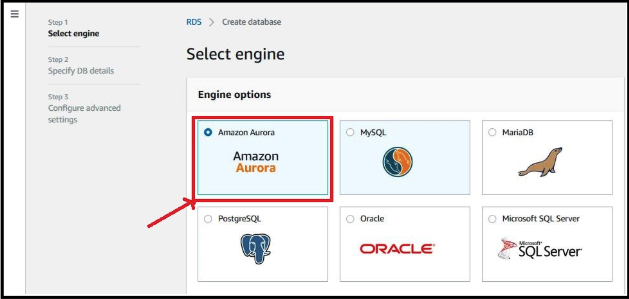
Choose the database engine you want to use. For example, you can select Amazon Aurora.
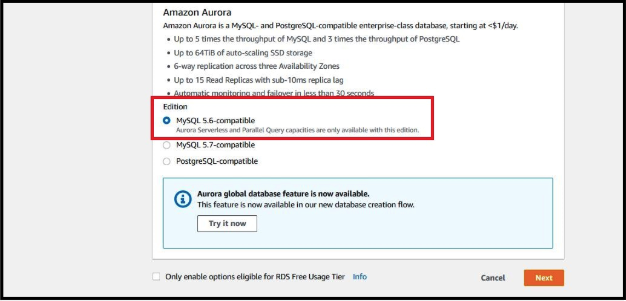
After selecting the engine, choose the desired MySQL version (for example, MySQL 5.6).
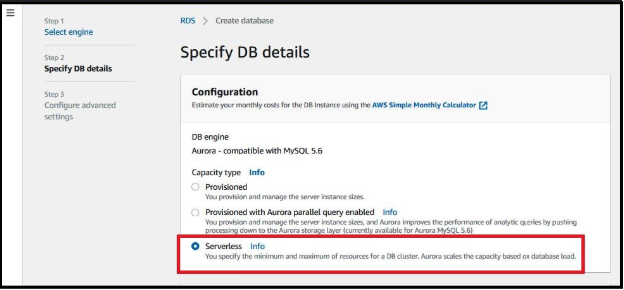
In the database configuration settings, select Serverless to enable automatic scaling.
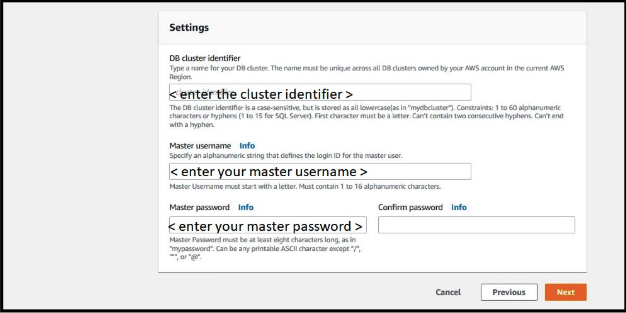
Provide the required information such as:
DB Cluster Identifier
Master Username
Master Password
Confirm the password and proceed to the next step.
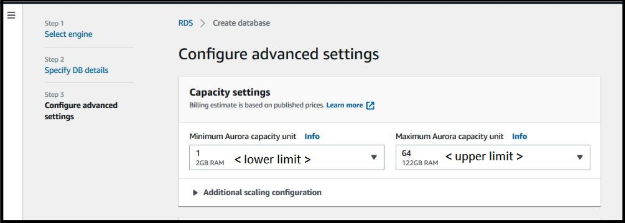
Define the Minimum Aurora Capacity Unit (ACU) and Maximum Aurora Capacity Unit.
Capacity is measured in units, where 1 ACU equals 2 GB of memory.
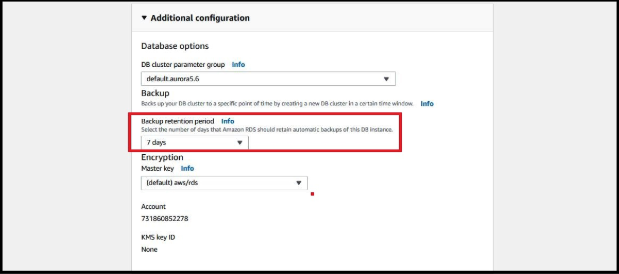
Configure additional settings such as Backup Retention Period, for example 7 days.
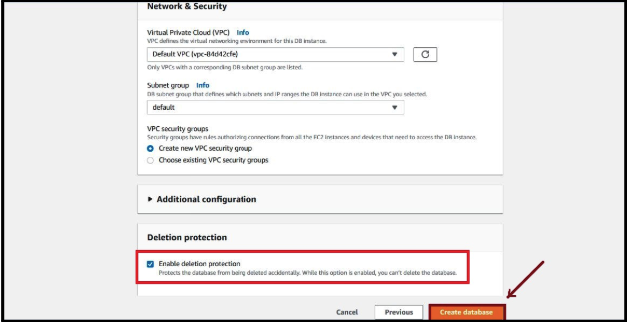
Select the appropriate VPC (default or custom) and assign the corresponding security group.
Before launching the database, enable Deletion Protection to prevent accidental deletion.
Then click Create Database.
Once the database is created, it will appear in the RDS Dashboard.
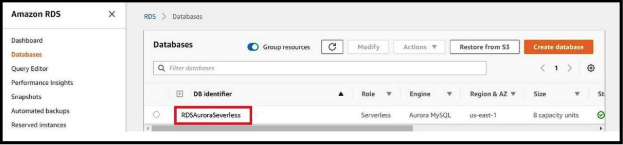
AWS defines specific thresholds that trigger scaling events.
The database scales up if the following conditions remain true for 3 continuous minutes:
CPU usage greater than 70%
Database connections greater than 90%
The database scales down if the following conditions remain true for 15 continuous minutes:
CPU usage less than 30%
Database connections less than 40%
Serverless RDS databases have several limitations:
Only Cluster Parameter Groups are available; DB Parameter Groups are not supported.
The database uses the default port 3306, and the port cannot be changed.
Restarting the database manually is not supported.
The database works only within the VPC network and cannot operate through VPN or VPC peering networks.
Only a limited number of cluster parameters can be modified, such as:
character_set_server
collation_server
lc_time_names
lower_case_table_names
time_zone
Binary logs (Binlogs) are disabled.
Currently, Amazon Serverless RDS supports only three types of event notifications:
Failover
Failure
Notification
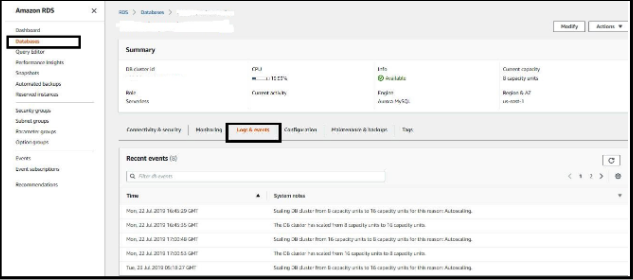
You can track scaling events and other activities through the RDS console.
Navigate to:
RDS Dashboard → DB Instance → Select the instance → Logs and Events
This section displays details about scaling operations and other system events.
By implementing RDS Serverless with Auto Scaling, you can automatically increase or decrease database capacity according to your application’s demand. AWS handles the complexity of scaling, allowing developers and administrators to focus more on building and improving their applications rather than managing infrastructure.
If you have experience using RDS Auto Scaling or have questions about it, feel free to share your thoughts or ask questions.
reference: