January 14, 2023 . 2 MIN READ
Ubuntu servers come equipped with a command line interface as default. The Command Line Interface or CLI is a text-based interface so it consumes low hardware resources and can also run well on a low-resolution screen. GUI on the other hand requires more hardware resources and a high-resolution screen in most cases.
The Xrdp is an open-source implementation of the Microsoft Remote Desktop Protocol (RDP) that allows to graphically control of a remote system. Users can remotely access the Linux desktop using an RDP client if Xrdp is installed.
This guide will describe the steps to install ubuntu-desktop and Xrdp on Ubuntu 22.04 LTS.

 Check the Xrdp status using the following command.
# systemctl status xrdp

If the server does not have a firewall enabled, skip step 3.
# ufw allow 3389

# ufw reload

# ufw status

# reboot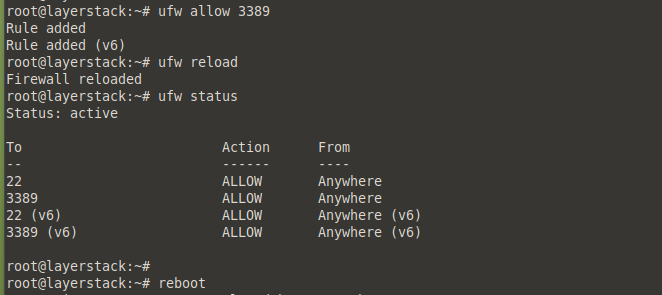
Remote Desktop Client.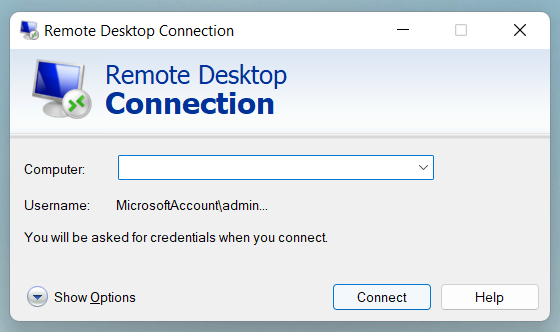 Click on the
 Yes button to proceed with the connection.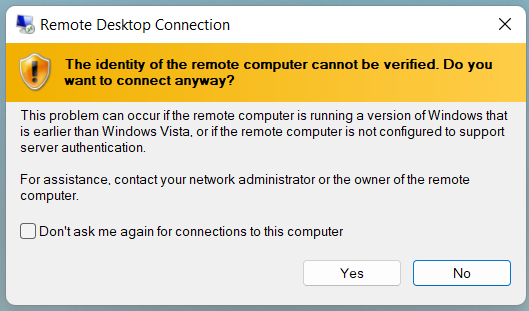 Input the login credentials and click on the
 OK button.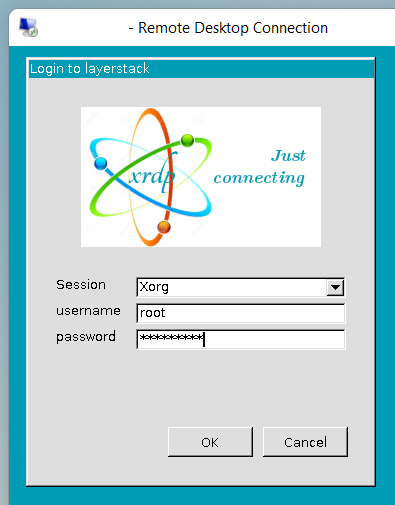 Once the correct logins are entered, the desktop screen of the remote Ubuntu desktop system is shown in the below image.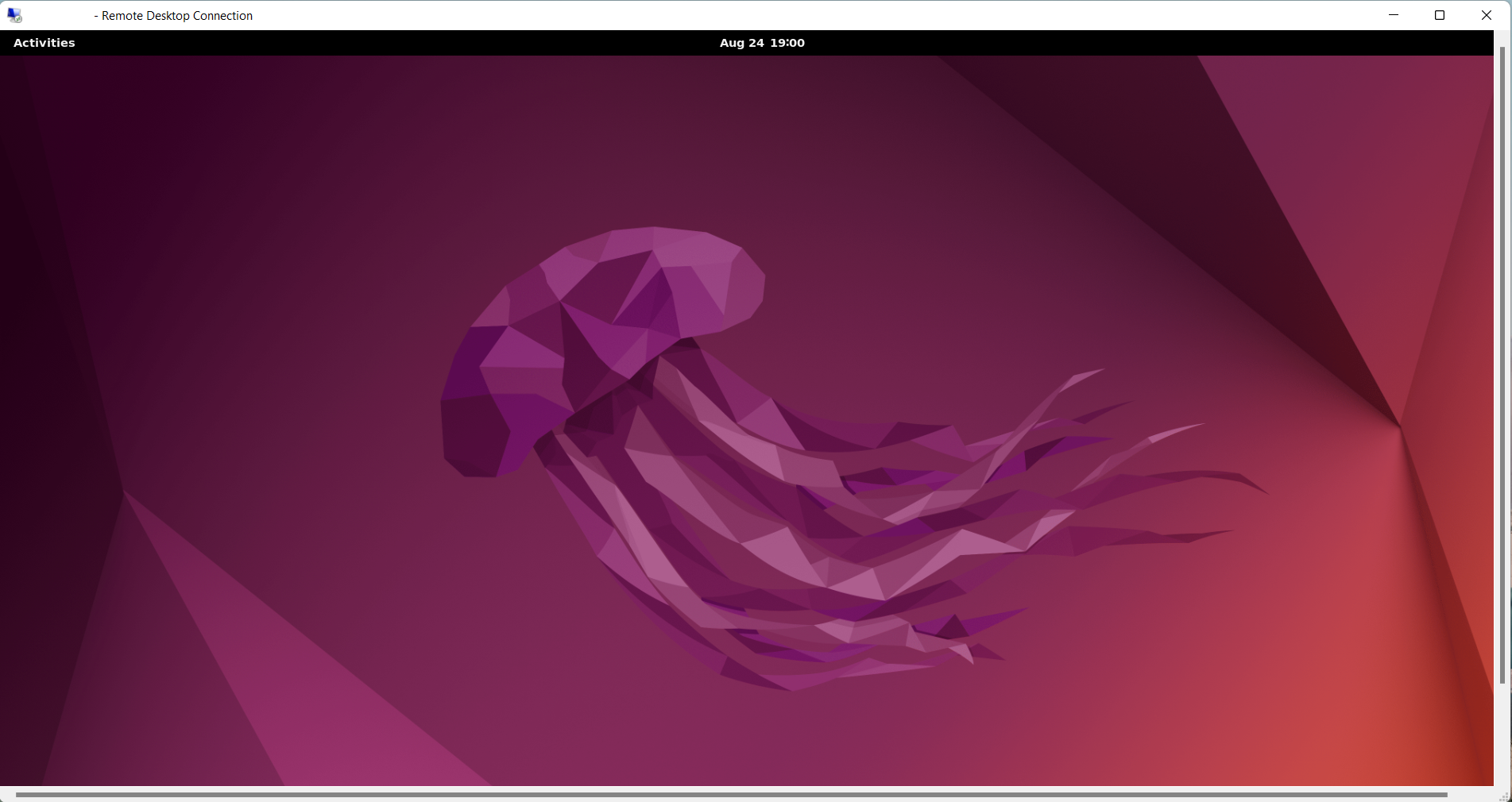
Reference:
https://www.layerstack.com/resources/tutorials/How-to-install-Graphical-User-Interface-GUI-for-Ubuntu-22-Cloud-Servers
https://linuxconfig.org/ubuntu-22-04-gui-installation
https://geekalgo.com/linux/ubuntu/how-to-install-gui-on-ubuntu-server-22-04/