July 6, 2021 . 3 MIN READ
https://documentation.cpanel.net/display/CKB/How+to+Restore+Your+cPanel+Account+-+A+Guide+for+New+System+Administrators
This document explains how to restore your website in WHM.
Note:
This document is intended for cPanel users who have recently become system administrators.
The cPanel & WHM product package contains two distinct interfaces. Each interface controls a different aspect of web hosting. It is important that you understand the differences between the two interfaces:
Important:
If you plan to restore your cPanel account, do not create the account in WHM before you attempt to restore it.
To access cPanel & WHM services through a web browser, follow the directions in our How to Log in to Your Server or Account documentation.
The root user is the highest-level system user. As the root user, you can access and make changes to anything on the system.
Important:
We strongly recommend that you do not share or expose your root password.
To restore your cPanel account, obtain a backup archive or a cpmove file of the old account. Either generate the backup archive in cPanel’s Backup interface (cPanel >> Home >> Files >> Backup), or obtain a cpmove archive from your hosting provider.
Important:
cpmove file.To begin, place your backup archive or cpmove file in the /home directory. Use an SFTP client to transfer the file to your server.
For more information about SFTP, read our How to Configure Your SFTP Client documentation.
Note:
If you do not already have an SFTP client, you can download Cyberduck™ for free.
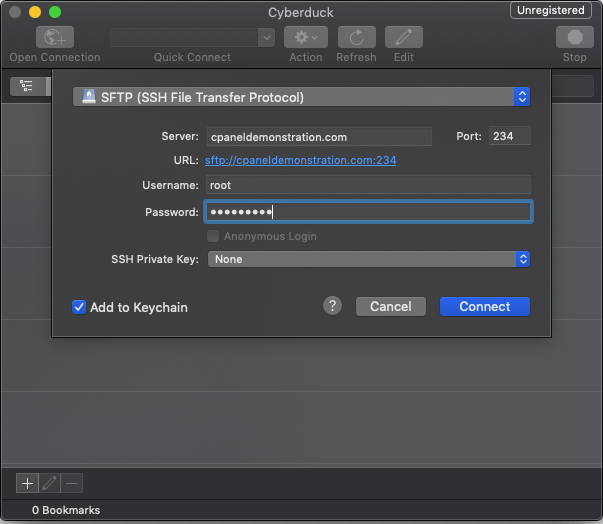
After you install your SFTP client, open an SFTP connection to your server with your root login information.
For example, if you use Cyberduck™, perform the following steps to open an SFTP connection:
root in the Username text box.root user’s password in the Password text box.
Set up SFTP with Cyberduck™
After you open an SFTP connection to your server, transfer the backup archive or cpmove file to the server’s /home directory.
To transfer the file with Cyberduck™, perform the following steps:
/ directory.home folder./home directory.
Note:
The amount of time that the SFTP client requires to transfer a file depends on the file’s size and your connection speed.
After you move your backup archive or cpmove file to the correct location, navigate to WHM’s Restore a Full Backup cpmove File interface (WHM >> Home >> Backups >> Restore a Full Backup/cpmove File). Then, enter your old cPanel username in the available text box and click Restore. The system will restore your cPanel account.