
July 9, 2021 . 1 MIN READ
http://yourbusiness.azcentral.com/transfer-saved-emails-thunderbird-gmail-17268.html
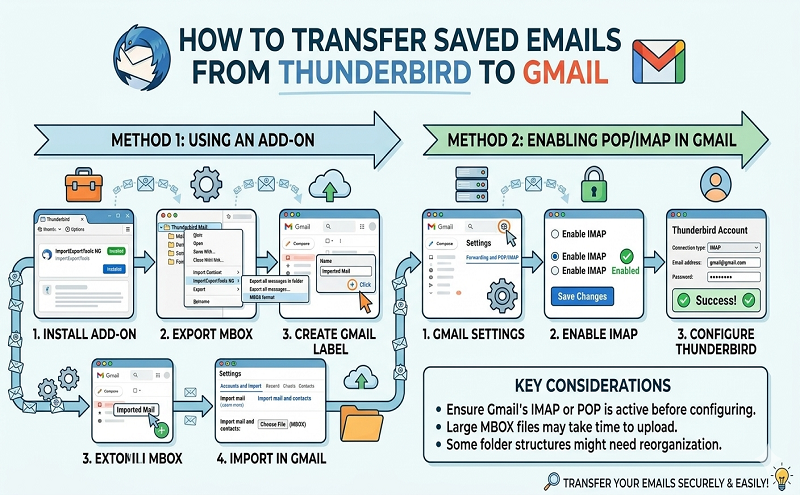
Log in to your Gmail account.
Click on the “Gear” icon and select the “Settings” option.
Click the “Forwarding and POP/IMAP” tab.
Locate the “IMAP Access” heading and select “Enable IMAP.”
Click on the “Save Changes” button.
Double-click on the “Thunderbird” icon to launch the program.
Click on the “Application Menu” button.
Select “Options” from the menu, and then select the “Account Settings” option.
Click on the “Account Actions” button.
Click on the “Add Mail Account” button.
Enter your name, Gmail address and password. Click on the “Continue” button.
Select the IMAP option and click on the “Done” button. Thunderbird will populate the program with all of your Gmail folders and emails.
Copy and paste all of your old Thunderbird emails over to one of your Gmail folders. After you copy and paste your files, your Gmail account will update with the new emails. You can now close and delete the Thunderbird application.
Katherine Johnson has been writing for over 10 years. She served as the CEO of two companies in the technology and beauty industries. Her writing can be found on AOL Travel, Screen Junkies and other websites. Johnson holds a Bachelor of Science in computer science.
http://yourbusiness.azcentral.com/transfer-saved-emails-thunderbird-gmail-17268.html










