
July 9, 2021 . 3 MIN READ
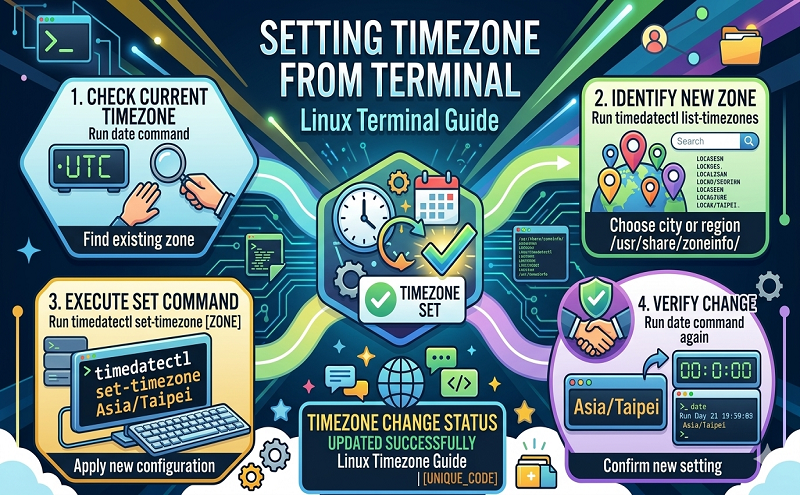
To change time zone from terminal, just press Ctrl+Alt+T on your keyboard to open Terminal. When it opens, run the command(s) below:
sudo dpkg-reconfigure tzdata
Once open, just follow the screens to change the time zone.
http://askubuntu.com/questions/323131/setting-timezone-from-terminal
DECEMBER 6, 2007 BY HS 41 COMMENTS
What if you would like to manage your computer’s time in Ubuntu? It’s easy if you are in a graphical desktop environment. But what if you are on the command line? For example, in Ubuntu Server? Well, it is easy as well. A very helpful, everything-in-one-place resource is Ubuntu Time.
To view the current date and time, the following command will be enough
date
To change time means to set a new time. To set time in Ubuntu (or any Linux), just run the following command
sudo date newdatetimestring
where newdatetimestring has to follow the format nnddhhmmyyyy.ss which is described below
Let’s say you want to set your computer’s new time to December 6, 2007, 22:43:55, then you would use:
sudo date 120622432007.55
It couldn’t be any easier, could it? The source of this information was a good post on Ubuntu Forums (Set time/date via command line).
You may update or change your time zone by
dpkg-reconfigure tzdata (thanks to Mario, see comment below)
This command will guide you through the process of setting a new time zone. You may also choose UTC (GMT) if you want.
If your system does not have tzdata, install it as below:
sudo aptitude install tzdata
This will provide a set of different time zones to choose. If you would like to set the time to UTC, choose the option which says something like ‘none of the above’, or ‘none of these’ or something to this effect. In my case it was option 11. Then it asks for difference from UTC (GMT and GST is also the same thing). I chose GST-0 as the option and it set the time as UTC.
If you want to sync your clock with NTP servers, it is also very easy. Just make sure you have the file ntp.conf file in /etc. How can you check it?
ls /etc/ntp.conf
If you see /etc/ntp.conf as a result, you already have that file. If the ls command gives an error, you do not have it. If so, you may create it yourself.
sudo vim /etc/ntp.conf
This file will be used to automatic synchronization of the clock. Thanks to Sean (see comment below): You need to install ntpd in order to make use of this ntp.conf file.
Whether you have the file already or not, make sure it has at least the following data
driftfile /var/lib/ntp/ntp.drift
server 0.pool.ntp.org
server 1.pool.ntp.org
server 2.pool.ntp.org
server pool.ntp.org
Here you may replace, add, and/or remove any servers you wish. You will find a list of time servers from the public NTP time server list.
You may manually sync the clock using the following
sudo ntpdate servername
where servername can be any public or private time server. You may always choose the following without hesitation
sudo ntpdate pool.ntp.org
If you don’t have ntpdate installed, you can install it via:
sudo aptitude install ntpdate
http://codeghar.wordpress.com/2007/12/06/manage-time-in-ubuntu-through-command-line/










