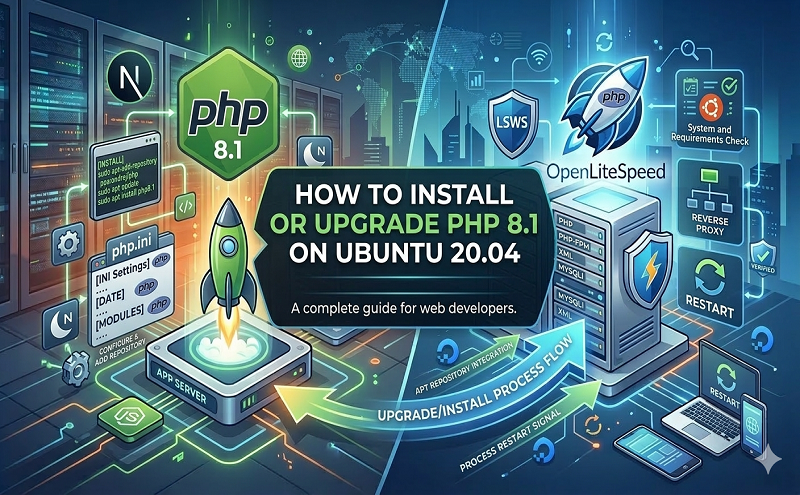
How To Install Or Upgrade PHP 8.1 On Ubuntu 20.04

July 4, 2022 . 2 MIN READ

Getting Started with PHP 8.1 on Ubuntu

Before you begin, ensure your Ubuntu server has the latest packages installed:

sudo apt update
sudo apt upgrade

This updates the package index and upgrades all installed packages to their latest versions.


Add PPA for PHP 8.1

To install PHP 8.1 and required extensions, add the ondrej/php PPA:

sudo apt install software-properties-common
sudo add-apt-repository ppa:ondrej/php
sudo apt update

Once added, you can install PHP 8.1.


Install PHP 8.1

For Apache:

sudo apt install php8.1

Verify the installation:

php -v

For Nginx (PHP-FPM):

sudo apt install php8.1-fpm

Verify PHP-FPM installation:

php-fpm8.1 -v

Install Common PHP Extensions

PHP extensions can be installed using:

sudo apt install php8.1-<extension_name>

For commonly used extensions, run:

sudo apt install php8.1-common php8.1-mysql php8.1-xml php8.1-xmlrpc php8.1-curl php8.1-gd php8.1-imagick php8.1-cli php8.1-dev php8.1-imap php8.1-mbstring php8.1-opcache php8.1-soap php8.1-zip php8.1-redis php8.1-intl -y

Configure PHP 8.1

Edit php.ini:

  • Apache:

sudo nano /etc/php/8.1/apache2/php.ini
  • Nginx (PHP-FPM):

sudo nano /etc/php/8.1/fpm/php.ini

Search (F6) and update these values for better performance:

upload_max_filesize = 32M
post_max_size = 48M
memory_limit = 256M
max_execution_time = 600
max_input_vars = 3000
max_input_time = 1000

Restart the service after changes:

  • Apache:

sudo service apache2 restart
  • PHP-FPM (Nginx):

sudo service php8.1-fpm restart

Configure PHP-FPM Pools

PHP-FPM allows you to set the user and group that PHP runs under:

sudo nano /etc/php/8.1/fpm/pool.d/www.conf

Replace www-data with your preferred username:

user = username
group = username
listen.owner = username
listen.group = username

Save changes (CTRL+X, Y) and restart PHP-FPM:

sudo php-fpm8.1 -t
sudo service php8.1-fpm restart

Upgrade PHP 8.1 for Apache

Disable the old PHP module and enable PHP 8.1:

sudo a2dismod php7.4 # replace php7.4 with your current PHP version
sudo a2enmod php8.1
sudo service apache2 restart

Upgrade PHP 8.1 for Nginx

Update the PHP-FPM socket in your Nginx configuration (inside the location ~ \.php$ block):

sudo nano /etc/nginx/sites-available/your.conf

Change the line:

fastcgi_pass unix:/run/php/php7.4-fpm.sock;

to:

fastcgi_pass unix:/run/php/php8.1-fpm.sock;

Test the configuration:

sudo nginx -t

Restart Nginx:

sudo service nginx restart

Conclusion

You have successfully installed PHP 8.1 on your Ubuntu server, configured it for both Apache and Nginx, and upgraded your web server to use the latest PHP version.

If you encounter any issues or have feedback, feel free to leave a comment below.

Leave a Reply

Your email address will not be published. Required fields are marked *