
July 9, 2021 . 4 MIN READ
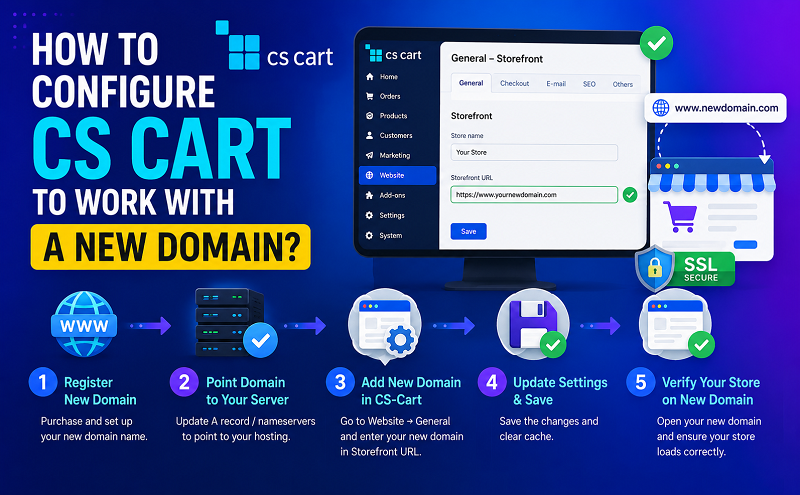
In order to configure CS-Cart to work properly with another domain, you should modify the config.local.php file located in the root of your CS-Cart installation. You can open and edit this file through cPanel -> File manager.
You should change the following line:
| 1 | $config[‘http_host’] = ‘olddomain.com’; |
to
| 1 | $config[‘http_host’] = ‘newdomain.com’; |
If you are using an SSL certificate for your website, you should also change this line:
| 1 | $config[‘https_host’] = ‘olddomain.com’; |
to
| 1 | $config[‘https_host’] = ‘newdomain.com’; |
If you have moved the CS-Cart installation to a different subfolder, the following lines from the same configuration file have to be changed as well:
| 1
2 |
$config[‘http_path’] = ‘/oldfolder’;
$config[‘https_path’] = ‘/oldfolder’; |
to
| 1
2 |
$config[‘http_path’] = ‘/newfolder’;
$config[‘https_path’] = ‘/newfolder’; |
If you experience any problems with the re-configuration you can always contact the SiteGround Support Team and they will be glad to assist you.
5. // Host and directory where cs-cart is installed on no-secure server6. $config[‘http_host’] = ‘www.your_domain.com’;7. $config[‘http_path’] = ‘/your_cscart_directory’;8. 9. // Host and directory where cs-cart is installed on secure server10. $config[‘https_host’] = ‘www.your_domain.com’;$config[‘https_path’] = ‘/your_cscart_directory’;
and replace your_cscart_directory with the name of the directory where you moved CS-Cart files.
# RewriteBase /subdirectory
and replace it with the following line:
RewriteBase /subdirectory
After that replace /subdirectory with the directory path to which you have moved CS-Cart files. For example, if your store URL washttp://www.your_domain.com/store, and you changed it to http://www.your_domain.com/new_collection/shop, the path will be/new_collection/shop .
NOTE: If you move your CS-Cart installation to the web root directory, the line of code above should look like this:
RewriteBase /
Behind the scenes, CS-Cart is a monolithic software that has all its files and folders inside a single web directory on your web server or hosting account (e.g.,/home/YourAccountID/example.com/public_html). Such an installation has example.com as the base store domain. The administration panel is available through thehttp://www.example.com/admin.php URL.
The storefronts, however, can be accessible through diverse URLs, including the base store domain, a subdirectory to the base domain, a sub-domain, or even a different domain. It is only required that the target URL is assigned to the web directory where CS-Cart is installed (/home/YourAccountID/example.com/public_html in the example).
The following table reviews the available options.
Base store domain
www.example.com
The base store domain is available as the default option. To use it as a storefront’s URL, simply type the domain name in the Storefront URL field on the store properties page.
Sub-directory
www.example.com/store
To make a storefront accessible through a sub-directory:
| 1. | Create the subdirectory in the web directory where CS-Cart is installed (e.g., /home/YourAccountID/example.com/public_html/store). This can be done via your server/hosting control panel or by using an FTP, SSH, etc. |
| 2. | In the new subdirectory, create .htaccess file with the following content: |
<IfModule mod_rewrite.c>
RewriteEngine on
RewriteRule ^(.*)$ ../$1 [L,QSA,E=DOCUMENT_ROOT:%{SCRIPT_FILENAME}]
</IfModule>
Sub-domain
store.example.com
To make a storefront accessible through a sub-domain, you need to configure domain aliasing for the sub-domain so that it is pointed to the web directory where CS-Cart is installed (e.g., /home/YourAccountID/example.com/public_html/store).
Because different hosting providers offer different tools to manage domain aliasing, please address your provider’s support resources for instructions.
Different domain
www.example.org
To make a storefront accessible through a different domain, you need to configure domain aliasing for that domain so that it is pointed to the web directory where CS-Cart is installed (e.g., /home/YourAccountID/example.com/public_html/store).
Because different hosting providers offer different tools to manage domain aliasing, please address your provider’s support resources for instructions.
https://www.siteground.com/kb/how_to_configure_cscart_to_work_with_a_new_domain/










