March 7, 2022 . 3 MIN READ
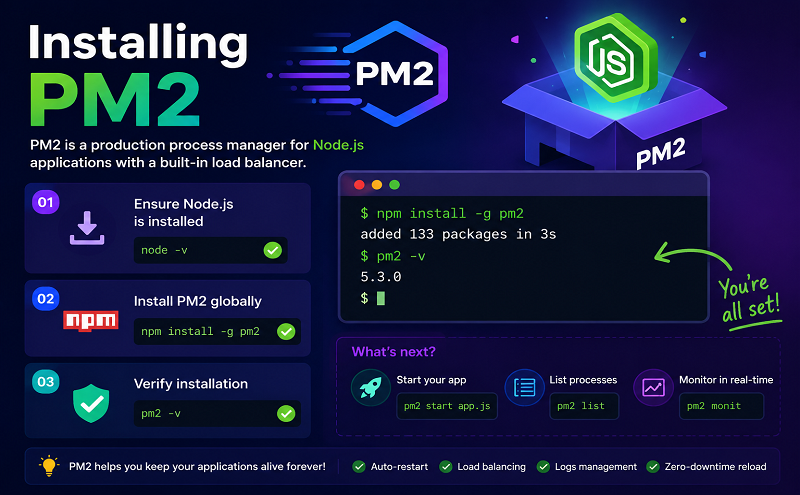
Next let’s install PM2, a process manager for Node.js applications. PM2 makes it possible to daemonize applications so that they will run in the background as a service.
Use npm to install the latest version of PM2 on your server:
· sudo npm install pm2@latest -g·
Copy
The -g option tells npm to install the module globally, so that it’s available system-wide.
Let’s first use the pm2 start command to run your application, hello.js, in the background:
· pm2 start hello.js·
Copy
This also adds your application to PM2’s process list, which is outputted every time you start an application:
Output…[PM2] Spawning PM2 daemon with pm2_home=/home/sammy/.pm2[PM2] PM2 Successfully daemonized[PM2] Starting /home/sammy/hello.js in fork_mode (1 instance)[PM2] Done.┌────┬────────────────────┬──────────┬──────┬───────────┬──────────┬──────────┐│ id │ name │ mode │ ↺ │ status │ cpu │ memory │├────┼────────────────────┼──────────┼──────┼───────────┼──────────┼──────────┤│ 0 │ hello │ fork │ 0 │ online │ 0% │ 25.2mb │└────┴────────────────────┴──────────┴──────┴───────────┴──────────┴──────────┘
As indicated above, PM2 automatically assigns an App name (based on the filename, without the .js extension) and a PM2 id. PM2 also maintains other information, such as the PID of the process, its current status, and memory usage.
Applications that are running under PM2 will be restarted automatically if the application crashes or is killed, but we can take an additional step to get the application to launch on system startup using the startup subcommand. This subcommand generates and configures a startup script to launch PM2 and its managed processes on server boots:
· pm2 startup systemd·
Copy
The last line of the resulting output will include a command to run with superuser privileges in order to set PM2 to start on boot:
Output[PM2] Init System found: systemdsammy[PM2] To setup the Startup Script, copy/paste the following command:sudo env PATH=$PATH:/usr/bin /usr/lib/node_modules/pm2/bin/pm2 startup systemd -u sammy –hp /home/sammy
Run the command from the output, with your username in place of sammy:
· sudo env PATH=$PATH:/usr/bin /usr/lib/node_modules/pm2/bin/pm2 startup systemd -u sammy –hp /home/sammy·
Copy
As an additional step, we can save the PM2 process list and corresponding environments:
· pm2 save·
Copy
You have now created a systemd unit that runs pm2 for your user on boot. This pm2 instance, in turn, runs hello.js.
Start the service with systemctl:
· sudo systemctl start pm2-sammy·
Copy
If at this point you encounter an error, you may need to reboot, which you can achieve with sudo reboot.
Check the status of the systemd unit:
· systemctl status pm2-sammy·
Copy
For a detailed overview of systemd, please review Systemd Essentials: Working with Services, Units, and the Journal.
In addition to those we have covered, PM2 provides many subcommands that allow you to manage or look up information about your applications.
Stop an application with this command (specify the PM2 App name or id):
· pm2 stop app_name_or_id·
Copy
Restart an application:
· pm2 restart app_name_or_id·
Copy
List the applications currently managed by PM2:
· pm2 list·
Copy
Get information about a specific application using its App name:
· pm2 info app_name·
Copy
The PM2 process monitor can be pulled up with the monit subcommand. This displays the application status, CPU, and memory usage:
· pm2 monit·
Copy
Note that running pm2 without any arguments will also display a help page with example usage.
Now that your Node.js application is running and managed by PM2, let’s set up the reverse proxy.
Reference: https://www.digitalocean.com/community/tutorials/how-to-set-up-a-node-js-application-for-production-on-ubuntu-20-04