If your Mac goes to sleep unexpectedly
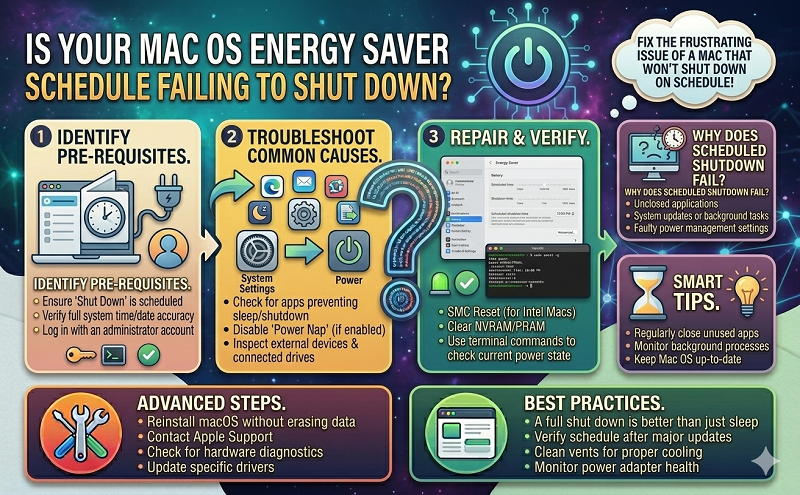
Make sure that Energy Saver is set up the way you want: choose Apple menu > System Preferences, then click Energy Saver. Adjust one or more of the following controls to affect when your Mac goes to sleep. Some of these controls aren’t available on your Mac model.
- “Turn display off after” slider
- “Display sleep” slider
- “Computer sleep” slider
If a slider is set to “Never,” sleep is disabled for that feature.
- Schedulebutton
Make sure that you aren’t putting your Mac to sleep accidentally:
- Pressing the power buttoncan put your Mac to sleep.
- Moving your mouse pointer to a hot corner can put your Mac to sleep, depending on your Mission Control settings. Choose Apple menu > System Preferences, then click Mission Control. Click the Hot Corners button, then see if any of the corners are set to “Put Display to Sleep.”
- Using magnets near your Mac notebookcan put your Mac to sleep.
https://discussions.apple.com/thread/4952524