July 14, 2021 . 6 MIN READ
https://www.linode.com/docs/networking/vpn/set-up-wireguard-vpn-on-ubuntu/
https://securityespresso.org/tutorials/2019/03/22/vpn-server-using-wireguard-on-ubuntu/
https://www.cyberciti.biz/faq/ubuntu-20-04-set-up-wireguard-vpn-server/
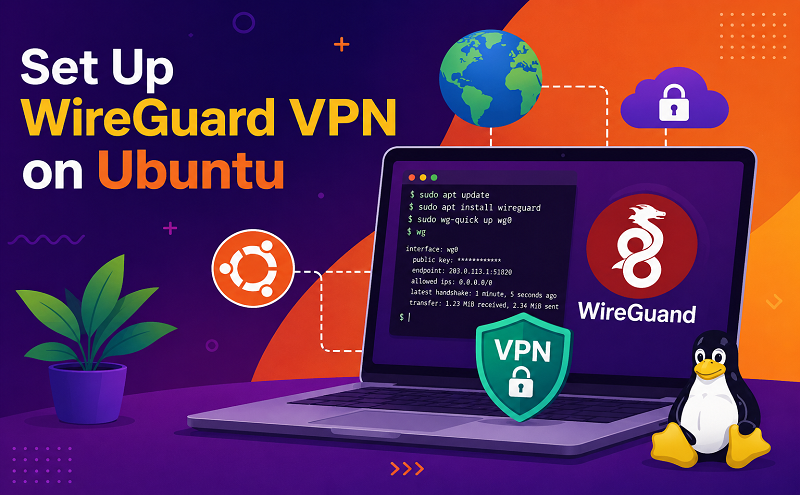
WireGuard is a simple, fast, and secure VPN that utilizes state-of-the-art cryptography. With a small source code footprint, it aims to be faster and leaner than other VPN protocols such as OpenVPN and IPSec. WireGuard is still under development, but even in its unoptimized state it is faster than the popular OpenVPN protocol.
The WireGuard configuration is as simple as setting up SSH. A connection is established by an exchange of public keys between server and client. Only a client that has its public key in its corresponding server configuration file is allowed to connect. WireGuard sets up standard network interfaces (such as wg0 and wg1), which behave much like the commonly found eth0 interface. This makes it possible to configure and manage WireGuard interfaces using standard tools such as ifconfig and ip.
This guide will configure a simple peer connection between a Linode running Ubuntu 18.04, and a client. The client can be either your local computer or another Linode.
Caution
Do not use WireGuard for critical applications. The project is still undergoing security testing and is likely to receive frequent critical updates in the future.
Note
The GRUB 2 kernel is required for this guide. All distributions for all new Linodes now boot with the GRUB 2 kernel by default. However, if you are running an older distribution, you will need to check to see which kernel you are running. You can use the Update Kernel Guide to check your kernel version and change it using the Cloud Manager. Select GRUB 2 from the Boot Settings: Select a Kernel dropdown menu in Step 4 of Update Your Linode Kernel with Linode’s Cloud Manager.
DKMS will then build the Wireguard kernel module. If successful, you’ll see the following output:
wireguard:Running module version sanity check. – Original module – No original module exists within this kernel – Installation – Installing to /lib/modules/4.15.0-43-generic/updates/dkms/ depmod………………. DKMS: install completed.Setting up wireguard (0.0.20181218-wg1~bionic) …Processing triggers for libc-bin (2.27-3ubuntu1) …
Note
If the installation completes but the output does not appear, your kernel is most likely not configured correctly. To double check, issue the lsmod | grep wireguard command. Its output should not be blank. Refer to the previous section to troubleshoot.
This will save both the private and public keys to your home directory; they can be viewed with cat privatekey and cat publickey respectively.
/etc/wireguard/wg0.conf
| 1234567 | [Interface]PrivateKey = <Private Key>Address = 10.0.0.1/24, fd86:ea04:1115::1/64ListenPort = 51820PostUp = iptables -A FORWARD -i wg0 -j ACCEPT; iptables -t nat -A POSTROUTING -o eth0 -j MASQUERADE; ip6tables -A FORWARD -i wg0 -j ACCEPT; ip6tables -t nat -A POSTROUTING -o eth0 -j MASQUERADEPostDown = iptables -D FORWARD -i wg0 -j ACCEPT; iptables -t nat -D POSTROUTING -o eth0 -j MASQUERADE; ip6tables -D FORWARD -i wg0 -j ACCEPT; ip6tables -t nat -D POSTROUTING -o eth0 -j MASQUERADESaveConfig = true |
Note
wg-quick is a convenient wrapper for many of the common functions in wg. You can turn off the wg0 interface with wg-quick down wg0
You should see a similar output:
user@ubuntu:~$ sudo wg showinterface: wg0 public key: vD2blmqeKsV0OU0GCsGk7NmVth/+FLhLD1xdMX5Yu0I= private key: (hidden) listening port: 51820
ifconfig wg0
Your output should resemble the following:
user@ubuntu:~$ ifconfig wg0wg0: flags=209 mtu 1420 inet 10.0.0.1 netmask 255.255.255.0 destination 10.0.0.1 inet6 fd86:ea04:1115::1 prefixlen 64 scopeid 0x0 unspec 00-00-00-00-00-00-00-00-00-00-00-00-00-00-00-00 txqueuelen 1000 (UNSPEC) RX packets 0 bytes 0 (0.0 B) RX errors 0 dropped 0 overruns 0 frame 0 TX packets 0 bytes 0 (0.0 B) TX errors 0 dropped 0 overruns 0 carrier 0 collisions 0
The process for setting up a client is similar to setting up the server. When using Ubuntu as your client’s operating system, the only difference between the client and the server is the contents of the configuration file. If your client uses Ubuntu, follow the steps provided in the above sections and in this section. For installation instructions on other operating systems, see the WireGuard docs.
/etc/wireguard/wg0.conf
| 123 | [Interface]PrivateKey = <Output of privatekey file that contains your private key>Address = 10.0.0.2/24, fd86:ea04:1115::5/64 |
There are two ways to add peer information to WireGuard; this guide will demonstrate both methods.
Note
Stop the interface with sudo wg-quick down wg0 on both the client and the server.
/etc/wireguard/wg0.conf
| 1234 | [Peer]PublicKey = <Server Public key>Endpoint = <Server Public IP>:51820AllowedIPs = 10.0.0.2/24, fd86:ea04:1115::5/64 |
Run the following command from the server. Replace the example IP addresses with those of the client:
sudo wg set wg0 peer <Client Public Key> endpoint <Client IP address>:51820 allowed-ips 203.0.113.12/24,fd86:ea04:1115::5/64
Regardless of which method you choose to add peer information to WireGuard, there should be a Peer section in the output of the sudo wg command if the setup was successful.
user@localhost:~$ sudo wginterface: wg0 public key: vD2blmqeKsV0OU0GCsGk7NmVth/+FLhLD1xdMX5Yu0I= private key: (hidden) listening port: 51820 peer: iMT0RTu77sDVrX4RbXUgUBjaOqVeLYuQhwDSU+UI3G4= endpoint: 10.0.0.2:51820 allowed ips: 10.0.0.2/24, fd86:ea04:1115::/64
This Peer section will be automatically added to wg0.conf when the service is restarted. If you would like to add this information immediately to the config file, you can run:
wg-quick save wg0
Additional clients can be added using the same procedure.
The last two lines of the output from running the wg command should be similar to:
latest handshake: 1 minute, 17 seconds ago transfer: 98.86 KiB received, 43.08 KiB sent
This indicates that you now have a private connection between the server and client. You can also ping the client from the server to verify that the connection works both ways.
The process used in this guide can be extended to configure network topologies. As mentioned previously, Wireguard is an evolving technology. If you use WireGuard, you should monitor the official documentation and todo list for critical updates and new/upcoming features.