
July 14, 2021 . 2 MIN READ
https://www.linode.com/docs/platform/disk-images/resizing-a-linode/
You can move your Linode from one plan to another by using the resize feature. To complete the resizing process, your Linode will be powered off and migrated to a different host in the same data center. Your data, configuration profiles, and IP addresses will be all be moved to the new host. Please note that the migration will take approximately 1 minute for every 3-5 gigabytes of data.
Note
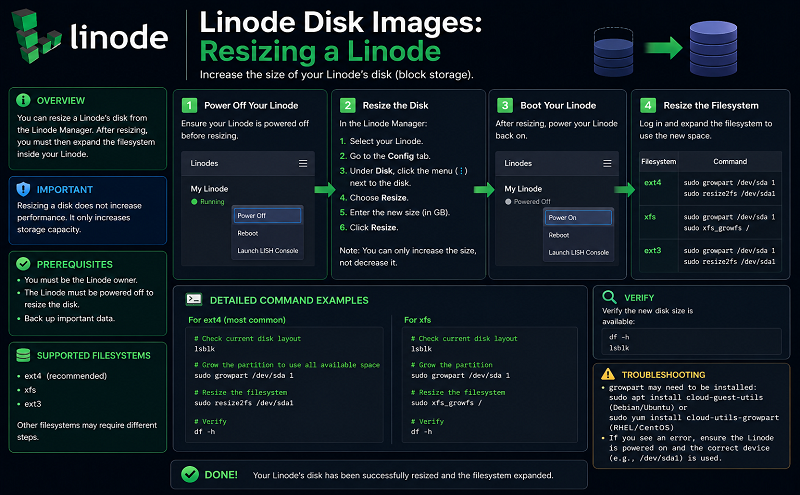
If you’re downgrading your plan, verify that your disks are using less space than the new plan provides. For more information, see our documentation on resizing a disk.
Here’s how to resize your Linode:
In your Dashboard, click the Edit button next to the disk you’d like to allocate the extra storage to. Enter a new size in the specified range and click Save Changes.
Your Linode has been successfully resized and migrated to the new host. This video goes through the resizing process in detail:
Find answers, ask questions, and help










