
July 14, 2021 . 3 MIN READ
https://stackoverflow.com/questions/3031412/how-to-export-a-mysql-database-using-command-prompt
Simply use the following command,
For Export:
mysqldump -u [user] -p [db_name] | gzip > [filename_to_compress.sql.gz]
For Import:
gunzip < [compressed_filename.sql.gz] | mysql -u [user] -p[password] [databasename]
Note: There is no space between the keyword ‘-p’ and your password.
you can use below command,
mysqldump –databases –user=root –password your_db_name > export_into_db.sql
For those who get an error like “Access denied when using LOCK TABLES”, you should add the “–single-transaction” parameter to the command. – Skyrpex Oct 19 ’15 at 10:32
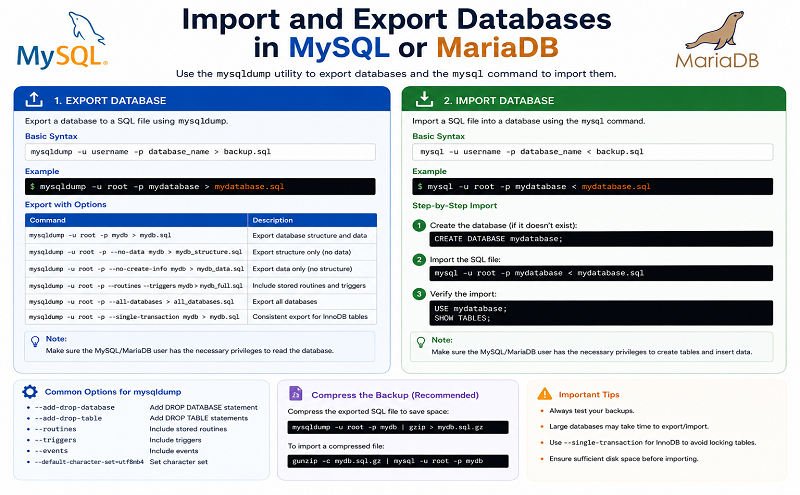
Being able to import and export your database is an important skill to have. You can use data dumps for backup and restoration purposes, allowing you to recover older copies of your database in case of an emergency. You can also use them to migrate data to a new server or development environment.
Working with database dumps in MySQL and MariaDB is fairly straightforward. This tutorial will cover how to export the database as well as import it from a dump file in MySQL and MariaDB.
To import and/or export a MySQL or MariaDB database, you will need:
The mysqldump console utility is used to export databases to SQL text files, making it relatively easy to transfer and move around. You will need the database name itself as well as the username and password to an account with privileges allowing at least full read only access to the database.
Export your database using the following command structure:
· mysqldump -u username -p database_name > data-dump.sql·
Copy
The command will produce no visual output, but you can inspect the contents of filename.sql to check if it’s a legitimate SQL dump file by running the following command:
· head -n 5 data-dump.sql·
Copy
The top of the file should look similar to this, showing that it’s a MySQL dump for a database named database_name.
SQL dump fragment– MySQL dump 10.13 Distrib 5.7.16, for Linux (x86_64)—- Host: localhost Database: database_name– ——————————————————– Server version 5.7.16-0ubuntu0.16.04.1
If any errors happen during the export process, mysqldump will print them clearly to the screen instead.
To import an existing dump file into MySQL or MariaDB, you will have to create the new database. This is where the contents of the dump file will be imported.
First, log in to the database as root or another user with sufficient privileges to create new databases:
· mysql -u root -p·
Copy
This will bring you into the MySQL shell prompt. Next, create a new database with the following command. In this example, the new database is called new_database:
· CREATE DATABASE new_database;·
Copy
You’ll see this output confirming that it was created.
OutputQuery OK, 1 row affected (0.00 sec)
Then exit the MySQL shell by pressing CTRL+D. From the normal command line, you can import the dump file with the following command:
· mysql -u username -p new_database < data-dump.sql·
Copy
If the command runs successfully, it won’t produce any output. If any errors occur during the process, mysql will print them to the terminal instead. You can check that the database was imported by logging in to the MySQL shell again and inspecting the data. This can be done by selecting the new database with USE new_database and then using SHOW TABLES; or a similar command to look at some of the data.
You now know how to create database dumps from MySQL databases as well as how to import them again. mysqldump has multiple additional settings that may be used to alter how the dumps are created, which you can learn more about from the official mysqldump documentation page.










