
July 14, 2021 . 5 MIN READ
https://www.liquidweb.com/kb/how-to-setup-a-python-virtual-environment-on-windows-10/
A Virtual Environment or a “venv” is a Python module that creates a unique environment for each task or project. It installs the packages we need that are unique to that setting while keeping your projects neatly organized. Additionally, venv never actually modifies the system’s default Python versions or modules that are installed on the system. Using venv essentially allows for a unique working environment while avoiding any disruptions to other variants of Python that are used, but not related to our project.
We recommend enabling the Windows Subsystem for Linux (WSL) in order to take full advantage of all the functionality of venv on Windows 10. This allows you to run a full Linux distribution within Windows to aid in the functionality of the new dev environment.

There are multiple Linux distros that work with WSL. You can locate and install them from the Microsoft Store. We recommend starting off with a Ubuntu 18.04 LTS distribution as it’s up to date, has an excellent support community, and is well documented.
sudo apt update && sudo apt upgradeAs a side note, Windows does not handle upgrades for this OS so you will need to ensure Ubuntu stays up to date by running the update and upgrade commands manually.
If for some reason the Microsoft store app is unavailable to you, you can manually download and install a Linux distribution by clicking on one of these links:
You can then install your distro using PowerShell. To install one of those distros, navigate to the folder which contains the newly downloaded Linux distributions. Once in that folder, run the following command in PowerShell (where app_name.aspx is the name of the distribution file):
Add-AppxPackage .\app_name.appxNext, we’ll add the path to the distro into your Windows environment PATH using Powershell (eg. C:\Users\Admin\Ubuntu)
$userenv = [System.Environment]::GetEnvironmentVariable("Path", "User")

[System.Environment]::SetEnvironmentVariable("PATH", $userenv + ";C:\Users\Admin\Ubuntu", "User")
Now, we can start the distro by typing in uubuntu.exe. Next, we should initialize the new instance.
To finish the initialization of your newly installed distro, we will need to launch a new instance. You can accomplish this by clicking on the “launch” button in the Microsoft app store, or by launching the distro’s .exe file from the Start menu. Additionally, if using a Windows Server, you can start the distro’s launcher’s executable file (Ubuntu.exe) from the distro’s installation folder.
During the last stage of the installation, the distro’s files will be decompressed and stored locally on your PC. This process may take a few minutes but is only required once. Later initializations should take less than a second.
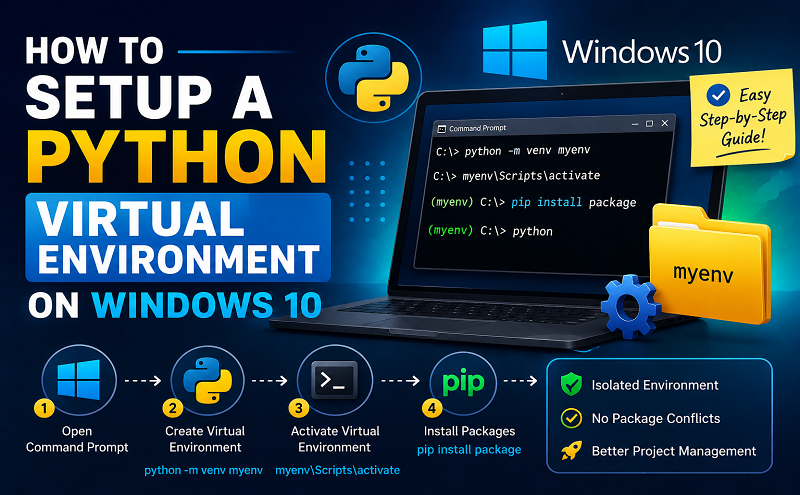
There are four basic steps to install a virtual environment on windows:
Python 3.8.0 is the latest major release of Python.
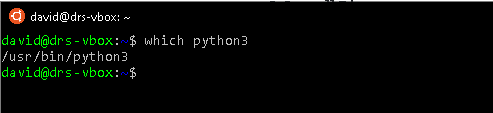
We suggest following the directions located here in our knowledge base article regarding installing PIP on Windows. Python3 usually comes with pip preinstalled, however, if you get the error “pip command not found,” simply use the following method to install pip.
curl https://bootstrap.pypa.io/get-pip.py -o get-pip.pypython3 get-pip.pycd Desktop
Python get-pip.pyIn your Windows command shell prompt type in:
pip install virtualenvIn your windows command prompt, head to your project location:
cd my_projectOnce inside the project folder run:
virtualenv envOn Windows, virtualenv (venv) creates a batch file called
\env\Scripts\activate.batTo activate virtualenv on Windows, and activate the script is in the Scripts folder :
\pathto\env\Scripts\activateExample:
C:\Users\'Username'\venv\Scripts\activate.batThere are two main methods we recommend to install this batch script.
pip install virtualenvwrapper-wingit clone git://github.com/davidmarble/virtualenvwrapper-win.gitWe then cd to the virtualenvwrapper-win folder and run:
python setup.py install And that’s it! Python’s venv is set up and ready to use.










