July 8, 2021 . 3 MIN READ
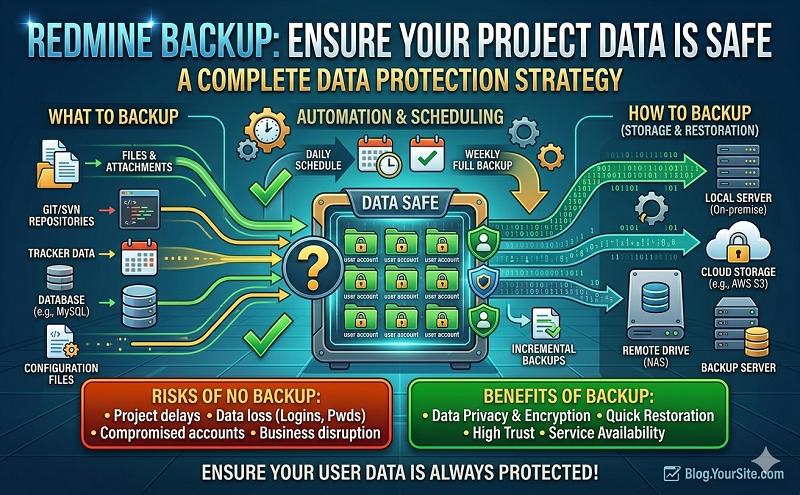
In my day-job I recently provisioned an Ubuntu server running Redmine. I needed a way to backup the application, configuration files, user uploaded files and it’s MySQL database to a windows share. I did a bit of Googling, but I couldn’t find anything that would do this, so I made a script myself.
This can also be used to backup a regular website or pretty much anything.
Start by creating a file with a .sh extension on the server (eg. backup-script.sh) and add the code below.
#!/bin/sh

# ==============================================================
# ENTER THE REQUESTED DETAILS BELOW
# ==============================================================
# ==== DATABASE DETIALS ====
DB_USERNAME='username'
DB_PASSWORD='password'
DB_NAME='database_name'

# ==== BACKUP SHARE DETAILS ====
SH_USERNAME='username'
SH_PASSWORD='password'

# ==== PATHS ====
# Path to the Application folder (and it's sub-folders) to be backed up
APP_ROOT='/path/to/app'
APP_CONFIG='/etc/redmine'

# Path to remote backup share
BACKUP_SHARE='//server/share'

# Path to backup location on the share to put the completed backup archive
BACKUP_DESTINATION='/mnt/backupnas/Backups'

# ==============================================================
# DO NOT CHANGE ANYTHING BELOW THIS LINE (UNLESS YOU'RE SURE!)
# ==============================================================
# ==== FIXED VARIABLES ====
# Path to Backup folder (must be created first)
SCRATCH='Backups/Scratch'

# Path to Backup folder (must be created first)
COMPLETED='Backups/Completed'

# Path to share mount point (must be created first)
BACKUP_MOUNT_POINT='/mnt/backupnas'

# Final name for backup archive
BACKUP_FILENAME=`date +Backup_%Y-%m-%d_%H%M.tar.gz`

# ==== SETUP ====
# Create scratch directories
echo 'Setting up directories...'
mkdir -p Backups/Scratch
mkdir -p Backups/Completed
mkdir -p $SCRATCH/Database
mkdir -p $SCRATCH/Files
mkdir -p $SCRATCH/Config

# ==== BACKUP PROCESS ====
# Export and compress the database
echo 'Backing up database...'
/usr/bin/mysqldump -u $DB_USERNAME --password=$DB_PASSWORD $DB_NAME | gzip
> $SCRATCH/Database/`date +database_%Y-%m-%d_%H%M.gz`

# Export the App files for backup
echo 'Backing up application files...'
rsync -a $APP_ROOT $SCRATCH/Files
rsync -a $APP_CONFIG $SCRATCH/Config
echo 'Packing into single archive...'
tar -lczPf $COMPLETED/$BACKUP_FILENAME $SCRATCH
echo 'Archive creation complete...'

# ==== BACKUP ARCHIVE TRANSFER ====
echo 'Mounting the backup share...'
mount -t cifs -o username=$SH_USERNAME,password=$SH_PASSWORD $BACKUP_SHARE
$BACKUP_MOUNT_POINT
echo 'Moving the backup archive...'
mv $COMPLETED/* $BACKUP_DESTINATION 2> /dev/null
sleep 3
echo 'Unmounting the backup share...'
umount $BACKUP_MOUNT_POINT
sleep 1

# ==== CLEANING UP ====
# Remove temporary files
echo 'Cleaning up archive...'
rm -rf $SCRATCH/Database
rm -rf $SCRATCH/Files
rm -rf $SCRATCH/Config
echo 'Backup Complete!’
Fill in the blanks in the first section of the script with the required values (usernames, passwords and paths).
When you’ve filled it out, run the script manually to make sure everything works. If you are on an ubuntu server it can be run with the following command:
sudo sh backup-script.sh
Once you’ve got it configured and working, it can be set to run daily. To do so run:
chmod +x backup-script.sh
crontab -e
The crontab file will open. Add the line (replacing FULL_PATH_TO_SCRIPT with the path. eg. /home/admin/backup-script.sh):
@daily FULL_PATH_TO_SCRIPT > /dev/null
That’s it. Enjoy!
http://www.achawkins.com/blog/how-to-backup-redmine-or-any-linux-webserver-to-a-windows-share/